Jobber: The Complete Guide to Jobber Field Service Software (2026)
By Daniel Wilson, Field Service Operations & Technology Expert, 14+ years in FSM, ERP, and digital transformation
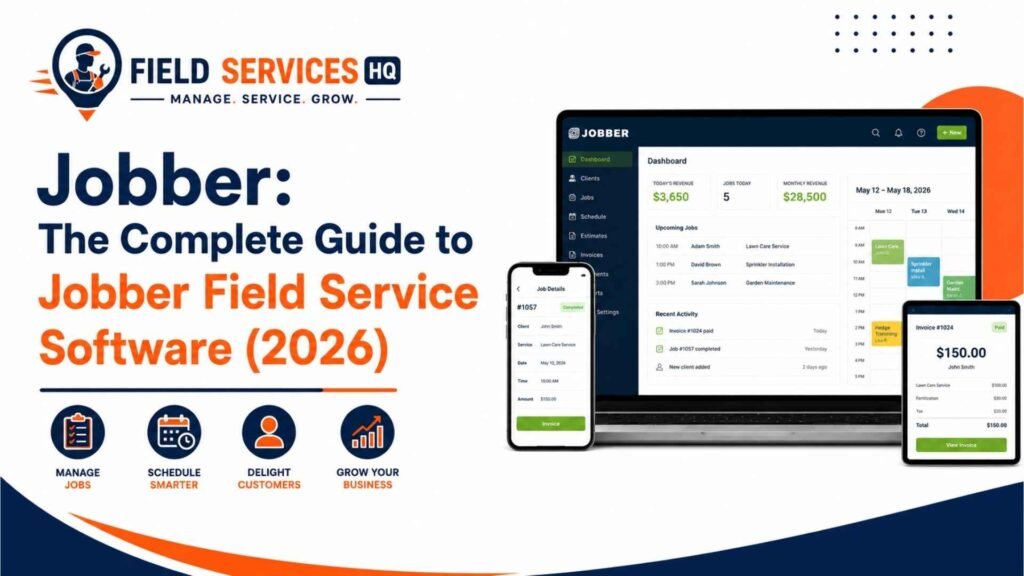
If you run a field service business in the U.S. or Canada and you’ve spent any time looking at software, you’ve run into Jobber. It’s one of the first names that comes up for HVAC techs, plumbers, electricians, landscapers, cleaners, and handyman pros, and for good reason. It’s also one of the more misunderstood platforms out there, mostly because pricing pages change often and a lot of the “reviews” you’ll find are either thin marketing copy or a pitch for a competing tool in disguise.
This page is the hub for everything we cover on Jobber at Field Services HQ. Think of it as the starting point: a straight answer on what Jobber does, who it’s actually built for, what it costs today, and where to go next if you want the deeper detail on a specific feature, industry, or integration. In my experience evaluating FSM platforms for service businesses, the businesses that get the most out of Jobber are the ones who go in with a clear picture of what it’s good at, and what it isn’t.
Jobber is cloud-based field service management software for small and mid-sized home service businesses. It handles scheduling, dispatching, quoting, invoicing, online payments, client communication, and reporting in one platform. Plans start at $29/month for a solo operator (annual billing) and scale up to team plans for larger crews. It’s used by more than 250,000 service professionals across HVAC, plumbing, electrical, landscaping, cleaning, and 50+ other trades.
Key Takeaways
- Jobber is built for small-to-midsize home service teams: roughly 1 to 15 users is the sweet spot, and larger operations often outgrow it.
- Pricing runs from $29/month (Core, solo, annual) up to $699/month (Plus, 15 users) as of August 2026, plus per-user add-on fees and payment processing costs. See our complete Jobber pricing breakdown for the full math.
- Core strengths are ease of use, a polished mobile app, and the Client Hub, a self-serve portal where customers approve quotes and pay invoices online.
- Common limitations show up around $2–3 million in revenue or 20+ trucks, where inventory depth and complex job costing start to feel thin compared to enterprise platforms.
- Jobber integrates natively with QuickBooks Online, Xero, and Mailchimp, and connects to thousands more tools through Zapier and its app marketplace.
- A 14-day free trial gives full access to Grow-plan features with no credit card required.
What Is Jobber?
Jobber is a field service management platform built for businesses that send technicians, crews, or solo operators out to customer properties. It was founded in 2011 in Edmonton, Alberta by Sam Pillar and Forrest Zeisler, who built the first version for a local painting company that was drowning in carbon-copy invoices and sticky notes. That origin story matters, because it explains why Jobber still feels designed for the field first rather than for a back-office finance team: the mobile experience and the customer-facing side (quotes, booking, payment) get as much attention as the admin dashboard.
Today Jobber is used by more than 250,000 home service professionals across 50+ industries in over 60 countries, according to the company’s own reporting. It’s privately held, headquartered in Edmonton, and has raised significant venture funding to build out AI features, payment tools, and its marketplace of integrations. From an implementation perspective, what that scale buys you is stability. Jobber isn’t going anywhere, and its support and help-center documentation are genuinely thorough compared to smaller competitors.
At its core, Jobber replaces four or five separate tools (a paper calendar, a quoting template, a separate invoicing app, a spreadsheet for client info, and a stack of text threads) with one system that follows a job from first request to final payment.
Who Jobber Is Actually Built For
I get asked some version of “should I just get Jobber?” constantly, and the honest answer depends entirely on your size and complexity.
Jobber is a strong fit if:
- You’re a solo operator or run a team of roughly 1–15 people
- You want scheduling, quoting, invoicing, and payments in one place without a long implementation
- Your work is primarily residential or light commercial service, not complex multi-phase construction projects
- You value a clean mobile experience your techs will actually use
- You want customers to be able to approve quotes and pay online without phone tag
Jobber is probably not the right fit if:
- You’re running 20+ trucks or pushing past roughly $3M in annual revenue with complex crew and job-costing needs: at that point, platforms built for enterprise operations tend to have deeper inventory and multi-location controls
- You need heavy construction-style progress billing with detailed takeoffs
- You require a fully custom, on-premise deployment
- Your work is dominated by complex asset and equipment tracking across large commercial sites
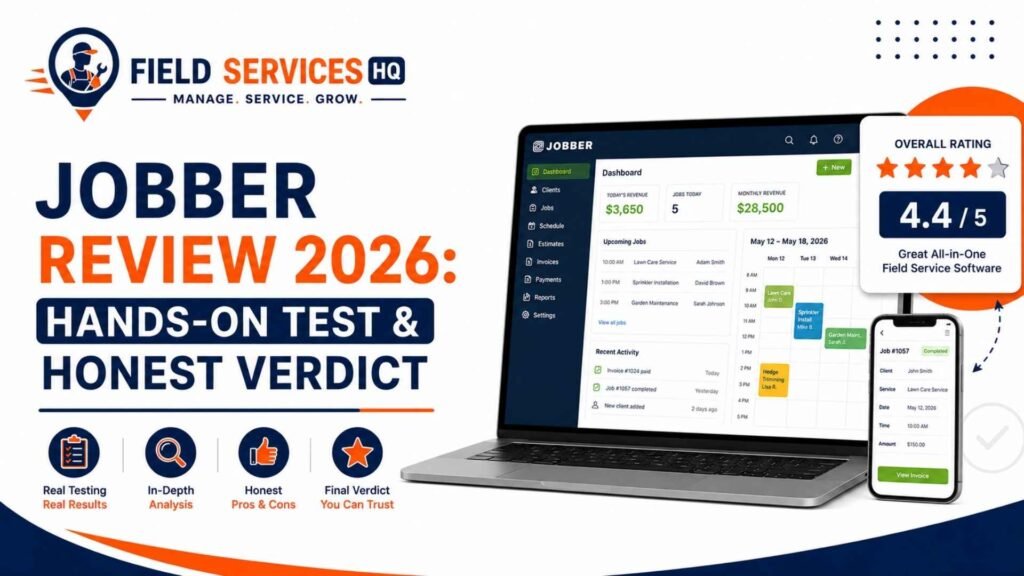
This isn’t a knock on Jobber. Every platform is built for a segment, and trying to stretch software past its intended size class is one of the most common (and expensive) mistakes I see service businesses make. For a side-by-side on how Jobber stacks up against the platforms that pick up where it leaves off, our Jobber alternatives comparison walks through the handoff points in detail, and our in-depth Jobber review covers the hands-on testing behind these calls.
Industries Jobber Serves
Jobber markets itself broadly across home services, but the way it’s used, and how well it fits, varies by trade. Here’s the practical breakdown across the industries we cover most at Field Services HQ.
Jobber for HVAC
HVAC businesses use Jobber to manage service calls, dispatch based on tech skill and location, and keep maintenance agreements on a recurring schedule. Where it earns its keep is equipment history: techs can pull up what was installed, when, and what was serviced last visit, right from the job site. It handles seasonal maintenance agreement billing reasonably well through recurring jobs, though HVAC shops doing heavy commercial rooftop-unit work sometimes want more granular asset tracking than Jobber offers natively. See the full breakdown on our Jobber for HVAC contractors page.
Jobber for Plumbing
Plumbing businesses lean on Jobber heavily for same-day dispatch: when an emergency call comes in, you need to see who’s closest and free, not who’s next on a whiteboard. The quoting tool lets plumbers build tiered estimates (good/better/best) on water heater or fixture replacement jobs right from the customer’s kitchen. Details on setup and workflow live on our Jobber for plumbing businesses page.
Jobber for Electrical
Electrical contractors use Jobber for both service calls and installation-style jobs like panel upgrades, where a quote needs to reflect permit costs, materials, and labor separately. The photo and checklist tools are useful for documenting pre- and post-work conditions, which matters for inspection-adjacent work. Read more on our Jobber for electrical contractors page.
Jobber for Landscaping
Landscaping and lawn care companies are some of Jobber’s heaviest users, largely because of route optimization and recurring-visit scheduling. A maintenance crew hitting 40 properties a week needs a system that sequences stops automatically, not a static calendar. Seasonal contract billing and crew scheduling both run smoothly here. Full detail on our Jobber for landscaping companies page.
Jobber for Cleaning
Cleaning businesses, especially recurring residential and light commercial accounts, use Jobber to automate the entire visit cycle: reminders before the appointment, “on my way” texts, and automatic invoicing after each clean. Because so much cleaning revenue is repeat business, the automation and Client Hub features do a lot of the retention work on their own. More on our Jobber for cleaning businesses page.
Jobber for Handyman
Handyman pros tend to be solo or very small teams juggling a wide variety of job types in a single day, and Jobber’s quoting and invoicing speed is the main draw. Building and sending a professional quote from a driveway takes a couple of minutes. For a solo handyman business, the Core plan usually covers what’s needed without paying for team features you won’t use. See our Jobber for handyman pros page for setup specifics.
Core Jobber Features
Every plan is built around six functional areas. Here’s what each one actually does, with links to the full breakdown of each if you want the deeper dive.
Scheduling & Dispatch
Jobber’s scheduling board is a drag-and-drop calendar that shows your whole team’s day, with routing tools that optimize stop order and a “Find a Time” feature that recommends open slots based on crew location and travel time. GPS tracking (through Jobber or a connected fleet partner) lets office staff see where trucks actually are versus where the schedule says they should be. Full detail on Jobber’s scheduling and dispatch tools.
Client Management (CRM)
The client manager keeps contact details, property information, job history, and notes in one record, accessible from the office or the field. Every quote, job, invoice, and conversation tied to a client rolls up into a single view, which cuts down on the “let me check the file” delay during a phone call. Read more on Jobber’s client management (CRM) features.
Quoting
Quotes can be built with line items, optional add-ons and markups, and (on higher plans) photos and customer reviews embedded directly in the quote. Customers approve online through the Client Hub with a signature, and automated follow-ups nudge quotes that go quiet. Details on how Jobber quoting works.
Invoicing & Payments
Invoices generate from completed jobs or quotes, support progress billing for multi-stage work, and accept online payment by credit card, Tap to Pay through the mobile app, or ACH bank transfer. Automated invoice follow-ups chase down unpaid balances without a phone call from your office. See Jobber invoicing and payments for the full walkthrough, including current processing rates.
Automations
From Connect plan up, Jobber automates appointment reminders, “on my way” texts, quote and invoice follow-ups, and (on Grow and Plus) custom workflow automations you build yourself around your own quoting and invoicing process. This is where a lot of the “hours saved per week” claims you’ll see in marketing actually come from, and it’s genuinely one of the stronger parts of the platform. More on Jobber’s automation features.
Reporting & Insights
The insights dashboard surfaces financial, client, work, expense, and team productivity reports, plus salesperson performance tracking and custom fields for filtering data your own way. It’s solid for a small business owner who wants a Monday-morning read on the numbers, though it’s not built for deep multi-location financial modeling. Full breakdown on Jobber’s reporting and insights tools.
Jobber Pricing in 2026
Jobber’s published pricing changed noticeably over the past year, and a lot of third-party sites you’ll find are quoting stale numbers. Here’s what’s actually on Jobber’s pricing page as of August 2026, based on annual prepaid billing (the lowest published rate) for a single-user plan:
| Plan | Starting Price (1 user, annual) | Built For |
|---|---|---|
| Core | $29/mo | Solo pros who need quoting, scheduling, invoicing, and online payments |
| Connect | $99/mo | Pros who want automated reminders, QuickBooks Online sync, and two-way texting |
| Grow | $149/mo | Businesses that want job costing, custom automations, and richer quotes |
| Plus | From $399/mo (5 users) | Teams that need Pipeline, Marketing Suite, and AI Receptionist bundled in |
A few things worth knowing before you pick a plan:
- Team plans add users in blocks (5, 10, or 15), and every user beyond your plan’s included count costs an extra $29/month.
- Payment processing is separate from your subscription: 2.9% + $0.30 per credit card transaction, 2.7% + $0.30 for Tap to Pay, and roughly 1% for ACH bank payments, with an added 1% if you want instant payouts instead of standard deposit timing.
- Add-ons cost extra on Core, Connect, and Grow: Marketing Suite runs $99/month, the AI Receptionist is $29/month, and Pipeline (sales tracking) is $49/month. All three come bundled into Plus.
- The free trial gives you full Grow-plan access for 14 days, no credit card required, which is the best way to test job costing and automation before committing.
Because per-user and add-on costs change the real monthly bill quite a bit from the sticker price, we’ve built a full cost calculator and plan-by-plan breakdown (including what a 5-, 10-, and 15-person team actually pays once processing fees are factored in) on our complete Jobber pricing breakdown.
Jobber Mobile App
The mobile app (iOS and Android, with Spanish-language support for field team members) is where Jobber earns most of its user-satisfaction scores, and it’s genuinely one of the better field-facing apps in this category. Techs can view their schedule, get turn-by-turn directions to the next job, clock in and out with automatic geofenced time tracking, complete checklists, attach photos, and collect payment on the spot with Tap to Pay, with no card reader hardware required.
One practical note from testing: give your team a short onboarding session focused only on the mobile app before go-live. Office staff usually pick up the desktop dashboard quickly, but field techs who’ve never used a scheduling app benefit from five minutes of hands-on walkthrough rather than being handed a login and a help article. Our Jobber mobile app walkthrough covers every screen your field team will actually use.
Getting Started With Jobber
Jobber’s onboarding is built to get a solo operator scheduling jobs the same day, and even team accounts are usually live within a week. The general sequence is: import your client list, set up your services and pricing, connect your payment processing, build your first quote or invoice template, and (if you’re on Connect or above) turn on automated reminders.
Where I’ve seen setups go sideways isn’t the software; it’s skipping the planning step before importing data. Clean up your client list and standardize your service names before you bring them into Jobber, because migrating messy data in usually means cleaning it up twice. For a full checklist covering data import, template setup, and the first-week workflow, see our step-by-step Jobber setup guide.
Switching to Jobber From Another Platform
Migrating from a spreadsheet, a legacy scheduling tool, or a competitor like Housecall Pro or ServiceTitan is one of the more common reasons businesses land on this page. Jobber offers a Data Import service (a $499 value, included on some plans) to help move client records, and white-glove onboarding is bundled into Grow and Plus.
The switching process generally goes smoother when you run both systems in parallel for a short window rather than cutting over cold. Schedule a couple of weeks where new jobs go into Jobber while you finish out existing work in the old system. Our guide to switching to Jobber covers migration steps by source platform, including what data typically doesn’t transfer cleanly and needs a manual check.
Jobber Integrations
Jobber connects to your existing tools instead of trying to replace everything in your business, which matters if you already have an accounting system or marketing stack you don’t want to abandon.
QuickBooks & Xero
Jobber syncs natively with QuickBooks Online and Xero, keeping invoices, payments, and client records aligned with your books without double entry. This is one of the most-used integrations on the platform and is available starting on the Connect plan. Full setup steps live on our Jobber’s QuickBooks integration page.
Zapier
Through Zapier, Jobber connects to thousands of additional apps (Gmail, Google Sheets, Slack, HubSpot, SurveyMonkey, and more) letting you build no-code automations like adding a new Jobber client automatically when someone fills out a lead form. Zapier access is included on Connect and Grow plans. Details on connecting Jobber to Zapier.
Stripe
While Jobber’s built-in payment processing handles most credit card, ACH, and Tap to Pay transactions directly, some businesses connect Stripe through Jobber’s app marketplace or Zapier for specific workflows, like online store checkouts or subscription billing that sits outside standard job invoicing. We break down when that setup makes sense on our Jobber and Stripe page.
Mailchimp
Jobber syncs client and lead data with Mailchimp so email marketing lists stay current without manual exports, which matters for cleaning, landscaping, and pest control businesses running seasonal promotions. See syncing Jobber with Mailchimp for setup.
Google Calendar
Through a Zapier connection, Jobber jobs can sync to Google Calendar in either direction, which is useful for owners who want their field schedule visible alongside personal or office meetings without logging into Jobber separately. Full walkthrough on Jobber and Google Calendar.
Jobber also has a broader app marketplace with 100+ additional connections, including Home Depot for live materials pricing and Gusto for payroll and timesheet syncing.
Jobber vs. Alternatives
Jobber isn’t the only option, and it isn’t the right option for every business. Here’s how it generally compares to the three platforms we see it cross-shopped against most:
| Platform | Starting Price | Best For |
|---|---|---|
| Jobber | $29–$699/mo | Small-to-midsize home service teams (1–15 users) wanting an all-in-one, easy-to-learn platform |
| Housecall Pro | ~$49–$349/mo | Very small, mobile-first shops that want the simplest possible setup |
| ServiceTitan | ~$300–500+/tech/mo, plus setup fees | Large commercial operations (20+ techs) needing enterprise-grade reporting and call tracking |
| Workiz | Free (2 users) to ~$225+/mo | Call-driven trades like locksmiths, garage door, and appliance repair |
Pricing across all four platforms shifts often and varies by team size, billing term, and region, so treat this as a starting point rather than a final number; always confirm current pricing directly with the vendor before deciding. For the full head-to-head on features, migration effort, and where each platform genuinely wins, see our Jobber alternatives comparison and our in-depth Jobber review, which covers hands-on testing notes from Ray Delgado and Marcus Hale across HVAC, plumbing, and electrical workflows.
Jobber Pros and Cons
What Jobber Does Well
- Fast to learn: most teams are scheduling jobs within days, not weeks
- Client Hub gives customers a self-serve portal for quotes and payment
- Mobile app is genuinely well-built for field techs
- Strong native accounting sync with QuickBooks Online and Xero
- Transparent, published pricing, no “call for a quote” requirement
- Active community and thorough help documentation
Where It Falls Short
- Per-user pricing adds up quickly for growing teams
- Inventory and multi-location controls are thin compared to enterprise platforms
- Several useful features (Marketing Suite, Receptionist, Pipeline) cost extra outside Plus
- Not built for complex, multi-phase construction billing
- Payment processing fees stack on top of the subscription cost
Common Mistakes When Adopting Jobber
- Importing messy client data without cleaning it up first. Duplicate or inconsistent records follow you into the new system and compound over time.
- Skipping mobile app training for field techs. The office side is intuitive; the field side benefits from a short live walkthrough.
- Choosing a plan based on price alone. Businesses that need job costing or automation often start on Core, hit the ceiling in month two, and upgrade anyway, costing more in switching effort than starting on the right plan.
- Not turning on automated reminders and follow-ups. These are included from Connect up and are one of the highest-ROI features on the platform, yet plenty of accounts never activate them.
- Treating the Client Hub as optional. Businesses that push customers toward online quote approval and payment collect faster and generate fewer “did you get my check” phone calls.
Best Practices for Getting the Most Out of Jobber
- Standardize your service and job-type names before importing data, so reporting stays clean from day one.
- Build quote and invoice templates once, properly, rather than editing from scratch on every job.
- Turn on two-way texting and automated reminders immediately; the return on setup time is almost always positive within the first month.
- Review your Insights dashboard weekly, not just at tax time, so pricing and job-costing issues surface early.
- Reassess your plan every 6–12 months as your team grows; the right plan at 3 users often isn’t the right plan at 8.
Is Jobber Worth It? A Decision Framework
From an implementation perspective, I look at three questions when someone asks whether Jobber is worth it for their business: How many people need access? How complex is your quoting and job costing? And how much of your current admin time is genuinely eaten up by scheduling, quoting, and invoicing by hand? If you’re a solo operator or small team spending real hours each week on paperwork, Jobber’s Core or Connect plan typically pays for itself in time saved alone. If you’re already running 15+ trucks with complex commercial contracts, it’s worth comparing against platforms built for that scale before committing. Our Jobber alternatives comparison is the right next stop either way.
Frequently Asked Questions
What is Jobber used for?
Jobber is field service management software used to schedule jobs, dispatch technicians, send quotes and invoices, collect online payments, and manage client information for home service businesses. It’s built for trades like HVAC, plumbing, electrical, landscaping, and cleaning, and it replaces separate scheduling, invoicing, and CRM tools with one connected platform.
How much does Jobber cost per month?
Jobber’s plans start at $29/month for a solo operator on the Core plan (annual billing), scaling up to $699/month for the 15-user Plus plan. Team plans add users in blocks of 5, 10, or 15, and extra users beyond your plan’s cap cost $29/month each. Payment processing fees and optional add-ons like Marketing Suite are billed separately from the subscription.
Is Jobber good for small businesses?
Yes. Jobber is specifically built for small and mid-sized home service businesses, generally in the 1-to-15-user range. Its short learning curve, transparent pricing, and mobile-first design make it accessible for solo operators and small teams without dedicated IT support, though very large operations often outgrow its inventory and multi-location tools.
Does Jobber have a free trial?
Yes, Jobber offers a 14-day free trial with full access to Grow-plan features and no credit card required. This gives you enough time to test scheduling, quoting, invoicing, and automation features before choosing a paid plan.
What industries does Jobber work best for?
Jobber works best for HVAC, plumbing, electrical, landscaping, lawn care, cleaning, pest control, painting, and handyman businesses: trades where jobs happen on-site at a customer’s property and involve quoting, scheduling, and invoicing as a repeatable cycle. It’s less suited to large commercial construction with complex multi-phase billing.
Does Jobber integrate with QuickBooks?
Yes, Jobber syncs natively with QuickBooks Online and Xero starting on the Connect plan, automatically aligning invoices, payments, and client records with your accounting software so you don’t have to enter data twice.
Can Jobber replace my CRM?
For most small home service businesses, yes. Jobber’s built-in client manager tracks contact details, property information, job history, and communication in one record, which covers what most trades need from a CRM. Businesses with complex, multi-touch B2B sales pipelines may still want a dedicated CRM alongside it.
Is Jobber’s mobile app good for field technicians?
Yes, Jobber’s mobile app is widely considered one of the stronger field-facing apps in the FSM category, with schedule views, turn-by-turn directions, geofenced time tracking, job checklists, photo uploads, and Tap to Pay for on-the-spot payment collection, available on both iOS and Android.
How long does it take to set up Jobber?
A solo operator can typically start scheduling jobs in Jobber the same day they sign up. Team accounts with data migration, template setup, and staff training usually take about a week to be fully operational, and white-glove onboarding support is included on Grow and Plus plans.
What are the main alternatives to Jobber?
The most commonly compared alternatives are Housecall Pro (simpler, mobile-first, similar small-business focus), ServiceTitan (enterprise-grade, built for larger commercial operations), and Workiz (strong for call-driven trades like locksmiths and appliance repair). The right alternative depends mainly on team size and how complex your job costing and dispatching needs are.
Final Thoughts
Jobber has earned its reputation in the home service software space by staying focused on a specific type of business: small and growing teams that need scheduling, quoting, invoicing, and payments working together without a steep learning curve. It’s not the right tool for every service business, particularly once you’re running a large fleet or complex commercial contracts, but for the segment it’s built for, it’s one of the more polished, well-supported platforms available in 2026.
If you’re still deciding, the fastest path is usually to run the 14-day free trial against your actual current workflow. One real week of quotes, jobs, and invoices tells you more than any comparison table, including this one.
For the deeper dives referenced throughout this page (pricing math, mobile app details, industry-specific workflows, and integration setup guides), use the links above, or start with our full Jobber review for the complete hands-on testing breakdown from our team.
This page is reviewed and updated quarterly as Jobber’s pricing and features change. Field Services HQ is an independent resource and may earn a referral commission if you sign up through links on this site, at no additional cost to you. Our testing and recommendations are not influenced by affiliate relationships.