Best Forms & Checklists Software for Field Service Teams (2026)

Quick Answer
Best For
- GoCanvas is best suited for field service teams that need custom forms and approval workflows.
- FastField is best suited for teams that need custom mobile forms and automated reports, especially Quickbase users.
- SafetyCulture is best suited for crews that run inspection checklists and need to track corrective actions.
- Jobber is best suited for home-service teams that want checklists attached to jobs.
- TrueContext is best suited for larger service organizations with complex field workflows and enterprise integrations.
- Connecteam is best suited for crew-based teams that need checklists and proof-of-work forms.
- Fulcrum is best suited for teams that run GPS-based inspections across distributed field assets.
How We Evaluated the Software
We tested each tool as an audience and then research public information twice to maintain accuracy before writing it. Here is what we checked :
- Digital form creation and customization
- Reusable checklist templates
- Mobile completion
- Offline access and sync
- Conditional logic and required fields
- Photos, notes, and signatures
- Approval workflows
- Inspection findings and corrective actions
- Recurring maintenance checklists
- Service report generation
- Job closure requirements
- FSM, CRM, scheduling, and accounting integrations
- Reporting and analytics
- Pricing and plan limits
Why Field Service Teams Need Forms & Checklists Software
Evidence of your work being completed can be done by using forms and checklists.
Paper Forms vs Digital Forms
Low cost to start with but becomes costly in the office.
Issues with paper forms:
- Lost or damaged in the truck
- Slower to complete due to handwriting
- Data will need to be re-typed
- Difficult to find previous records
- Photos will be stored on the phone separately
Advantages with digital forms:
- Searchable records
- Photos will be attached to correct job
- Work can be reviewed by managers the same day
- Consistent templates can be used between crews
- No re-typing for office staff.
Disadvantages with digital forms:
- Monthly subscriptions
- Templates take time to set up
- Training needed for technicians
- Reliant on phones and batteries.
What Industry Research Says
Three recent surveys show the admin pressure service businesses face. Read them as context. They do not prove that forms software saves a set amount of time or money.
The 7 Best Forms & Checklists Software for Field Service Teams
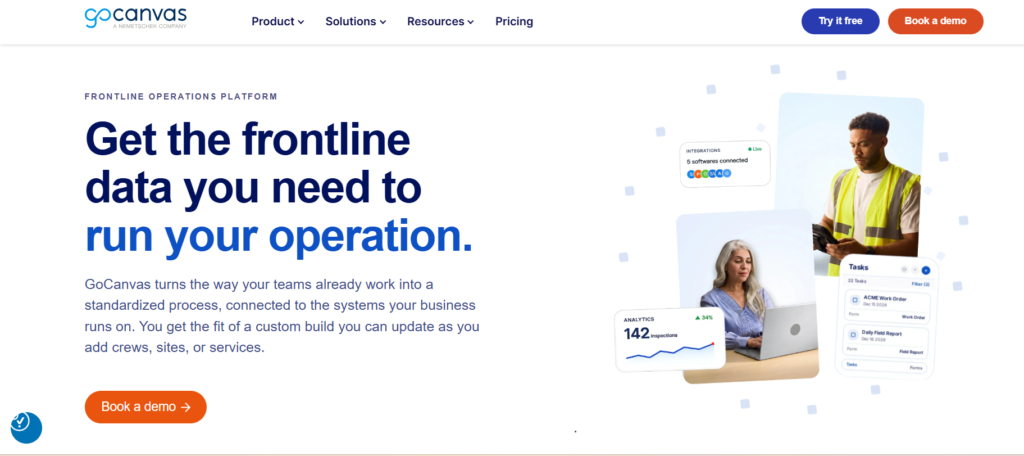
1. GoCanvas
Best For
Best for teams that need custom forms and approval processes.
Why We Chose
GoCanvas is focused around mobile forms, with offline, photo and dispatch capabilities built in.
This is ideal for teams that want to share forms with individuals.
Key Features
- Custom mobile forms.
- Offline (Essentials and above).
- Custom PDF reports.
- Dispatching.
- Photo capture.
- Multi-user (Pro and above).
Mobile and Offline
As shown on their package page, Essentials has offline functionality.
Try one real form offline.
- Complete the form with no signal.
- Add any photos and signature.
- Once back online, confirm everything syncs.
Approval and Workflow
Essentials has dispatching and scheduling. This means a manager or dispatcher can allocate forms to field technicians.
Pro has multi-user functionality. Max has follow up tasks.
Conditional logic and signatures are in the product features. It wasn’t clear which plan they were in. Be sure to ask sales.
Integrations
- API (Pro and Max).
- Custom integrations are sold separately.
We couldn’t find any confirmation of any QuickBooks or CRM connections.
Ask what data will be transferred.
Pricing
| Plan | Cost | Billing | Min Users |
|---|---|---|---|
| Essentials | $29 | Annual | 3 |
| Pro | $39 | Annual | 3 |
| Max | $49 | Annual | 3 |
Starts at $87 for 3 users per month.
Pros & Cons
Pros:
- Offline (entry plan).
- Sharing of workflow.
- Transparent pricing.
Cons:
- Only annual.
- Minimum of 3 users.
- Workflow and API require higher plan.
- May have extra cost for integrations.
Who should choose GoCanvas?
- Teams with multiple people using the same form.
- Businesses requiring approvals.
- Companies wanting offline forms from the start.
Who should look elsewhere?
- Solo users (minimum 3 users).
- Teams wanting a free plan.
- Businesses requiring confirmed accounting integration.
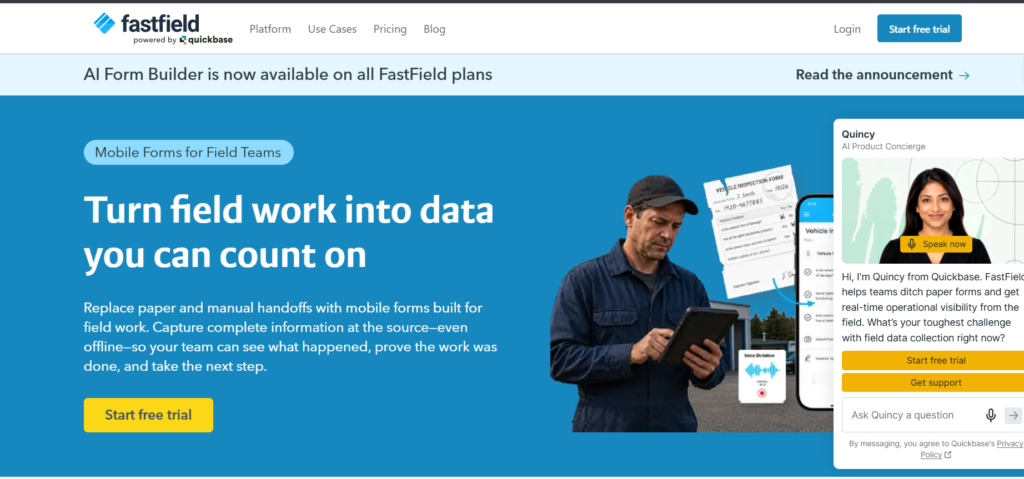
2. FastField
Best For
Best for teams that need custom mobile forms and automated reports, especially Quickbase users.
Why We Chose
FastField is very focused on forms and reports. The pricing page can be found on the Quickbase website.
Ideal for Quickbase users.
Key Features
- Custom form builder.
- Unlimited mobile forms.
- Offline.
- Rich media capture.
- Automated standard workflows.
- Report templates.
Mobile and Offline
Core has offline functionality. The comparison shows offline photo, video and signature capture, skip logic and rules.
All plans have offline functionality. Try during your trial.
Workflow and Automated Reports
Core has automated standard workflows and report templates.
Pro has more advanced automation and task scheduling.
Integrations
- Quickbase integration (native) on all plans.
- Core has standard connections.
- Pro has premium connections and API.
Standard connections does not guarantee a QuickBooks connection. Ask for a list.
Pricing
| Plan | Price | Notes |
|---|---|---|
| Core | $24 | Annual |
| Pro | $36 | Annual |
| Enterprise | Custom | Quote |
Annual or monthly options. Up to 20% discount for annual. Prices are for annual. Be sure to check monthly price. No minimum number of seats.
Pros & Cons
Pros:
- Offline (entry plan).
- Good for Quickbase.
- Report templates.
Cons:
- More expensive for monthly.
- Some advanced workflow features require Pro.
- Premium connections require Pro.
Who should choose FastField?
- Quickbase users.
- Teams sending reports to customers.
- Companies creating highly custom forms.
Who should look elsewhere?
- Teams requiring job scheduling and invoicing.
- Buyer requiring a published free plan.
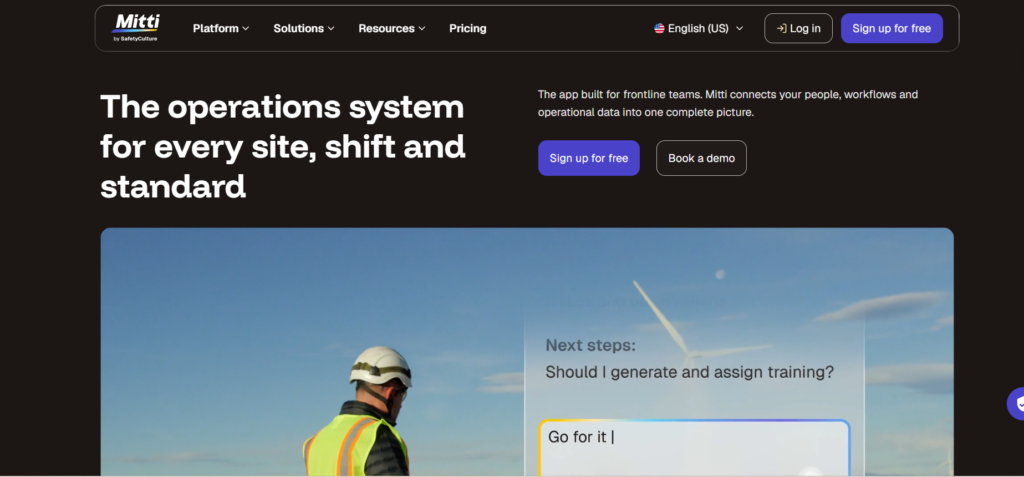
SafetyCulture
Best For
Best for crews that need to complete inspection checklists and track corrective actions.
Why We Chose
SafetyCulture is focused around inspections. They have a free plan which is rare in this category.
SafetyCulture now have their pricing page branded as Mitti.
Key Features
- Digital inspection forms.
- Inspection templates.
- Tasks & Issues.
- Training.
- Analytics.
- Data history.
Mobile and Offline
Offline inspections and actions can be found in their training guide.
We couldn’t find any confirmation of the minimum plan for each inspection feature. Be sure to check during your trial.
Inspection and Corrective Actions
Tasks & Issues are available on the Free plan. This is the basic building block to fix any issues found during inspection.
Inspection findings can be recorded using the inspection checklist. Tasks & Issues can be used to track corrective actions.
Your process should include having a supervisor review the inspection report. Be sure to check how this is handled on each plan.
Premium has advanced analytics and permissions.
Integrations
- Premium has out of the box and custom integrations.
- Enterprise has advanced integration builder.
We currently have a list of named connections. These need to be verified.
Pricing
| Plan | Price | Notes |
|---|---|---|
| Free | $0 | Up to 10 seats. 5 active templates. |
| Premium | $24/seat/month annual | $29 monthly |
| Enterprise | Custom | Quote |
Prices do not include tax. Location based pricing (quote). Unlimited users per location.
Pros & Cons
Pros:
- Free plan to try.
- Focused around inspections.
- Can be paid monthly.
Cons:
- Only 5 active templates on free plan.
- Not a scheduling or invoicing tool.
- Connections need to be verified.
Who should choose SafetyCulture?
- Crews focused on safety and compliance.
- Teams carrying out audits and inspections.
- Companies wanting to get started for free.
Who should look elsewhere?
- Teams requiring service reports linked to jobs.
- Businesses wanting scheduling and billing in one tool.
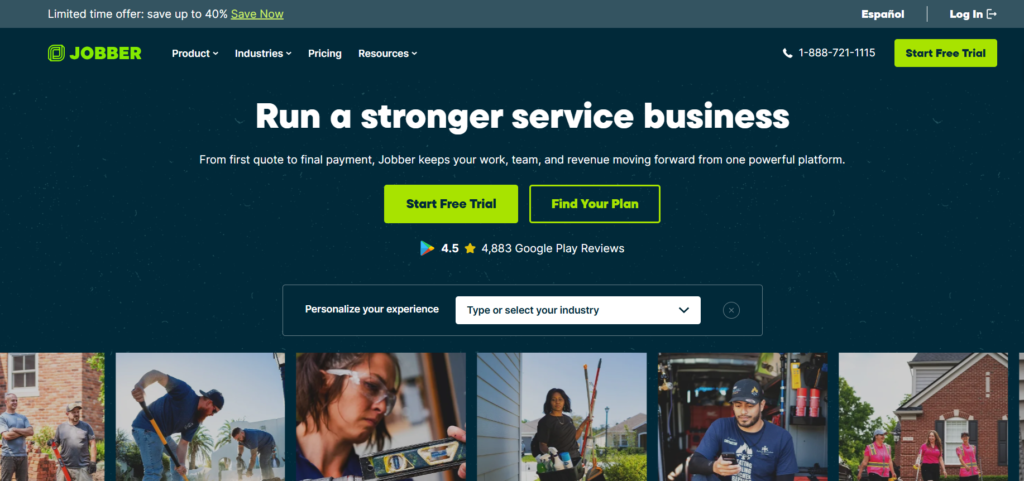
Jobber
Best For
Best for home service teams that want to use checklists.
Why We Chose
Jobber is field service management software. Checklists are just one part of the job.
If you already use Jobber for scheduling and invoicing this will keep everything in one place.
Key Features
- Checklists linked to jobs.
- Assessment checklists.
- Checklists completed per visit.
- Technician mobile app.
- QuickBooks Online sync (Connect and above).
Mobile and Offline
Jobber’s checklist documentation confirms that checklists are stored locally on the device.
Pending and failed uploads will show in the Sync Queue.
Once back online, the updates will be completed. This does not apply to all Jobber features.
Job and Visit Checklist
Checklists can be linked to jobs and visits. This means any updates made by the technician will be stored against the job.
The issue with this is that whilst mandatory fields are prompted, the technician can still leave the checklist and the app will prompt.
This is not a strict way to enforce closing jobs. If you need to enforce closing jobs you will need to set rules within your process or another tool.
Integrations
Jobber’s pricing page shows:
- QuickBooks Online (Connect and above).
- Xero.
- Mailchimp.
- Zapier.
- App store connections.
Not all apps in the app store will be included in all plans.
Pricing
Pricing is standard with no promotional offers. Pricing depends on team size.
| Plan | Price (Monthly Equivalent) | Users |
|---|---|---|
| Core | $29 | 1 |
| Connect | $70 | 1 |
| Connect | $105 | 5 |
| Grow | $140 | 1 |
| Grow | $229 | 10 |
| Plus | $280 | 5 |
Extra users will vary depending on the plan. Pricing is also available for monthly payments. Checklists are available on Connect and above. Not available on Core.
Pricing can vary depending on promotions. Be sure to check the live pricing page.
Pros & Cons
Pros:
- Checklists linked to jobs and visits.
- Checklists stored offline.
- QuickBooks Online sync (Connect).
Cons:
- Checklists are Connect pricing.
- No strict enforcement of incomplete checklists.
- Conditional logic and signatures not confirmed.
Who should choose Jobber?
- Small home service teams.
- Businesses wanting everything in one app.
- Simple repeatable checklists.
Who should look elsewhere?
- Teams requiring in depth inspections.
- Businesses requiring strict rules to close jobs.
- Complex approval processes.
Read Our Jobber Review.
TrueContext
Best For
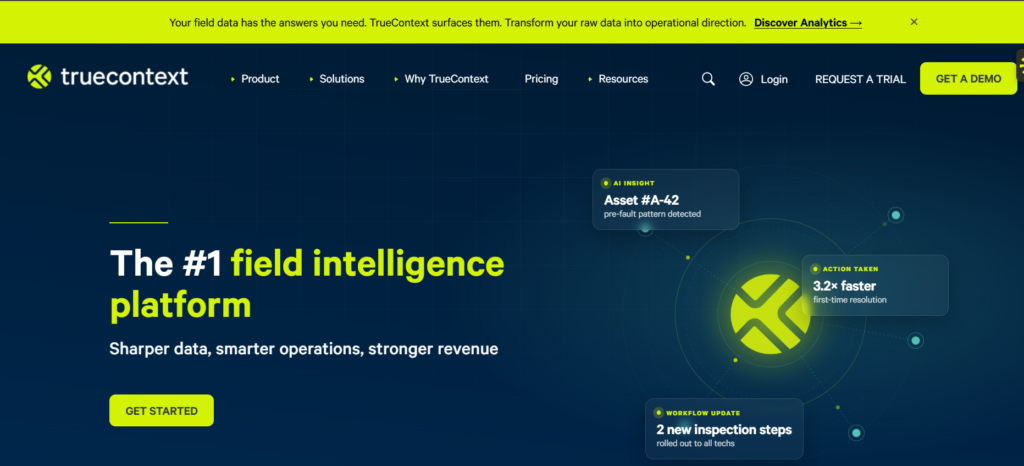
Best for larger service organisations with complex field processes and enterprise integrations.
Why We Chose
TrueContext is the most enterprise focused tool. All plans have offline.
Plan names have changed. Current plans are Digital, Intelligent and Elite.
Key Features
- Low code form builder.
- Conditional logic.
- Dispatching.
- Automated reports.
- Version control.
- Offline (All plans).
Mobile and Offline
TrueContext’s pricing page shows all plans have offline. Be sure to check photos and signatures.
Workflow and Validation
Digital has:
- Up to 100 conditional logic rules per form.
- Up to 750 questions per form.
- 25 Team FormSpaces.
Dispatching is included on Digital. Dispatchers can send forms to technicians. Approval processes start on Intelligent. This adds a review step for supervisors. Record keeping and data history is included on Elite.
Integrations
Confirmed integrations include:
- REST API.
- SharePoint.
- Box.
- Dropbox.
- Google Cloud Storage.
- OneDrive.
- FTP/SFTP.
- Power BI.
- Tableau.
- ServiceNow (Intelligent & Elite).
- Salesforce (Optional add on for Intelligent & Elite).
- AWS Cloud Storage (Intelligent & Elite).
Lots of these are cloud storage connections. Be sure to check what files/records are being received. For example completed form submissions and photo attachments.
Power BI and Tableau show they can be used for reporting and analytics. Be sure to check what data is being sent.
API connections to systems like SAP or Oracle are not native connections.
Pricing
| Plan | Price | Billing |
|---|---|---|
| Digital | From $400 for team | Annual |
| Intelligent | Custom | Quote |
| Elite | Custom | Quote |
$400 does not mean unlimited users. Final price will depend on the size, complexity and usage of your organisation.
Pros & Cons
Pros:
- All plans have offline and API.
- Advanced conditional logic.
- Strong enterprise connections.
Cons:
- Most expensive entry price.
- Approvals require higher plan.
- Above Digital requires a quote.
Who should choose TrueContext?
- Larger service organisations.
- Teams sending data to enterprise systems.
- Complex and rule heavy forms.
Who should look elsewhere?
- Small crews with a tight budget.
- Owners wanting something simple and quick.
Connecteam
Best For
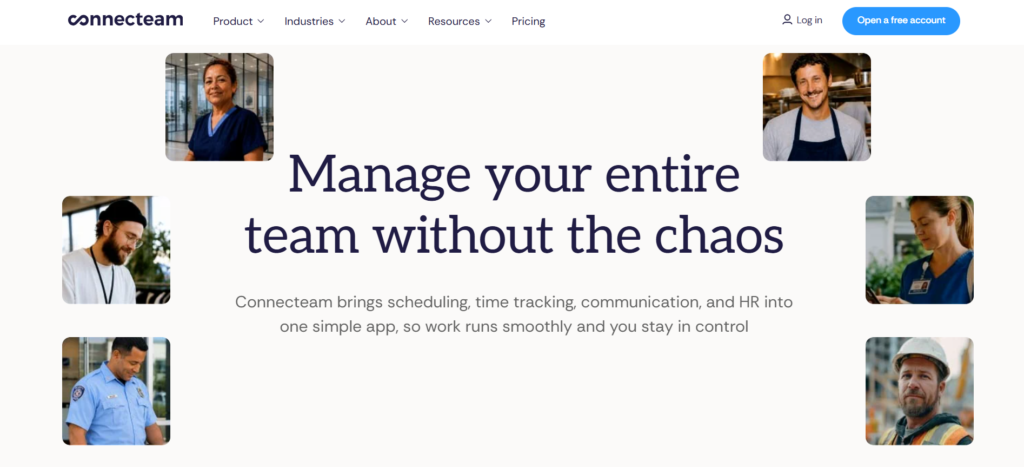
Best for crew based teams that need checklists and proof of work forms.
Why We Chose
Connecteam is a workforce app. Forms and checklists are part of their Operations Hub.
Ideal for crews that need to do daily checks, photo proof and simple task tracking.
Key Features
- Mobile forms.
- Unlimited forms, checklists and tasks (Basic and above).
- Photo attachments.
- Digital signatures.
- Safety and equipment checklists.
- Maintenance documentation.
Mobile and Offline
We couldn’t find any confirmation of offline functionality. Ask for written confirmation and test.
Crew Documentation
Forms, checklists and tasks are included in the Operations Hub Basic plan.
Forms auto reporting, API and webhook management are included on Expert. Conditional fields and signatures are available. We couldn’t find any confirmation of which plan they are on.
Don’t confuse the signature fields with the e-signature allowances in the HR & Skills Hub.
Integrations
Connecteam’s pricing page shows:
- Payroll integrations.
- Zapier (comparison).
- API & Webhooks (Expert).
Having a payroll connection does not mean completed job forms will go through to invoices.
Pricing
Operations Hub pricing:
| Plan | Annual | Monthly | Users |
|---|---|---|---|
| Small Business | Free | Free | Up to 10 |
| Basic | $29/month | $35 | First 30 |
| Advanced | $49/month | $59 | First 30 |
| Expert | $99/month | $119 | First 30 |
| Enterprise | Custom | Custom | Quote |
Extra users will be:
- Basic: $0.80 annually or $1.
- Advanced: $2.50 annually or $3.
- Expert: $4.20 annually or $5.
Small Business is free for eligible businesses with up to 10 employees. Limited plan for eligible teams with 11-30 employees.
Pros & Cons
Pros:
- Low entry cost.
- Free plan for tiny teams.
- Checklists and forms (Basic).
Cons:
- Not a full field service management software.
- Not confirmed to be offline.
- Automated reporting on Expert.
Who should choose Connecteam?
- Crew based businesses.
- Landscaping, cleaning and maintenance teams.
- Owners wanting proof of work photos.
Who should look elsewhere?
- Teams requiring in depth inspections.
- Businesses requiring confirmed offline.
- Companies requiring job data linked to accounting.
Fulcrum
Best For
Best for teams that need to carry out GPS based inspections.
Why We Chose
Fulcrum is centred around location. Forms, photos and mapping are all included.
Ideal for utilities, pipelines and jobs across multiple sites.
Key Features
- Custom mobile forms.
- GPS & Location.
- Photo attachments.
- Mapping.
- Offline.
- Signatures and calculated fields.
Mobile and Offline
The pricing page shows Professional has offline, signatures and dynamic conditional requirements and visibility.
Location Based Inspections
Each record can be linked to a job site/asset using location data. This helps inspectors to know where the finding was made.
- Repeatable records.
- Calculated fields.
- Reports.
- Audit logging added on Elite.
Integrations
- ArcGIS.
- Operational & Query API (Elite).
- Webhooks (Elite).
Having API does not mean there is a native QuickBooks or CRM sync.
Pricing
| Plan | Price | Billing | Min Users |
|---|---|---|---|
| Professional | US$43 | Annual | 5 |
| Elite | US$55 | Annual | 5 |
| Enterprise | Custom | Agreement | Terms |
Professional starts from US$215 for 5 users. Excludes add ons.
Pros & Cons
Pros:
- Strong location features.
- Dynamic conditional (Professional).
- Offline.
Cons:
- Minimum 5 users annually.
- Overkill for simple service calls.
- Integrations are favouring GIS.
Who should choose Fulcrum?
- Teams needing to inspect assets across a large area.
- Teams using GIS.
- Crews requiring proof of location.
Who should look elsewhere?
- Small residential service shops.
- Teams wanting scheduling and invoicing.
Forms & Checklists Software Comparison
| Software | Digital Forms | Checklists | Offline Access | Conditional Logic | Digital Signatures | Workflow Automation | Integrations | Plan Availability |
|---|---|---|---|---|---|---|---|---|
| GoCanvas | Forms and approvals | Yes | Yes | Yes | Yes (tier not confirmed) | Yes (tier-dependent) | 1,000+ integrations | Plan-dependent |
| FastField | Custom forms and reports | Yes | Yes | Yes | Yes (all listed plans) | Yes (Core and up) | Quickbase (all plans); others plan-dependent | Plan-dependent |
| SafetyCulture | Inspections and actions | Yes | Yes | Yes (tier not confirmed) | Not verified | Tasks and issues; automation not fully verified | Yes | Plan-dependent |
| Jobber | Job-linked checklists | Yes | Yes | Not verified | Yes (checklist signatures) | Not verified | Limited | Select plans |
| TrueContext | Complex forms and workflows | Yes (configurable forms) | Yes (all tiers) | Yes | Not verified | Yes (Digital and up) | Yes (all tiers; advanced connectors vary) | Plan-dependent |
| Connecteam | Crew forms andchecklists | Yes | Not verified | Not verified | Not verified | Yes (tier-dependent) | Plan-dependent | Plan-dependent |
| Fulcrum | GPS inspections | Yes (configurable forms) | Yes (Professional and up) | Yes | Yes | Yes (workflow functionality; tier restrictions apply) | ArcGIS and other connections | Plan-dependent |
Essential Features to Look for in Forms & Checklists Software
1. Digital Forms & Form Builders
A good form builder will allow managers to create templates with bespoke fields. Technicians can then fill out the same digital forms.
They should allow you to collect all the information from customers, job details, photos, comments and signature in one go. The templates should be editable in the office without a developer.
They should also have validation features. This means there are mandatory fields and conditional logic to show/hide questions depending on answers.
2. Checklist Software
Look for:
- Checklist items with completion
- Reusable templates
- Repeatable checklists
Checklists can be assigned by managers for different job types or equipment types. This ensures consistency when technicians are using the checklists for equipment checks, maintenance tasks and safety.
They will show if tasks were completed.
3. Mobile Forms Software
Technicians will be using their phone with gloves on, glare and having one free hand. The forms should be quick and easy to complete with taps.
The technicians can log everything that happened during the job using the mobile app. This includes comments, labour, materials and attaching photos.
Try to test the photo and signature features on an actual phone.
4. Offline Forms & Checklist Software
Basements, attics and rural locations will cause no signal. Ask:
- Can I complete the forms offline?
- Can I save photos locally?
- Can I sign offline?
- Are errors easy to identify when syncing?
Once there is signal the forms should sync to the main system. If they do not sync then the office will not be able to view them.
5. Workflow Automation
Alerts
- Approval processes
- Supervisor review
- Workflow automation can be used to send alerts to managers and send the form to a supervisor for approval.
Depending on the product and plan, some will have more features. GoCanvas have multi-user workflows on the Pro plan and TrueContext have approval workflows on the Intelligent plan.
6. Digital Signatures & Photo Attachments
Signatures help to ensure that the customer has approved or completed. Photos will help to provide evidence.
Every time a form is completed it will create a digital record. These can be used for reporting and analysis. They can also be used as compliance documents.
Ask how long they are kept for and who can view them.
7. Integration with FSM, CRM & Accounting
Most plans will fall down here. Ask specifically what information is passed through. This should include customer, job, labour, materials, photos and signatures.
There will usually be some manual data entry.
Forms & checklists can integrate with field service management software, CRM, scheduling and accounting. Ideally this will link the work order with job details, technician assigned, job location and completed service report.
Ideally customer information will come through from the CRM. Labour and materials are most important for the accounting software.
Standalone Form Builders vs Form Builders Within Field Service Management Software
8. PDF & General Form Builders
These can be used for basic requirements. However, they can become messy if you need to link to jobs, complete offline and approvals.
9. Standalone Forms & Checklists
Tools such as GoCanvas, FastField, SafetyCulture, TrueContext and Fulcrum have:
- More logic
- Can complete offline
- Reporting
However, these will not be within your scheduling tool. This means the form may be assigned by a manager/dispatcher.
Frequently Asked Questions
What Should Technicians Include in a Field Service Report?
At minimum: customer information, job details, work performed, technician notes, labor details, materials used, photos, readings, completion status, and customer acknowledgment (such as a digital signature).
What Is the Difference Between a Checklist, Work Order, and Service Report?
Checklist: steps the technician completes
Work order: the assignment a dispatcher sends to a technician, with job details and the job site
Service report: the record of what was done, built from the completed forms
All three connect during one visit. The work order starts it, the checklist guides it, and the service report closes it out.
How Can Field Service Managers Assign the Right Checklist for Recurring Maintenance?
Managers build checklist templates by equipment type, attach them to recurring maintenance jobs, and assign them by technician skill. Dispatchers then schedule the work orders.
Can Technicians Complete Forms and Checklists Without an Internet Connection?
Often yes. Jobber documents offline checklist storage, and GoCanvas, TrueContext, and Fulcrum document offline use. Submissions synchronize when a connection returns. Verify which fields, photos, and signatures work offline.
Can Technicians Add Photos and Signatures to Offline Forms?
Several tools document offline photos and signatures. Confirm local storage and sync behavior in a trial.
Can Forms & Checklists Software Prevent Technicians From Closing Incomplete Jobs?
Not always. In Jobber, a technician can still complete a visit with required checklist items open. Ask any vendor to demonstrate hard enforcement.
Can Failed Inspection Items Automatically Become Corrective Work?
Some tools support actions from findings. SafetyCulture documents tasks and issues, including on its Free plan. Inspectors record the findings, and a supervisor should verify the corrective action before it is closed. Test assignment and follow-up.
What Form Information Can Transfer to QuickBooks or a CRM?
It varies. Jobber names QuickBooks Online sync from Connect. For others, request a field-level list covering attachments and error handling.
Should Field Service Teams Use Standard or Conditional Checklists?
Start standard. Move to conditional when equipment types or results change what the tech must do.
How Much Time and Money Can Digital Forms Save a Field Service Business?
It depends on your current paperwork time. Measure minutes per job, then subtract setup, training, and subscription costs. Avoid universal savings claims.
Are Electronic Signatures on Field Service Forms Legally Valid?
Often, but it depends on the transaction and location. In the U.S., the federal E-SIGN Act addresses electronic records and signatures, with exceptions. In Canada, PIPEDA covers personal information handling, but it is not a universal signature rule. Check your province’s rules. This is not legal advice.
Can Digital Inspection Records Be Used for Compliance Audits?
Possibly. Completed inspection reports, inspection findings, and corrective actions become digital records. Audits care about complete records, retention, and access control. A digital form does not automatically satisfy every requirement. Confirm your industry rules.