FieldPulse + QuickBooks Online Integration: Setup, Sync & Gotchas
By Ryan Mitchell | Field service management and technology expert | Checked against FieldPulse’s Help Center documentation on September 30, 2026
The primary feature that most contractors I’ve talked to want out of this Fieldpulse and QuickBooks integration is the ability to enter a job in one system and have it populate the books automatically.
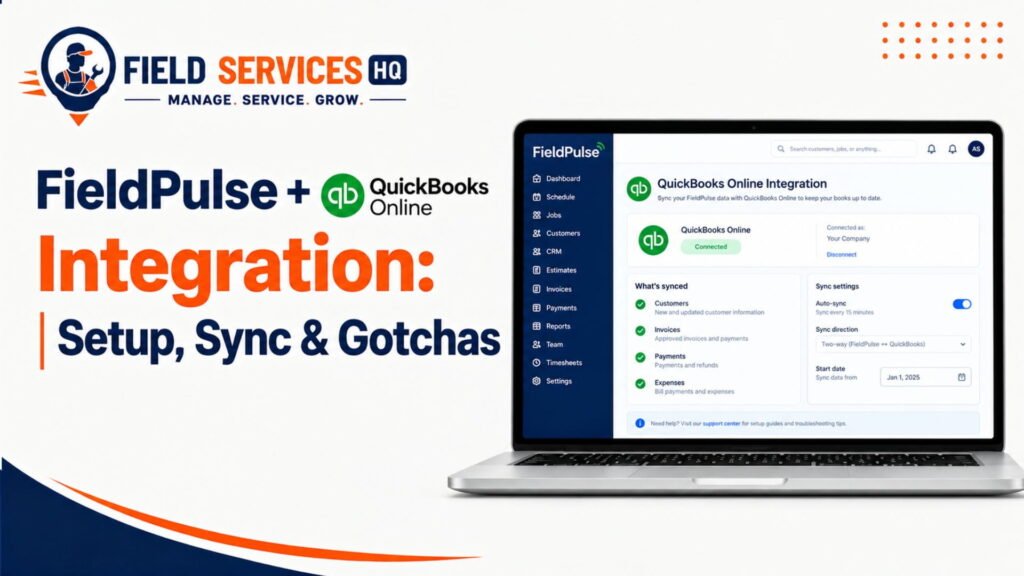
Unfortunately, there are some gotchas involved, and it’s not always as simple as point A to point B.
The purpose of this guide is to help you navigate the setup, understand the limitations, and deal with the common errors that occur at setup or during sync. This information is based on FieldPulse’s documentation, and where other resources differ, that will be noted.
Does Fieldpulse Integrate With QuickBooks Online?
In short, yes. FieldPulse can integrate with QuickBooks Online, and most of the data will sync both ways, meaning that changes on one end will update on the other.
What Syncs
The table below comes from FieldPulse’s pre-sync documentation.
| Record | What syncs | What does not sync |
|---|---|---|
| Customers | Primary contact, notes, service address, billing address | Additional contacts, additional locations, custom fields, files, tags |
| Line items | Name, description, SKU, quantity, unit cost or price, sales and purchase accounts, tax status | Custom fields, links, tags, UPC barcode |
| Estimates | Dates, line items, notes, business class | Custom fields, unselected estimate options |
| Invoices | Dates, line items, invoice number, message on statement | Contracts, custom fields, groupings, internal notes, Shipping and Deposit fields that contain values |
| Payments | Method, total, notes | Unapplied credits, refunds, voided payments, custom fields, journal entries |
| Other | Nothing extra | FieldPulse Jobs and Projects, groupings, QuickBooks receipts |
One-Way vs. Two-Way Sync
Most records synchronize in two ways. Two items are opt-in and have different behavior:
Purchase orders: one-way or two-way, on request
Timesheets: one-way, FieldPulse to QuickBooks Online, on request
FieldPulse’s release notes mention a custom synchronization option for estimates, invoices and purchase orders, which allows choosing between one-way or two-way sync. Please contact our support to see if this option is available for you.
Key Gotchas at a Glance
- Draft invoices do not sync
- Tips do not sync
- Refunds and voids do not sync
- Only the primary customer contact syncs
- QuickBooks Online projects sync as “related customers”
3 QuickBooks Online plans that sync (Essentials, Plus, Advanced) | 3 Countries supported: U.S., Canada, Australia | 4 Steps in the sync order: Customers, Line Items, Invoices, Classes | 1 Setting to turn off first: Automatically apply credits |
Who Is It For
This integration most benefits businesses in which the office re-types field work data into books.
Best-Fit Industries
- HVAC, plumbing and electrical shops with service calls and invoices
- Appliance repair and handyman crews
- Landscaping and pest control with recurring work
- Roofing, painting and fencing with estimates and deposits
Best-Fit Team Sizes
- Solo operators looking to simplify books without extra hours
- Small teams of 2 to 15 with an office admin or bookkeeper
- Growing companies requiring purchase orders and timesheets to connect to QuickBooks
Best-Fit Workflows
- Tech closes job in field
- Invoice sent from FieldPulse
- Payment collected
- Bookkeeper sees everything in QuickBooks Online
I find that best-fit shops have one thing in common. Someone owns the QuickBooks file and maintains the item list.
Who Is It Not For
Avoid this integration or pause it in the following situations.
- You do not use QuickBooks Online. FieldPulse’s QuickBooks Online integration only applies to this desktop accounting software.
- You use QuickBooks Desktop. FieldPulse has a different Desktop integration with different requirements. FieldPulse’s documentation notes that the Desktop version requires the QuickBooks Web Connector to be open and active.
- Your QuickBooks company already syncs with another FSM tool. FieldPulse recommends against connecting. Contact FieldPulse first.
- You have been manually entering the same estimates and invoices into both systems. FieldPulse recommends contacting them before connecting. You will see duplicate records.
- You use projects in QuickBooks Online. Contact FieldPulse first.
- You are located outside the U.S., Canada or Australia.
Not every field service business requires accounting integration. A solo tradesperson with ten invoices per month may prefer exporting once per month. This is a valid decision.
What You Need to Integrate
Accounts and Plans
- Active FieldPulse account
- QuickBooks Online subscription (Essentials, Plus or Advanced)
- Recommended: Plus or Advanced; Essentials does not include inventory tracking
Only Service and Product Non-Inventory line items are available in FieldPulse on Essentials.
FieldPulse also supports Intuit Enterprise Suite.
Which FieldPulse Plan Includes It?
FieldPulse offers three plans: Essentials, Professional and Enterprise. Pricing is custom.
FieldPulse’s own solutions page notes that QuickBooks integration is included in every plan. Some third-party review sites state that this requires the Professional plan. I was unable to verify this in FieldPulse documentation.
A pragmatic approach: Ask your rep for written confirmation that QuickBooks Online sync is included in your quote. Ask the same about timesheet and purchase order sync, as these are optional.
Read Our Full Fieldpulse Pricing & Plan Guide.
Permissions
- QuickBooks account used for connecting must be active and have admin permissions
- FieldPulse admins prepare and configure the integration
Pre-Integration Checklist
FieldPulse’s pre-sync guide requests the following. I recommend treating these as mandatory.
- Verify QuickBooks Online plan (Essentials, Plus or Advanced)
- Verify QuickBooks Online region (U.S., Canada or Australia)
- Configure tax rates in QuickBooks Online. FieldPulse pulls these from QuickBooks Online. Any item without a rate has no tax in FieldPulse.
- Assign quantity and price to every line. An item without both will show as $0.
- Enable Discounts in QuickBooks Online, if you want to use discounts on estimates and invoices.
- Disable “Automatically apply credits.” In QuickBooks Online: Gear icon > Account and Settings > Advanced > Automation. Save changes.
- Turn off automatic customer communications in FieldPulse. Otherwise, customers may receive notices about every imported record.
- Choose your numbering system. Custom Transaction Numbers ON equals FieldPulse numbering; OFF equals QuickBooks Online numbering.
- Clean your lists. Resolve duplicate customer and item names. Remove colons from names.
How to Integrate: Step-by-Step
FieldPulse’s synchronization guide establishes the sequence. Here it is, in English.
- Request access. Email support@fieldpulse.com or use the in-app chat. The connection is enabled by request.
- Open FieldPulse. Log in as an admin and navigate to Company Settings.
- Access the integration. Open the Features & Plugins tab and locate the QuickBooks Online tile.
- Select Connect. Click Connect to QuickBooks.
- Log in to QuickBooks Online. Sign in using your credentials and follow the instructions. If you have multiple QuickBooks companies, make sure you are logged into the correct one.
- Choose time period and entities. Select what to sync. For invoices, customers, line items and payments must also sync.
- Select tax rate defaults. The dropdown will populate with options from QuickBooks Online.
- Select account defaults. Pick a default sales account (what you sell) and a default purchase account (what you buy).
- Agree to terms. Accept the QuickBooks Integration Terms & Conditions.
- Let it run. Syncing begins. Large data sets require patience. You may leave the page and return later.
- Verify. See tests further down this guide.
After You Connect
After connection, FieldPulse imports all your existing QuickBooks Online data. From this point, records flow in both directions.
Next, navigate to Company Settings > Estimates & Invoices > QuickBooks. FieldPulse recommends the following syncing sequence:
- Customers
- Line Items
- Invoices
- Sync Classes
Out-of-sequence syncing can result in locked records. An invoice will not sync until its customer and items have synced.
Set Your Default Tax Behavior
The Always Apply Default Tax Rate toggle controls whether tax is applied to new estimates and invoices. It only affects records created after the toggle is turned on.
How and when tax applies also depends upon FieldPulse AutoTax and QuickBooks Online AutoTax. FieldPulse documents a 4-row matrix in its post-sync guide . Read this before toggling any tax settings.
Canadian Shops: FieldPulse does not calculate tax; it pulls tax from QuickBooks Online. For GST plus PST, FieldPulse’s dual-tax guide notes:
- Tax will not show until the record is finalized
- Dual tax will not show in edit mode
- FieldPulse reporting reflects the dual rates
Provinces vary. See Intuit’s provincial sales tax guide for information on which provinces charge GST and PST separately.
Common Issues
Here are the usual problems. Each item links to FieldPulse’s reference for the error.
Connection and Authentication Failure
- Connecting account is inactive or not an admin
- QuickBooks subscription cancelled or has billing issues
Customers Not Syncing
- Email missing, malformed or exceeds 31 characters
- Name duplicates another customer or vendor
- Name contains a colon
- Email or phone exceeds 31 characters, or notes exceed 4,000
- Parent customer has not synced
- Customer is archived in QuickBooks
Invoices Not Syncing
- Invoice is still a draft
- Customer or line item has not synced
- Accounting period is closed in QuickBooks
- Internal notes exceed 4,000 characters
Payments Not Syncing
- Related invoice has not synced
- Archived payment already synced for that invoice
- Payment already deposited in QuickBooks
Duplicate Records
- Two customers, vendors or items share one name
- Error text says “duplicated records” or “multiply entities”
Wrong Products, Services or Accounts
- Item is a Category or Bundle in QuickBooks
- Item’s sales or purchase account is inactive
- Inventory item on a plan without inventory
Tax and Mapping Issues
- No tax rate set up in QuickBooks
- GST/HST rate missing on Canadian line
- Tax calculation error on line item
Sync Delays and Sudden Stops
- Same record open in QuickBooks simultaneously
- Authorization drops between systems
Fixes
| Issue | What to Check | Fix |
|---|---|---|
| Can’t connect | Is the connecting QuickBooks user active and an admin? Is your QuickBooks subscription current? | Use an active admin login. Resolve billing in QuickBooks. |
| Authorization failure (401) | Access rights of the connecting account | Make sure the account is active and has admin permissions. |
| Sync stopped (500 error) | Connection status | FieldPulse says to disable the QuickBooks Online integration and enable it again. |
| Customer won’t sync | Email format, duplicate name, colon in name, field length, archived status, parent sync | Correct the record, rename duplicates, reactivate archived customers, sync the parent first. |
| Invoice missing | Status and dependencies | Move the invoice from Draft to Invoiced. Sync the customer and items first. Check for a closed period. |
| Payment missing | Related invoice | Sync the invoice first, then the payment. |
| Duplicate records | Existing records with the same name | Rename one of the duplicates, then re-sync. |
| Wrong item | Item type and accounts | Replace Category or Bundle items with product or service items. Reactivate inactive accounts. |
| Wrong tax | Tax rates in QuickBooks, default tax settings | Confirm the rate exists in QuickBooks. For a tax calculation error, FieldPulse says remove the line items and add them again. |
| Closed period error | QuickBooks book-closing date | Unlock the period or make the change directly in QuickBooks. |
| “Someone has the record open” | QuickBooks users | Close the record in QuickBooks and retry. |
Each failed record shows a Failed Sync button. It opens a page listing every error for that record.
What to Expect After Integration if Successfully Integrated
Customers
- Existing QuickBooks customers import into FieldPulse
- Synced customers display the QuickBooks logo
- Only the primary contact and its addresses sync
- FieldPulse interprets the QuickBooks “Shipping Address” as the service address
If only a Billing Address is filled in, no address displays on the FieldPulse customer.
Invoices
- Invoices begin syncing when they reach Invoiced status
- Synced invoices display Open in QuickBooks
- Deleted or archived records in FieldPulse are also removed in QuickBooks
- Estimates sync regardless of status
FieldPulse maps estimate statuses like this:
- Draft, Estimate, Sent = Pending
- Accepted, Scheduled, Ready, Completed = Accepted
- Rejected = Declined
- Lost = Closed
Payments
A collected payment follows standard accounting flow. It goes Invoice, then Payment, then Undeposited Funds in QuickBooks.
Tips do not sync. A payment larger than the invoice total can create a negative balance in QuickBooks. FieldPulse recommends tracking tips separately.
Products and Services
- Line items sync both ways with SKU, cost, price and accounts
- New items use the default accounts you picked, unless you choose others
- Classes only sync on estimates and invoices, not on individual line items
What Still Needs Manual Action
- Additional contacts and locations
- Tips, refunds and voids
- Custom fields
- Jobs and Projects (FieldPulse records)
- Fixing failed records
Optional Add-Ons You Request
Purchase orders: syncs on every create or update. Status alone does not trigger it.
Timesheets: one-way to QuickBooks Online, triggered on clock-out, edit or delete. FieldPulse released it in June 2026.
FieldPulse recommends that turning on QuickBooks Online timesheet sync turns on a setting that requires techs to select a related job when they clock in or out.
Timing
FieldPulse’s docs do not guarantee a specific sync time. The first sync depends on how much data you have. Subsequent updates appear as you create and edit records.
If something looks wrong, check the sync status and re-sync the record.
What Happens After Integration if Integration Fails
What Stops Syncing
- New and edited records stop reaching the other system
- Related records queue behind the failed one
What Stays Unchanged
- Data already in each system stays put
- Nothing is rolled back
Manual-Work Implications
- Office staff re-key invoices and payments
- Bookkeepers reconcile by hand
Possible Discrepancies
- An invoice marked unpaid in one system and paid in the other
- Different tax on the same invoice
- Missing customers or items
A Capterra reviewer described an invoice that still showed as invoiced after being paid, due to a payment sync error. This is the kind of drift to watch for.
What to Correct
- Fix the failing record
- Re-sync it
- Compare totals in both systems
How to Check What Is Wrong if Showing Failed
Follow this list in order.
- Check connection status. Is the QuickBooks Online tile still connected?
- Read the error message. Use the Failed Sync button on the record.
- Identify the data type. Customer, item, invoice or payment?
- Check the FieldPulse record. Look for a missing email, colon, long field or duplicate name.
- Check the QuickBooks record. Is it archived, deleted, or in a closed period?
- Check permissions. Is the connecting user an active admin?
- Check mappings and settings. Look at accounts, tax rates, item types and your QuickBooks plan.
- Test another record. A single bad record differs from a broken connection.
- Reconnect or retry. Re-sync first. Disconnect and reconnect only for authorization errors.
Open the QuickBooks Online Statistic page as well. It displays the time of the last sync, the failed records, and the reason for each. A Review Status column lets you close out resolved errors.
Still stuck? Contact FieldPulse support at support@fieldpulse.com or through in-app chat.
How to Determine If It Is Working
FieldPulse says your setup works when three things are true:
- New invoices show Open in QuickBooks after reaching Invoiced status
- Synced customers show the QuickBooks logo
- The Statistic page shows a recent sync with no open errors
Then run your own tests.
- Connection status: the tile shows connected
- Customer test: create a test customer with an email and address. Look for it in QuickBooks.
- Product test: add a service item. Confirm the name, price and account in QuickBooks.
- Invoice test: finalize a small invoice. Confirm the number, items and tax match.
- Payment test: mark a payment. Confirm it lands in Undeposited Funds.
- Duplicate check: search both systems for repeat names.
- Error check: review the Statistic page.
Use fake or tiny real jobs. And delete test records carefully, since deletes in FieldPulse also delete in QuickBooks.
Integration Needed or Not by Industry
This table is my judgment, not FieldPulse’s. It assumes you already use QuickBooks Online.
| Industry | Needed? | Why | When Not Needed |
|---|---|---|---|
| HVAC | Usually yes | High invoice volume, parts and maintenance agreements | Tiny owner-operator shop with few invoices |
| Plumbing | Usually yes | Emergency calls, fast invoicing and payments | Very low volume with a bookkeeper who prefers batch entry |
| Electrical | Usually yes | Service calls plus larger installs, materials and POs | Books are handled outside QuickBooks |
| Appliance Repair | Usually yes | Many small invoices and payments | Cash-only micro shop |
| Handyman | Often yes | Many small jobs and repeat customers | Solo, with a handful of invoices per month |
| Landscaping | Yes for recurring work | Repeat billing across many customers | Seasonal side work with no bookkeeping needs |
| Roofing | Yes, with care | Deposits and big invoices. Watch QuickBooks projects, which sync as related customers. | You track jobs in another project tool and only post totals to QuickBooks |
| Pest Control | Yes for routes and contracts | Recurring service billing | Very small route with manual billing |
| Painting | Often yes | Estimates, deposits and material costs | Few large jobs a year |
| Fencing | Often yes | Estimates, materials, deposits | Few installs and a separate accountant workflow |
For deposits, FieldPulse’s June 2025 release notes say a deposit collected on an estimate is treated as a liability in QuickBooks until the job is complete and the final payment arrives. Check the FieldPulse Help Center for setup details.
By Situation
- Solo contractor: Only worth it if you invoice weekly. Keep item list short
- Small team: Good match. Designate somebody to take ownership of the sync and review Statistic page weekly
- Growing team: Ask questions about purchase order and timesheet sync early on. Consider Plus or Advanced QuickBooks if you use inventory
- Larger field service company: Likely to run into edge cases: multiple locations, parent customers, classes. Discuss test period. Also see how we compare field service platforms .
- Already use QuickBooks Online: Ideal scenario. Clean up lists before connecting
- Manual accounting workflow: Sync eliminates need to retype data. Start with customers, items and invoices
- Lots of duplicate data entry: See “Do not sync if” rule. If duplicated invoices in both systems, contact FieldPulse before connecting
- Switching FSM: Make sure old FSM is disconnected from QuickBooks. According to FieldPulse, don’t connect a company that still syncs elsewhere.
- Switching accounting software: Do not connect QuickBooks Online if you are leaving it
- Integration already failing: Start with Statistic page. Clean up records by type, in sync order
What Others Are Saying
I reviewed nine different types of external resources to identify the full range of opinions. Here is a summary of what I found:
- FieldPulse Help Center (official). Most comprehensive resource, with ongoing updates about limitations. The Pre-Sync and Error guides are most helpful on this page
- FieldPulse partner page (official). Highlights two-way sync and mobile editing, but uses more marketing language than practical information
- FieldPulse release notes (official). Shows progress on QuickBooks integration: in-app error tool (November 2025), timesheet sync (June 2026)
- FieldPulse solutions pages (official). Contains the “every plan includes QuickBooks integration” quote
- Intuit QuickBooks Canada resources. Explains how GST, HST and PST taxes work in each Canadian province. Used as a reference for Canadian readers
- G2 . Reviews are mixed but positive, with two-way sync and support as main pluses. G2 itself scores FieldPulse around 4.7 out of 5 on its own comparison pages.
- Capterra . Reviews are split on sync, with FieldPulse’s integration mentioned in the same breath with complaints about items not syncing, tax issues, and timesheets as an extra cost.
- Software Advice and GetApp . Vary between calling the sync “quirky” and mentioning duplicates when not monitored, versus saying it works well overall
- Field Service Guide , FieldCamp, and Contractor Software Hub (independent review sites). Generally positive about QuickBooks Online integration, noting that Desktop connection is weaker. At least two claim sync requires a higher-level plan, contradicting FieldPulse’s statements. Sites may favor competing software, as some carry ads.
I looked through community forums (Reddit, industry message boards) for extended discussion, but didn’t find anything substantial enough to reference. If you find any helpful threads, use them as leads rather than recommendations.
The recurring theme is reliable performance in ideal conditions, with complications stemming mostly from data entry issues, tax configuration, and edge cases. This mostly matches the issues outlined in FieldPulse’s own error documentation.
What We Say
What Works Well
- Two-way sync of customers, items, estimates, invoices and payments
- Straightforward documentation about what doesn’t sync
- In-app tools: Failed Sync button, Statistic page
- Purchase order and timesheet options
- Canadian dual-tax support
What Doesn’t
- Connection requires support interaction
- Drafts, tips, refunds and voids do not sync
- Only primary customer contacts sync
- Plan availability is inconsistent across statements
- Poor quality data creates duplicates and “$0 item” errors
Key Limitations
- Inventory requires Plus or Advanced plan in QuickBooks
- Closed accounting periods prevent edits from FieldPulse
- “Stale object” errors appear when two users edit same record
Who Should Consider It
- QuickBooks Online users with steady invoice volume
- Teams with an office person who can own data quality
- Canadian and U.S. shops that want accounting sync
Who Should Skip It
- Shops without QuickBooks Online
- Shops still synced to another FSM
- Businesses with heavy QuickBooks project use, until they talk to FieldPulse
Read Our Full Fieldpulse Review Guide Here.
Final Decision Snapshot
| Question | Answer |
|---|---|
| Best fit | QuickBooks Online users who invoice regularly and want to stop retyping |
| Poor fit | Non-QuickBooks shops, QuickBooks Desktop users, and shops still synced to another FSM |
| Main reason to integrate | One entry, and books that stay current |
| Main reason not to integrate | Messy data, duplicate workflows, or no real accounting need |
| Biggest gotcha | Duplicate names, missing prices, tax setup and draft invoices |
| What to check before connecting | Plan, region, tax rates, item prices, credits setting, numbering, and support access |
Confused About Fieldpulse ? Go Through Our Fieldpulse Hub.
FAQ
Does FieldPulse integrate with QuickBooks Online?
Yes. FieldPulse syncs with QuickBooks Online, mostly in both directions. It is available in the United States, Canada and Australia. You request access from FieldPulse support, then connect from Company Settings.
What does FieldPulse sync with QuickBooks Online?
Customers, line items, estimates, invoices and payments. Purchase orders and timesheets sync as opt-in extras. QuickBooks Online projects arrive in FieldPulse as related customers. Custom fields, Jobs and Projects do not sync.
Is the integration included in all FieldPulse plans?
FieldPulse’s own site says every plan includes QuickBooks integration. Some third-party reviews say it requires Professional. Since pricing is custom, ask your rep to confirm in writing. Ask about purchase order and timesheet sync too.
Does FieldPulse sync customers, invoices and payments?
Yes, all three. Invoices sync once they reach Invoiced status. Draft invoices do not sync. Refunds, voided payments and tips do not sync. Only the primary customer contact syncs.
Is the sync one-way or two-way?
Most records sync two ways. Purchase orders can be one-way or two-way. Timesheets go one way, from FieldPulse to QuickBooks Online. FieldPulse’s release notes also describe a custom option for estimates, invoices and purchase orders. Ask support if it applies.
How long does synchronization take?
FieldPulse does not publish a fixed time. The first sync depends on how much data you have and can take a while. You can leave the page and keep working. After that, use the Statistic page to see the last sync time.
Why isn’t my FieldPulse data syncing to QuickBooks?
Usually a record breaks a QuickBooks rule. Common causes are a draft invoice, a duplicate name, a bad email, an archived customer, a closed accounting period, or an unsynced parent record. Open the Failed Sync button on the record to see the exact reason.
How do I fix a failed QuickBooks integration?
Read the error, fix the record, then re-sync. Use the QuickBooks Online Statistic page to find failures. For an authorization failure with a 500 status, FieldPulse says to disable the QuickBooks Online integration and enable it again. For a 401 error, use an active admin account.
Can the integration create duplicate records?
Yes, if the data is duplicated first. FieldPulse warns not to connect if you entered estimates or invoices in both systems. Duplicate names also trigger errors. Rename one duplicate, then re-sync.
Can I disconnect QuickBooks Online from FieldPulse?
Yes, you can disable the integration. FieldPulse’s error guide references disabling and re-enabling it. I did not find a full disconnect walkthrough in the documentation. Contact support before disconnecting, because records deleted or archived in FieldPulse are also deleted in QuickBooks.