FieldPulse Setup Guide: Step-by-Step Guide
Should you set up FieldPulse for your crew?
- Good fit: 3 to 25 tech teams in HVAC, plumbing, electrical, roofing, or landscaping that need offline mobile access, job costing, and QuickBooks sync.
- Not a fit: Teams that need native payroll, heavy marketing automation, a self-serve free trial, or published pricing up front.
- Time to core setup: Roughly 60 to 90 minutes once your users, pricebook, and QuickBooks credentials are ready.
- Biggest setup risk: Skipping the offline mode test and the QuickBooks sync test before your first live job.
Full walkthrough, checklist, and pricing notes below.
Quick answer: To set up FieldPulse, owners must configure their company profile, add users with specific roles, design services and pricebook, configure the dispatch board, test mobile & offline mode, connect QuickBooks, and perform a QA test before going live. Most owner-operators and small shops can configure the system within 60-90 min, but synchronizing with QuickBooks Desktop and creating custom forms may take an additional day or two. The software does not disclose the cost of its plans, and its pricing depends on the number of users and add-ons, so it is worth asking for a quote.

What Is FieldPulse?
Fieldpulse is a cloud-based field service management (FSM) software system designed to scale with small-to-midsize trade companies.
It has the essential field service scheduling, dispatching, estimating, invoicing, CRM, and pricing tools built directly into the platform. And as a mobile-first FSM application, it works as a turnkey solution for both desktop and mobile users.
I’ve spent years helping companies implement and configure field service management software platforms in the trades. And based on my experience, Fieldpulse usually falls into this category: the go-to FSM platform for the 3-to-25-technician shop that has outgrown sticky notes and Excel spreadsheets but isn’t yet ready for something like ServiceTitan. If you’re in this group, the installation and configuration notes below will help you get up and running quickly. If you are a new reader about Fieldpulse, consider going through our Fieldpulse Review 2026 page.
Who FieldPulse Suits
The FSM software solution is ideal for:
- 3-to-25-technician trade companies
- HVAC firms, electricians, plumbers, roofers, landscapers, and other contractors
- Companies that require the ability to work without cellular service (basements, rural areas, and new construction sites often have no cellular coverage)
- Trade shops that want to tie project-level costs to a flat-rate pricebook
- QuickBooks Online or QuickBooks Desktop users who want to sync their accounting data with their FSM platform
Who Fieldpulse Does Not Suit
- Before you continue, be realistic about your needs. FieldPulse is not the right FSM software for you if you need:
- Built-in payroll tools. While the platform has basic time-tracking and payroll-scheduling features, you’ll still need an external payroll tool to process payments
- Advanced marketing automation, nurture sequences, or reviews request management. Fieldpulse exposes a few basic tools for managing leads and following up on them, but most marketing automation and lead nurturing sequences will still need to live in another application
- A free version or a seamless sign-up process to test-drive the FSM software. Fieldpulse does not offer a free version, and it has an extensive configuration wizard that takes several hours to set up
Straightforward, transparent pricing that you can compare openly. Most companies will have to set up a demo to get a clear idea of the software’s capabilities and have a conversation about their specific requirements
An FSM software solution that can handle 25+ technicians with advanced dispatch rules and AI-powered routing suggestions
According to FieldPulse’s own review guidance summarized by FSM Advisor, the platform is rated well by users (4.7 out of 5) but is most strongly recommended for teams that want deep customization over a polished, self-serve buying experience.
What You Need Before You Start Setup
Gather these items before you open FieldPulse for the first time. This will save you about half the setup time
- List of every employee, their role (office admin, dispatcher, technician), and work email
- Your flat-rate pricebook or common services and prices
- Sales tax rate(s) by service area
- Forms of payment you accept (cash, check, card, financing)
- Service area boundaries or zip codes
- QuickBooks Online or Desktop login credentials
- Business hours and after-hours/emergency call policy
- Logo file and business license/insurance info for customer-facing documents
Getting Started Setup Process
Here’s the approximate timeline I share with clients during the walkthrough. Your experience may vary depending on team size and how clean your customer data is to begin with.
| Phase | What You’re Doing | Time Needed |
|---|---|---|
| Pre-setup | Gather users, pricebook, taxes, payment methods | 15 to 20 minutes |
| Core configuration | Company profile, users, roles, services | 30 to 40 minutes |
| Job workflows | Dispatch board, estimates, invoices | 20 to 30 minutes |
| Integrations | QuickBooks, payments, add-ons | 10 to 20 minutes (Online) or 1 to 2 days (Desktop) |
| Go-live QA | Test a full job cycle end to end | 10 minutes |
1.Account and Company Settings
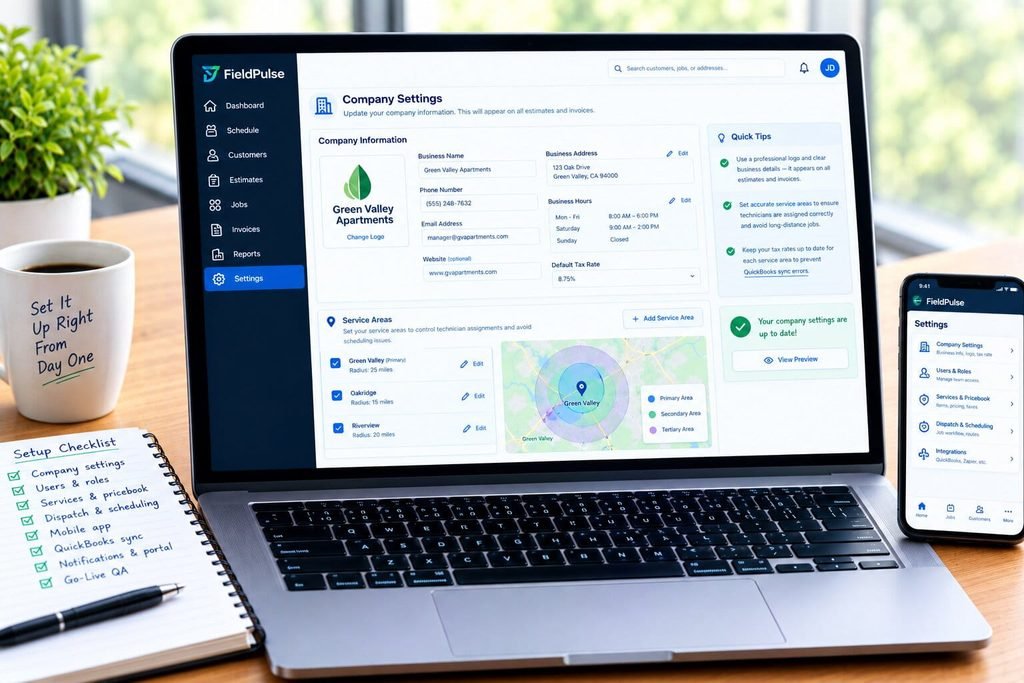
Begin by entering your company profile information in Company Settings, including your business name/logo, address, phone number, business hours, and default tax rate. This appears on every estimate and invoice to your customers, so it’s worth putting some thought into.
Designate your service areas here as well, to control which technicians get assigned which jobs and avoid accidentally scheduling someone three hours away.
2.Users, Roles, and Permissions
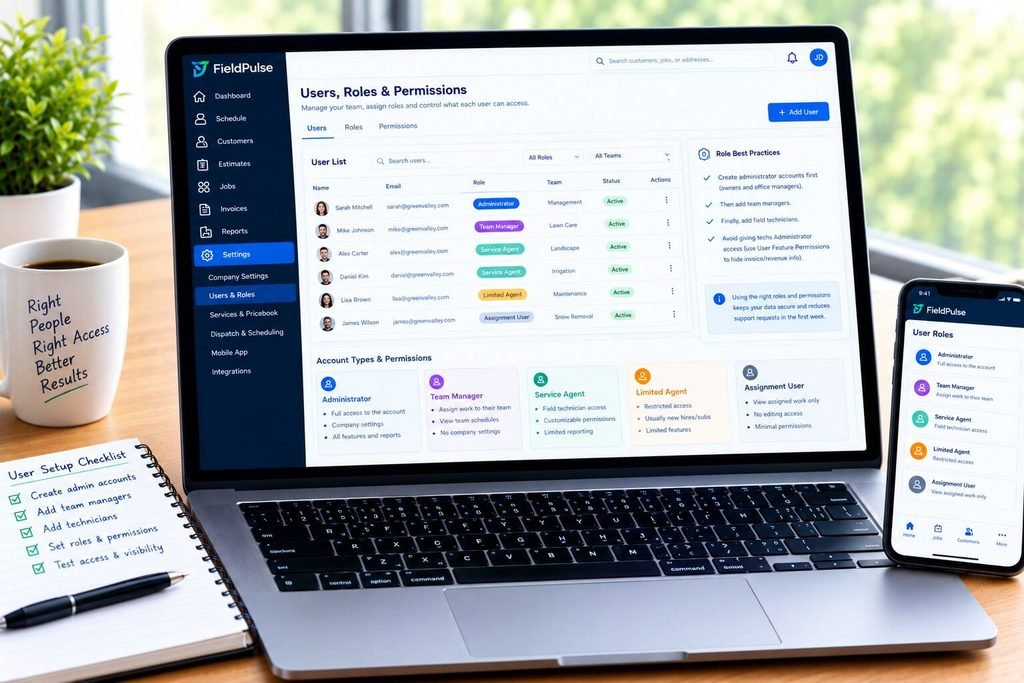
This is always the step that gets rushed, and the one that creates the most support requests in the first week.
Per FieldPulse’s official Help Center documentation on user roles, there are five account types:
- Administrator: Full access to the account. Designate this to your owner and office manager.
- Team Manager: Can assign work to their team, but cannot see company settings or other team’s schedules.
- Service Agent: For your field technicians; permissions are customizable.
- Limited Agent: For restricted access to field technicians, usually new hires or subcontractors.
- Assignment User: A more limited agent role for people who only need to see assigned work.
A good practice is to create your administrator accounts first, then your team managers, and finally your field technicians. That way, you can assign a technician to the appropriate manager and team as you create them, rather than having to reassign later.
One common mistake I see is technicians getting given Administrator access “because it’s easier.” Don’t do this. Per FieldPulse’s documentation on invoice visibility, you can turn off invoice visibility for specific users under User Feature Permissions. Most owners want their field technicians to see job and customer history, but not necessarily the revenue and margin information.
3.Services, Pricebook, and Taxes

Next, create your flat-rate pricebook. Enter each line item, its cost, and which tax category it falls under. This is essentially a data entry task if you already track flat-rate pricing on paper or in a spreadsheet.
Set your default sales tax rate per service area if you operate in multiple counties or municipalities with different tax rates. This is a very common cause of QuickBooks sync errors, as mismatched tax codes between FieldPulse and QuickBooks will throw an error.
4. Dispatch Board and Scheduling Rules

Configure your dispatch board once your users and services are created. Set up your job status workflow (unscheduled, scheduled, en route, in progress, completed, invoiced) and keep it simple – I’ve seen too many shops add six or seven status stages and then fail to keep it up to date, defeating the purpose of a dispatch board.
Configure your scheduling rules and technician filters so your dispatcher can sort by team, service area, or other parameters rather than seeing every technician at once.
5. Mobile App and Offline Mode
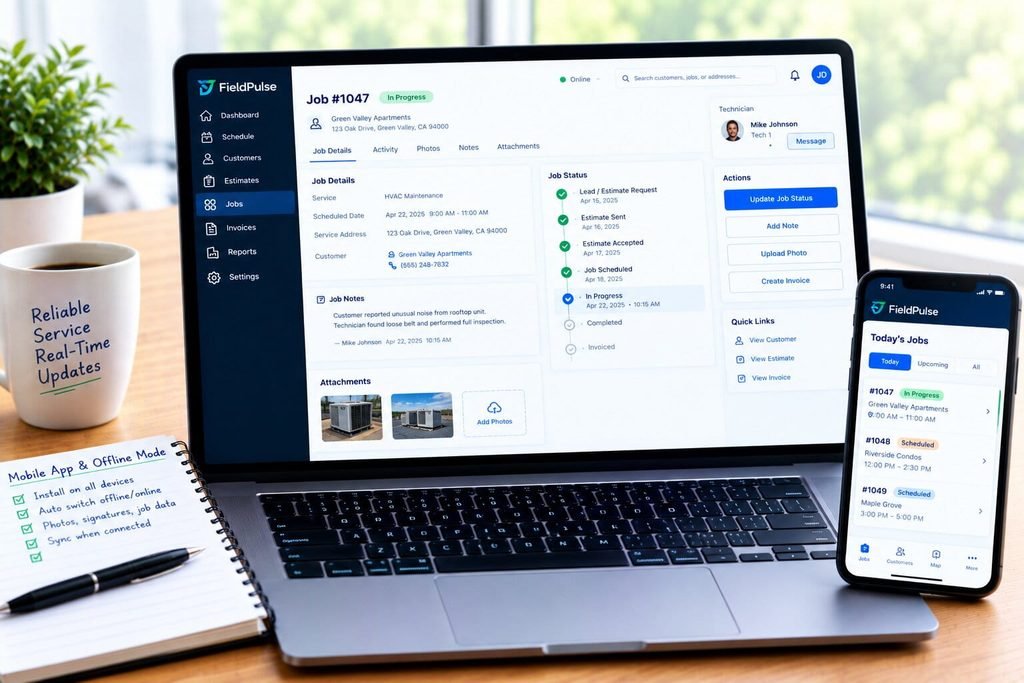
Install FieldPulse mobile app on every technician’s device ahead of their first use – not the morning of their first job.
Per FieldPulse’s Help Center article on Offline Mode, the application will automatically switch to offline mode if a technician loses cell service or enables airplane mode. Job information, customer data, photos, and signatures will remain cached and sync when connectivity is restored.
Here’s what offline mode does NOT handle, per aggregated field feedback:
- Processing new payments
- Creating entirely new jobs
- Real-time updates to the office dispatch board
From a configuration perspective, I always recommend performing an offline test in your first week: have a technician put their phone on airplane mode, perform a mock job with photos and signature, then reconnect and confirm everything synced properly. Per FieldCamp’s analysis of over 300 FieldPulse reviews, intermittent syncing and offline data loss were among the most common complaints, so this is a test that can’t be ignored if your technicians work in areas with spotty connectivity.
6. Estimates, Jobs, and Invoices Workflow
Designate how a job moves through your business, then map it to FieldPulse’s workflow: lead/estimate request > estimate sent > estimate accepted > job scheduled > job completed > invoice issued > payment received. Create a template estimate and invoice so your technicians don’t have to design them from scratch on-site.
7. QuickBooks Sync and Payments
This is the integration that matters most to trade shops, and it’s worth configuring carefully.
QuickBooks Online: Per FieldPulse’s Pre-Sync documentation, QuickBooks Online Essentials, Plus, and Advanced will all sync, but FieldPulse recommends using Plus or Advanced since Essentials does not support inventory tracking. The sync is two-way: customer, line item, estimate, invoice, and payment information created in either system will appear in the other. Note that tips do not sync through the QBO integration and should be tracked separately to avoid balance issues.
QuickBooks Desktop: Per FieldPulse’s Pre-Sync documentation, the Desktop version requires QuickBooks Desktop 2024 or newer (Contractor, Pro, Premier, or Enterprise editions) in single-user mode on a Windows machine with sleep mode disabled on the computer so the sync can run continuously. Most connections will require coordination with FieldPulse support rather than an end-user connection.
Configure your payment methods and default sales/purchase accounts at the same time. Try one test invoice end-to-end (create, send, receive payment, confirm it appears in QuickBooks) before trusting the sync with production data.
Custom Forms and Asset or Equipment Tracking
If your trade requires inspection checklists, safety forms, or equipment history (HVAC unit serial numbers, electrical panel details, backflow testing records), create your custom forms now. This is also where you would configure asset tracking for commercial customers or recurring maintenance accounts.
9. Notifications and Customer Portal
Set up automated customer notifications (appointment reminders, technician en route alerts, invoice receipt confirmations) and configure your customer portal if you want customers to be able to view history or accept estimates online. Limit the number of triggers at first – sending five automated text messages per job almost always creates more complaints than support requests.
10. Reporting Basics and Go-Live QA
Before going live, try a complete test job:
- Create a test customer and job
- Assign it to a technician’s mobile app
- Complete the job offline and reconnect to confirm the sync
- Issue an invoice and receive a test payment
- Confirm the invoice/payment appears correctly in QuickBooks
- Verify the appropriate notifications were sent to the correct people
If this all works, you’re ready for production jobs.
What You Should See After Setup
After completing this configuration, you should have:
- A working dispatch-to-job-to-invoice workflow that your entire team can see
- An offline mobile application that your technicians can use in areas without connectivity
- A two-way QuickBooks sync that eliminates double data entry
- Role-based permissions protecting financial data appropriately
- Automated customer notifications that don’t require manual follow-up
Common Mistakes to Avoid During Setup
- Giving every technician Administrator access instead of the Service Agent role
- Miscounting seat types when estimating your monthly bill (full-access seats and field-only seats are often priced differently)
- Skipping the offline mode test before a technician’s first real job in a dead zone
- Not running a test invoice through QuickBooks before go-live
- Creating more than six or seven dispatch status stages, which nobody keeps up to date
- Assuming the base plan quote included GPS tracking, VoIP, or AI dispatch add-ons
Common Problems and Solutions
| Problem | Likely Cause | Solution |
|---|---|---|
| Offline payments fail to process | Payments require an active connection by design | Only process payments once back online; use offline mode for notes, photos, and signatures |
| QuickBooks sync throws errors | Mismatched tax codes or chart of accounts | Verify tax mapping and default accounts, then re-authenticate the connection |
| Dispatch board feels overloaded | Too many status stages or no filters set | Limit status stages to six or fewer and set technician/team filters |
| Technicians see financial data they shouldn’t | Wrong user role assigned | Reassign to Service Agent and toggle off Invoicing Visibility |
| Customers complain about too many texts | Notification triggers set too broadly | Reduce triggers to appointment confirmation, en route alert, and invoice receipt only |
Industry-Specific Setup Recommendations
HVAC
- Create custom forms for equipment history, model/serial numbers, and preventive maintenance agreements
- Configure recurring maintenance agreements in the pricebook to streamline renewals
- Implement asset tracking per property for multi-unit commercial HVAC accounts
Plumbing
- Configure a separate “emergency call” job type with after-hours pricebook entries
- Define technician availability rules for on-call rotation vs. standard day jobs
- Track material costs per job more closely due to generally thinner plumbing job margins
Electrical
- Develop inspection and permit tracking custom forms for jurisdictions requiring per-job documentation
- Configure pricebook categories to distinguish between service calls and panel upgrade/install jobs
- Implement role restrictions to limit access to licensing/certification information
Roofing
- Configure multi-day project tracking to account for extended roofing projects
- Develop material calculation templates as part of estimate configuration to improve accuracy
- Utilize customer portal for photo attachment and progress reporting on complex replacements
Landscaping
- Configure route-based recurring jobs for weekly/biweekly service accounts
- Implement seasonal territory restrictions for crews working five-day vs. seven-day schedules
- Track maintenance schedules for equipment beyond mowers (e.g., larger garden machinery)
Why Getting Setup Right Matters More Than Most Owners Expect
The field service management category is exploding. According to Global Market Insights, the global field service management market size was valued at $5.49 billion in 2025, and it is projected to grow at a 16% CAGR from 2026 to 2035. As a result, businesses need to ensure that they are as lean as possible to remain competitive. According to the Plumbing-Heating-Cooling Contractors Association’s 2026 industry outlook, the need for plumbers is set to increase by 4% between 2024 and 2035, creating about 44,000 job openings yearly, mostly due to retirement.
The number of HVAC mechanics and installers is expected to rise faster than the average between 2024 and 2035, generating over 40,000 openings per year. The prospect of limited technicians and an increasing number of job openings is enough to scare most owners into reconsidering their spending on a dispatch board that has little chance of getting utilized fully. After all, most owners are unlikely to risk their technicians’ time due to a few misplaced and difficult-to-access tickets, misplaced and duplicated QuickBooks invoice, or a poorly implemented offline mode that wipes a customer’s signature on an estimate.
There is no doubt that confidence in using new digital tools is on the rise among proprietors. According to SBE Council’s 2026 Small Business Technology Use Survey,90% of small business owners are confident that they can adopt digital technologies. Hence, the chances are high that the fears of being unable to implement a powerful solution such as FieldPulse boil down to the order of setup procedures.
Final Verdict
FieldPulse is best for growing field service teams (3-25 technicians), who prioritize depth of workflow, asset tracking and offline mobile features over straightforward self-serve pricing. If you’re set on a transparent cost structure and don’t want to talk to a sales representative before getting a quote, Jobber and Housecall Pro, as well as the other FieldPulse competitors mentioned in this guide are definitely worth considering.
Confused About Fieldpulse ? Go Through Our Fieldpulse Hub.
Frequently Asked Questions
Is FieldPulse good for HVAC, plumbing, or electrical businesses?
Yes. FieldPulse is built specifically for trade businesses, and HVAC, plumbing, and electrical teams make up a large share of its user base. It includes trade-relevant features like a flat-rate pricebook, service agreements, custom forms for equipment tracking, and QuickBooks sync. It works best for teams of 3 to 25 technicians rather than solo operators or large enterprise crews.
Does FieldPulse work offline?
Yes, but with limits. According to FieldPulse’s own Help Center documentation, the mobile app automatically switches to offline mode when a technician loses connectivity, allowing them to view job details, capture photos, and collect signatures. Data syncs automatically once the connection returns. Offline mode does not reliably support processing new payments or creating brand-new jobs from scratch, so plan those tasks for when your team is back online.
How much does FieldPulse cost per user?
FieldPulse does not publish pricing, so you’ll need a custom quote. Third-party pricing trackers report base pricing around $89 to $99 per month plus roughly $30 per additional user per month, with total costs for a 5-person team commonly reported between $209 and $250 per month before add-ons like GPS tracking, VoIP, or AI dispatch.
Does FieldPulse integrate with QuickBooks?
Yes. FieldPulse offers two-way sync with QuickBooks Online (Essentials, Plus, or Advanced plans) and integrates with QuickBooks Desktop 2024 and newer on Windows. QuickBooks Online sync is generally quicker to set up, while QuickBooks Desktop requires scheduling a setup call with FieldPulse’s support team and keeping the connected computer’s sleep mode disabled.
Is there a free trial for FieldPulse?
FieldPulse’s trial availability has varied by source and time period, with several 2026 reviews reporting a demo-first sales process rather than a self-serve free trial. Confirm current trial availability directly with FieldPulse before assuming either way, since vendor trial policies change.
How long does FieldPulse setup take?
Core setup, meaning company profile, users, roles, services, and dispatch board, typically takes 60 to 90 minutes for a small team with clean existing data. Full QuickBooks Desktop sync, custom form building, and asset tracking configuration can extend the full setup process to a day or two.
What are typical FieldPulse contract terms?
Contractor-reported terms commonly include a 1-year initial commitment with roughly 60 days’ notice required to cancel. Exact terms vary by quote, so confirm contract length and cancellation policy in writing before signing.
Can I limit what my technicians see in FieldPulse?
Yes. FieldPulse’s role-based permissions let administrators control what each user sees. Technicians assigned the Service Agent role can have invoice visibility and other financial data toggled off entirely through User Feature Permissions, while still retaining full access to job details, customer history, and scheduling information they need in the field.
What’s the biggest mistake businesses make setting up FieldPulse?
Skipping the offline mode test and the QuickBooks sync test before going live with real jobs. Both are common sources of week-one support tickets and, in the case of a failed sync, can create duplicate invoices or accounting errors that take time to unwind.
Is FieldPulse better than Jobber or Housecall Pro?
It depends on what you need. FieldPulse tends to win on workflow customization, asset tracking, and flat-rate pricebook depth. Jobber tends to win on transparent pricing and route optimization for solo operators and small teams. Housecall Pro tends to win on marketing automation and consumer-facing polish. Run the numbers for your actual team size, since per-user pricing models cross over at different points for each platform.