Simpro QuickBooks Online Integration: How to Connect, Sync Data, and Avoid Costly Errors
Most contractors do not lose money on the job site. They lose it in the gap between the job and the books: an invoice that never reached the accountant, a supplier bill coded to the wrong account, a payment that cleared the bank but still shows as open. A good field service platform shrinks that gap. Connecting it properly to your accounting system is what actually closes it.
If you run Simpro and keep your books in QuickBooks Online (QBO), the integration is one of the highest-value setup tasks you will do. It is also one of the easiest to get subtly wrong. In my experience, the failures are rarely dramatic. They are quiet: a tax code that does not match, a cost centre pointing at the wrong income account, a payment split into pieces. You find them at month end, when someone is already tired.
This guide covers what the Simpro and QuickBooks Online integration does, how to connect Simpro to QuickBooks Online step by step, how the sync behaves, and the gotchas worth knowing before they cost you hours. For a broader overview of the pairing, see our Simpro and QuickBooks guide.

Quick Answer: How Does the Simpro QuickBooks Online Integration Work?
The Simpro QuickBooks Online integration is an accounting link that exports customers, suppliers, contractors, invoices, and credits from Simpro to QuickBooks Online, and can transfer payments in either direction. You enable it by authorizing Simpro Premium in QuickBooks Apps, then choosing your export options in Simpro’s accounts integration settings.
Simpro describes its own platform as a field service system rather than accounting software, so QuickBooks stays your system of record for the books. Simpro feeds it clean, job-based transactions.
Key Takeaways
- The native link sends customers, invoices, credits, suppliers, contractors, and supplier invoices from Simpro to QBO, and payments can move one way or both ways.
- Cost centres and tax codes are the two settings that cause most export failures. Set them up before you turn the link on.
- In the US and Canada, Simpro tax types (Single, Component, Combined) must match how the same tax codes are set up in QBO, or exports can fail.
- Payments applied to multiple invoices in Simpro can arrive in QBO as separate payments, which complicates reconciliation.
- Third-party connectors and Zapier can extend the sync, but they add cost and another system to maintain.
- Test with a handful of real transactions before you export a full month of data.
What the Simpro and QuickBooks Online Integration Actually Does
Definition: The Simpro Accounting Link
An accounting link is a connection that posts transactions from your field service software into your accounting package so you do not re-enter them by hand. Simpro’s own QuickBooks integration page describes sending customer, supplier, and contractor invoice data from Simpro to QuickBooks with a few clicks. Its help guide on setting up the QuickBooks Online accounting link lists what can be exported.
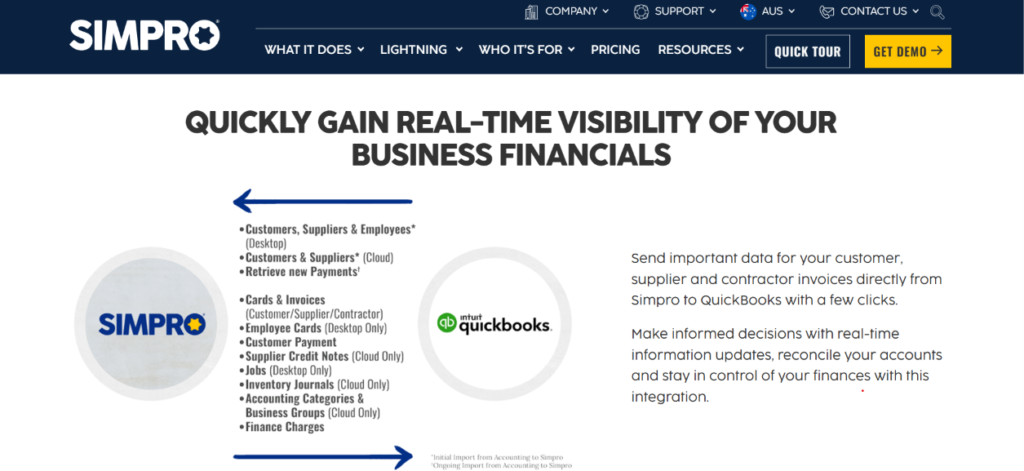
The help guide is also clear on an important point: Simpro Premium is not an accounting software package. It links to your existing one. That shapes how you should think about the sync. Simpro owns the job, the quote, the cost centre, and the invoice. QuickBooks owns the ledger, bank reconciliation, and financial statements.
What Moves From Simpro to QuickBooks Online
According to Simpro’s documentation, the export options include:
- Customers: customers created or edited in Simpro.
- Invoices and credits: customer invoices and credit notes.
- Suppliers and contractors: new suppliers and contractors created or edited in Simpro.
- Supplier invoices: supplier and contractor invoices and credits.
- Payments: exported from Simpro, imported from QBO, or both, depending on the setting you choose.
What to Verify Before You Assume It Syncs
The help guide I reviewed covers Simpro Premium and QuickBooks Online. Third-party listings also mention QuickBooks Desktop, and one how-to from a hosting provider notes that the Premium steps do not apply to the Desktop version. If you are on Desktop or a different Simpro edition, confirm the exact route with Simpro support before you plan your rollout.
Why This Integration Matters for Field Service Cash Flow
I like to frame accounting integration as a cash flow decision, not an IT task. Slow or error-prone invoicing delays revenue, and delayed revenue hurts most when your cash cushion is thin.
The Federal Reserve Banks’ 2024 Small Business Credit Survey, which reached more than 7,600 small employer firms, found that 56% cited paying operating expenses and 51% cited uneven cash flows as challenges. Those are the exact pressures that slow invoicing and messy reconciliation make worse. The Fed’s more recent 2026 Report on Employer Firms also lists hiring and retaining qualified staff among the most common operational challenges.
Labor is the other half of the story. The U.S. Bureau of Labor Statistics reports about 440,900 jobs for heating, air conditioning, and refrigeration mechanics and installers in 2025, with a median pay of $61,010 per year ($29.33 per hour) and 11% projected growth from 2025 to 2035. Skilled technicians are expensive and scarce. If your office staff or your technicians spend evenings re-keying job data into accounting, you are spending scarce hours on work software can do.
I will not claim a specific time saving, because it depends on your volume and processes. A simple way to estimate it: count how many invoices and bills you re-enter each week, multiply by the minutes each takes, then multiply by the loaded hourly cost of the person doing it. That number is your baseline for judging the integration.
Before You Connect: Prerequisites That Prevent Most Problems
Confirm Your Edition and QuickBooks Version
Confirm which Simpro edition you are on and that your QuickBooks account is QuickBooks Online. Check your QuickBooks plan as well. Intuit’s subscription levels page lists billable user limits by plan (for example, 1 on Simple Start, 3 on Essentials, 5 on Plus, and 25 on Advanced). That matters if your bookkeeper, owner, and office admin all need access.
Clean Up Your Chart of Accounts and Cost Centres
Cost centres are central to how Simpro posts to QuickBooks. Simpro’s account setup guide explains that cost centres group labor and material income and expenses, and that each one needs to be linked to an income and expense account in your accounting package.
A practical approach is to review your QBO chart of accounts first, then design cost centres around how you want to see profit. Examples: installation, service repair, maintenance agreements, and subcontracted work. If your chart of accounts is already messy, fix that before you automate it.
Set Up Tax Codes (Especially in the US and Canada)
This is the one I would not skip. Simpro’s tax code guide has a section for businesses in the United States and Canada. Key points from it:
- You need to set tax types for your tax codes.
- QuickBooks Online uses Single, Component, and Combined tax codes, so the tax types in Simpro must match QBO.
- If a code is a Component tax code in QuickBooks but a Single tax code in Simpro, invoices using it can fail to export.
- Simpro invoices can have only one tax code. To account for state or province, city, county, and other taxes, create a Combined tax code made up of multiple codes.
- When using the accounting link, the total of a Combined code is sent to the accounting package and divided into its member codes on receipt.
The setup guide adds that if you have used Simpro with another accounting package and are moving to QuickBooks Online, you need to reset all of your tax codes. Canadian contractors with GST, HST, or PST combinations should plan extra time here and test with a real invoice from each province you serve.
Check Permissions
A third-party how-to from Apps4Rent notes that your Simpro security group needs permission for the Accounting Link before you can set it up. Make sure whoever is doing the setup has that access, and that they also have admin-level access in QuickBooks.
How to Connect Simpro to QuickBooks Online: Step-by-Step
The exact screens change over time, so use this as a roadmap and follow the current Simpro help guide for the click path.
- Back up and plan. Export or note your current cost centres, tax codes, and chart of accounts. Decide who owns the integration.
- Match your tax codes and cost centre accounts. Make sure Simpro tax types align with QBO and that each cost centre points at the right income and expense account.
- Grant the Accounting Link permission. In Simpro’s security groups, enable the permission for the user doing the setup.
- Find Simpro Premium in QuickBooks Apps. Open My Apps in QuickBooks, search for Simpro Premium if it is not listed, and authorize access.
- Launch and sign in. Enter your Simpro Premium company identifier, username, and password when prompted so the two systems can link.
- Enable QuickBooks Online in Simpro. In Simpro’s accounts integration settings, select QuickBooks Online as the accounting package.
- Choose your export options. Select which transactions to export (customers, invoices, suppliers, supplier invoices) and how payments should move.
- Save, then test with a small batch. Export one customer invoice, one credit, one supplier invoice, and one payment. Check each in QuickBooks against the original in Simpro.
- Review totals and tax. Compare invoice totals, tax amounts, and income accounts.
- Go live in stages. Turn on additional transaction types once the first ones post cleanly.
Choosing Your Sync Settings
Customers, Suppliers, and Contractors
Simpro exports customers, suppliers, and contractors that are created or edited in Simpro. In practice, this means Simpro should be your source for customer records going forward. If both your office and your bookkeeper create customers in two places, you will get duplicates. Pick one front door.
Invoices and Credits
Invoices and credits export from Simpro to QBO. A few details from the export documentation are worth knowing:
- The Tax Invoice number in Simpro populates the Invoice number field in QuickBooks.
- Imported invoices are broken down by cost centre, then by tax applied in Simpro.
- The integration creates service items in QuickBooks that match your cost centres and income accounts, so later invoices post to the correct income account.
- Supplier invoices in QuickBooks look like an item breakdown, but quantity is not specified.
Payments: Pick One Direction on Purpose
Payments are where I see the most confusion. Simpro gives three choices, summarized below.
| Payment Setting | What It Does | Best For |
|---|---|---|
| Both (import and export) | Transfers payments in both directions between Simpro and QBO | Teams that collect in the field and also use QBO bank feeds |
| Export to QuickBooks Online only | Payments are processed in Simpro and sent to QBO | Teams collecting payments through Simpro, including field and online payments |
| Import to Simpro only | Payments are processed in QBO and sent to Simpro | Teams that apply payments in QBO, for example from bank feeds |
The takeaway: choose the setting that matches where your team actually applies payments, then train everyone to do it in that one place. The help guide notes you can use QBO bank feeds to apply payments and then import them into Simpro, or let technicians and customers pay through Simpro Payments and export them to QBO. Mixing habits without a rule is how payments get applied twice.
How Simpro Data Maps Into QuickBooks Online
| Simpro Item | Where It Lands in QuickBooks Online | Notes |
|---|---|---|
| Customer | Customer | Exported when created or edited in Simpro |
| Customer invoice | Invoice | Tax Invoice number becomes the QBO invoice number |
| Customer credit | Credit | If exported separately from the invoice, link it manually in QBO |
| Supplier or contractor | Vendor | Exported when created or edited |
| Supplier or contractor invoice | Bill | Posts to the expense account tied to the cost centre |
| Cost centre | Service item and account | Linked through income and expense accounts |
| Tax code | Tax code | Types must match (Single, Component, Combined) |
| Payment | Payment | Direction depends on your payment setting |
Gotchas and Common Sync Errors
These come straight from Simpro’s help documentation or from the way the link is designed. Review them before you go live.
| Problem | Likely Cause | Practical Fix |
|---|---|---|
| Link fails after an accounting change | Someone renamed the chart of account assigned to a service item in QBO | Re-assign the cost centre in Simpro and the service item in QBO to the correct income account |
| Invoice export fails on tax | Tax type mismatch, such as Component in QBO and Single in Simpro | Align tax types and use a Combined code for multi-jurisdiction tax |
| Payment is rejected | Correct invoice number but wrong customer name | Confirm customer names match across systems |
| Credit does not apply to invoice | Credit exported separately from the invoice | Manually link the credit to the invoice in QBO |
| Invoice rejected for payment terms | QBO cannot process terms more than 31 days after end of month, or more than 999 days after the invoice date | Adjust payment terms to fit QBO limits |
| Reconciliation looks messy | A payment applied to several invoices in Simpro arrives as separate payments in QBO | Apply payments one invoice at a time, or reconcile from the bank feed side |
| Name errors | Accounting category, cost centre, and business group names are limited to 100 characters | Shorten long names |
The Multi-Invoice Payment Problem
The help guide notes that QuickBooks Online does not allow one payment to be applied across multiple invoices the way Simpro does. If you apply one payment to several invoices in Simpro and export it, separate payments are created in QBO. That can make bank deposits harder to match. The workaround I recommend is simple: decide whether Simpro or QBO is the place payments get applied, and keep the other side read-only for that task.
The Renamed Account Trap
I have seen this kind of problem often in connected systems: someone tidies up the chart of accounts in the accounting file and the field system silently loses its mapping. Add a rule to your bookkeeping process that account names tied to cost centres do not change without telling the person who owns the Simpro setup.
Native Link, Third-Party Connector, or Zapier?
The native accounting link handles the core flow. Some companies want more, such as syncing jobs as projects, bank feed expenses, or two-way customer and vendor updates. A third-party option such as the Smoothx QuickBooks Online connector, listed on the Simpro marketplace, advertises two-way sync including customer details and attachments. Smoothx’s own connector page describes syncing Simpro jobs to QuickBooks sub-customers or projects and tiered plans based on revenue. Treat vendor claims, including setup time, as marketing until you test them in your own file.
| Option | Strengths | Limitations | Best For |
|---|---|---|---|
| Native Simpro accounting link | Built for Simpro, documented by Simpro, core transactions covered | Mostly Simpro to QBO, with specific rules on credits, taxes, and payments | Most contractors starting out |
| Third-party connector | Can extend sync, such as jobs to projects and two-way data | Extra subscription, another vendor to support | Larger or more complex operations |
| Zapier automation | Flexible triggers and actions for custom workflows | Needs design and monitoring, not a full accounting sync | Specific one-off automations |
Zapier lists a QuickBooks Online and Simpro connection with triggers and actions. If you want to explore that path, our guide to Simpro and Zapier automation covers where it helps and where it adds risk. A practical rule from an implementation perspective: start with the native link, and only add middleware when you can name the specific gap it fills.
If you use a different accounting platform, the setup differs. See our articles on Simpro and Xero and Simpro and Sage. Note that Simpro’s own Sage link documentation is labeled UK only, which is worth knowing if you are in the US or Canada.
Cost and ROI Considerations
I will not invent prices here. Simpro pricing is quote based, QuickBooks pricing varies by plan, and connector pricing varies by vendor. Here is how to build your own cost picture.
| Cost Area | What to Ask or Check |
|---|---|
| Simpro licenses | Which modules and users are in your quote? |
| QuickBooks Online plan | Does your plan support the number of billable users you need? |
| Setup time | Who will map cost centres, tax codes, and accounts, and how many hours? |
| Training | How long to teach the office and technicians the new payment and invoicing rules? |
| Connector or middleware | Is a paid connector or Zapier plan needed beyond the native link? |
| Ongoing ownership | Who monitors failed exports each week? |
The main takeaway: the integration itself is rarely the biggest cost. Setup discipline and ongoing ownership usually are. To judge return, track before and after: days from job completion to invoice, invoices re-keyed by hand, export errors per month, and days sales outstanding. If those do not improve over a few months, find out why before adding more tools. No integration guarantees a result.
Field Service Examples: Where the Sync Helps
HVAC and Maintenance Agreements
HVAC companies often mix recurring maintenance agreements, emergency repairs, and install projects. Separate cost centres for each let QuickBooks show margin by work type. Equipment-heavy parts purchases flow in as supplier invoices, which is where accurate coding saves real money. For HVAC refrigeration work specifically, see our look at Simpro for refrigeration contractors.
Plumbing and Electrical
Plumbing and electrical contractors typically carry many small supplier invoices and some larger project billing. Tax code accuracy matters when material and labor are taxed differently by jurisdiction. Test one invoice that mixes taxable parts with labor before you rely on the link.
Subcontractor-Heavy Work
Roofing, general contracting, and construction services lean on subcontractors. Simpro exports contractor invoices as bills, so make sure your contractor vendor records are set up properly in both systems before your first export.
Recurring Service Businesses
Landscaping and pest control rely on recurring billing. Keep customer names consistent across systems, because the payment export can reject a payment if the customer name does not match the invoice.
Best Practices for a Clean Sync
- Name one owner. One person watches exports and fixes errors weekly.
- Freeze account names. Do not rename QBO accounts tied to cost centres without notice.
- Export small first. Start with one transaction type, confirm, then add more.
- Match tax codes exactly. Especially for multi-jurisdiction US and Canadian tax.
- Decide where payments are applied. Then document it.
- Reconcile weekly, not monthly. Small mismatches are easy to fix early.
- Keep customer creation in one place. Avoid duplicates.
- Review after the first month. Adjust settings once you see real transaction patterns.
Common Mistakes Contractors Make
- Turning everything on at once and discovering a tax error across 200 invoices.
- Leaving tax codes as they were from a previous accounting package.
- Letting both Simpro and QuickBooks accept payments without a clear rule.
- Renaming accounts in QBO and breaking the mapping.
- Ignoring credits that need manual linking.
- Assuming a third-party connector replaces the need for clean setup.
- Having no one assigned to check failed exports.
Pre-Launch Checklist
- QuickBooks Online account and plan confirmed.
- Simpro edition and accounting link permission confirmed.
- Cost centres linked to correct income and expense accounts.
- Tax codes aligned with QBO tax types.
- Payment direction chosen and documented.
- Test batch exported and compared line by line.
- Weekly reconciliation owner named.
- Staff trained on where customers and payments are entered.
Frequently Asked Questions About the Simpro QuickBooks Online Integration
Does Simpro integrate with QuickBooks Online?
Yes. Simpro Premium offers an accounting link for QuickBooks Online that exports customers, invoices, credits, suppliers, contractors, and supplier invoices, and can transfer payments. Confirm your specific edition with Simpro before planning your rollout.
How do I connect Simpro to QuickBooks Online?
Authorize Simpro Premium through QuickBooks Apps, sign in with your Simpro credentials, then enable QuickBooks Online under accounts integration in Simpro and choose your export options. Test with a small batch before turning on everything. Follow Simpro’s current help guide for exact screens.
What data does Simpro sync to QuickBooks Online?
Simpro exports customers, suppliers and contractors, customer invoices and credits, and supplier or contractor invoices to QuickBooks Online. Payments can be exported, imported, or both, depending on the setting you choose in Simpro.
Is the Simpro QuickBooks Online sync two-way?
Mostly one-way for core records: transactions are exported from Simpro to QBO. Payments can move both ways if you choose that setting. Third-party connectors advertise broader two-way sync, but you should verify that against your own needs.
Does Simpro work with QuickBooks Desktop?
Third-party listings mention QuickBooks Desktop support, but the QuickBooks Online setup steps do not apply to Desktop. Ask Simpro support which method applies to your edition and Desktop version before committing.
Why is my Simpro invoice failing to export to QuickBooks Online?
Common causes include mismatched tax types, a renamed account tied to a cost centre, payment terms that QBO cannot process, or a customer name that does not match. Check your tax codes and cost centre accounts first.
How do tax codes work for US and Canadian businesses?
Simpro requires tax types for US and Canadian tax codes, and they must match QuickBooks Online’s Single, Component, or Combined types. Because a Simpro invoice can have only one tax code, use a Combined code to cover state or province, city, and county taxes.
Why do payments show up as separate entries in QuickBooks?
Simpro lets you apply one payment to several invoices, but QBO does not support that. When you export such a payment, QBO creates separate payments. Apply payments one invoice at a time or reconcile through bank feeds to simplify matching.
Do I need a third-party connector or Zapier?
Not usually at the start. The native link covers core accounting transactions. Consider a connector or Zapier only when you can name a specific gap, such as syncing jobs as projects. Our Simpro and Zapier guide explains when automation helps.
How long does the Simpro QuickBooks Online setup take?
It depends on how clean your chart of accounts, cost centres, and tax codes are. The connection itself can be quick, but mapping accounts, aligning tax codes, and testing take the real time. Plan a staged rollout with a small test batch first.
Final Thoughts
The Simpro and QuickBooks Online integration is worth doing, but the connection step is the easy part. The real work is deciding how your cost centres, tax codes, and payment habits should line up before the first invoice moves. Get those right and the link quietly saves hours every week. Get them wrong and you will spend them chasing errors.
My suggestion: pick a quiet week, set up the link, export a small batch, and compare every line to the original. Fix what you find, then expand. If you are still deciding between platforms or accounting tools, explore the field service software comparisons, templates, and calculators at Field Services HQ to build a shortlist and estimate your costs. And if Xero or Sage is your accounting system instead, our guides to Simpro and Xero and Simpro and Sage are the next place to look.