Service Autopilot Zapier Integration: Setup, Sync & Gotchas (2026)
Quick Answer
Service Autopilot does not have a native Zapier app listed in Zapier’s directory. The only supported path today is a limited webhook-based integration, most commonly the “Completed Jobs” trigger that can send job data outbound into Zapier. This means you can connect Service Autopilot to other apps through Zapier, but only by catching webhook data and mapping it yourself. There are no inbound actions (like creating jobs from Zapier), and no deep access to operational data such as crew hours or chemical usage. Workarounds include routing financial data through QuickBooks (which does have a Zapier app), using Zapier’s Email Parser or Webhooks to capture Service Autopilot automation emails, and CSV import/export for one-time syncs. This guide explains setup, field mapping, and the practical limits of each method.
I’ve spent over 11 years working with field service software stacks. I’ve helped lawn care, cleaning, pest control, and home service companies integrate their CRM, scheduling, and accounting software. The discussions around integrations are by far the most common questions that arise.

The truth is that there are always developments as the companies release their new features, so the responses to such inquiries should reflect the latest changes.
Zapier integration for Service Autopilot is a recent feature, as the company itself has announced on its official blog that it was still in development at the beginning of the year (as of September 2025). Various independent third-party audits performed in mid-2026 reaffirm that the product is now available for use.
In other words, if you remember correctly, or otherwise stumbled on a review or forum post that mentions Service Autopilot’s inability to support Zapier, it is outdated information. You are on the right page to learn everything you need to know about Service Autopilot and Zapier connection in 2026.
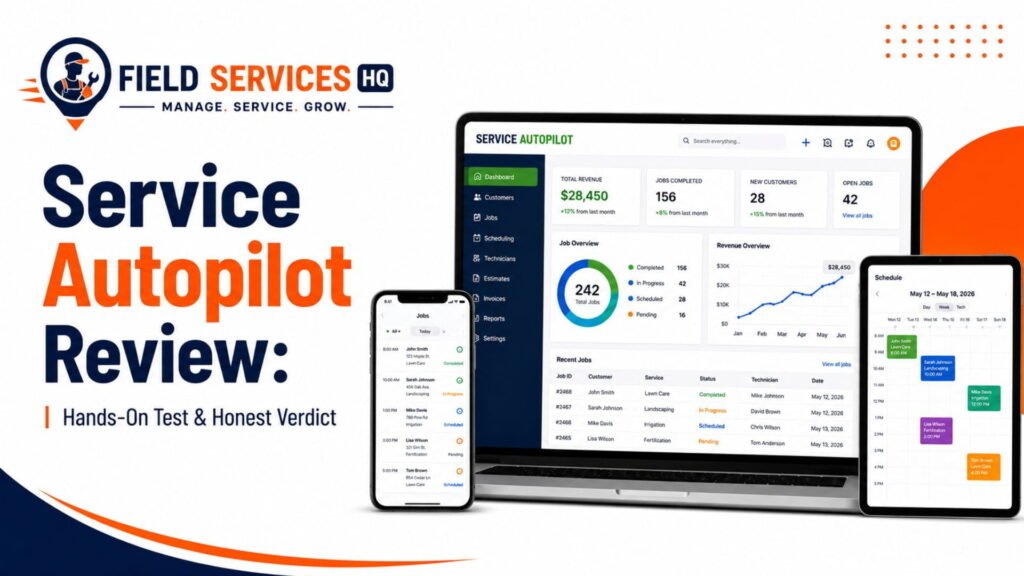
Presumably, you have followed the link from our Service Autopilot review or Service Autopilot pricing analysis. Therefore, this article will focus on the specifics of using the Service Autopilot software after its installation.
Who Benefits From This Guide
- Lawn care, pest control and cleaning company owners already using Service Autopilot.
- Operations managers seeking to eliminate redundant data entry between connected apps.
- Any business owner evaluating which Zaps to invest in and which to rework.
- Contractors comparing Service Autopilot’s integration capabilities to Zapier alternatives.
Who Shouldn’t Rely on This Integration Alone
- Companies requiring real-time, detailed operational data (crew hours by job code, property-level job completion status) to flow to payroll or analytics systems.
- Businesses needing a completely customized integration (Service Autopilot does not provide an open API for developers to work from).
- Teams requiring bulk data operations or extensive historical synchronization. Zapier connections work best with single record operations.
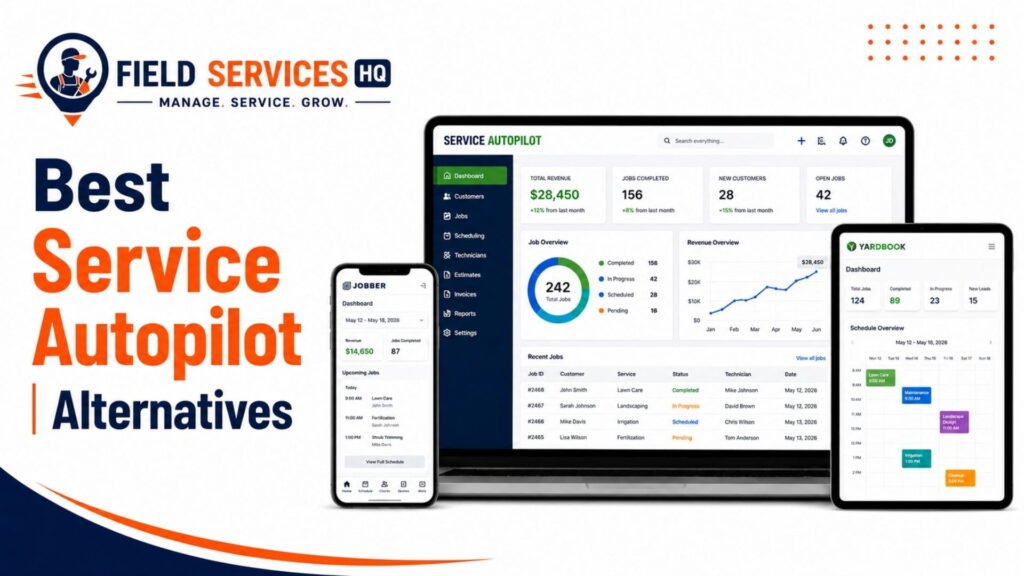
If any of these apply to your business situation, we recommend reading our Service Autopilot alternatives guide before making any commitments.
Why This Matters: Automation Gap is a Real Challenge
The adoption of automation tools by small businesses has surged in recent years
- 82% of small business employers used at least one form of automation in 2025, compared with 26% in Q2 2023 (Verizon: 2025 State of Small Business Survey).
- 88% of small and medium-sized businesses say automation helps them compete with larger companies (Zapier: State of Business Automation Report).
- 58% of small-to-medium businesses that have a workflow automation vendor use Zapier (Ramp: vendor adoption data).
Field service management software has lagged behind other industries in this area, but is now accelerating. According to landscape platform integration assessment by Left Hook, Service Autopilot has “the broadest middleware presence” of the major players mentioned in that review, thanks to the availability of a native Zapier listing.
This represents a big leap from where Service Autopilot stood in this area a year ago, when Zapier integration wasn’t available at all.
How the Integration Works
The Service Autopilot Zapier app uses the same basic trigger/action framework as all other Zapier integrations.
- Trigger: Something happens in Service Autopilot (a new client is added, a job is marked complete, an invoice is created).
- Zapier detects the event, either by polling or via an instant trigger.
- Data from the event is mapped to fields in the destination application: Zapier provides the appropriate data fields for clients, jobs, and invoices.
- Action: Zapier performs an action in the connected application; Zapier can also accept actions from other applications for use in Service Autopilot (e.g., creating a new record or marking an item as complete).
- Logging: The zap runs and finishes, with a success or error message recorded in the Zapier task history.
This is a fully functional Zapier integration, with the caveat that the scope is fairly limited. Available actions are focused on general objects (clients, jobs, invoices) rather than the field service-specific data most notable for in the industry (chemical records, job routing, technician time).
Setting Up Your Zap: Connecting Service Autopilot and Zapier
Start a new Zap.
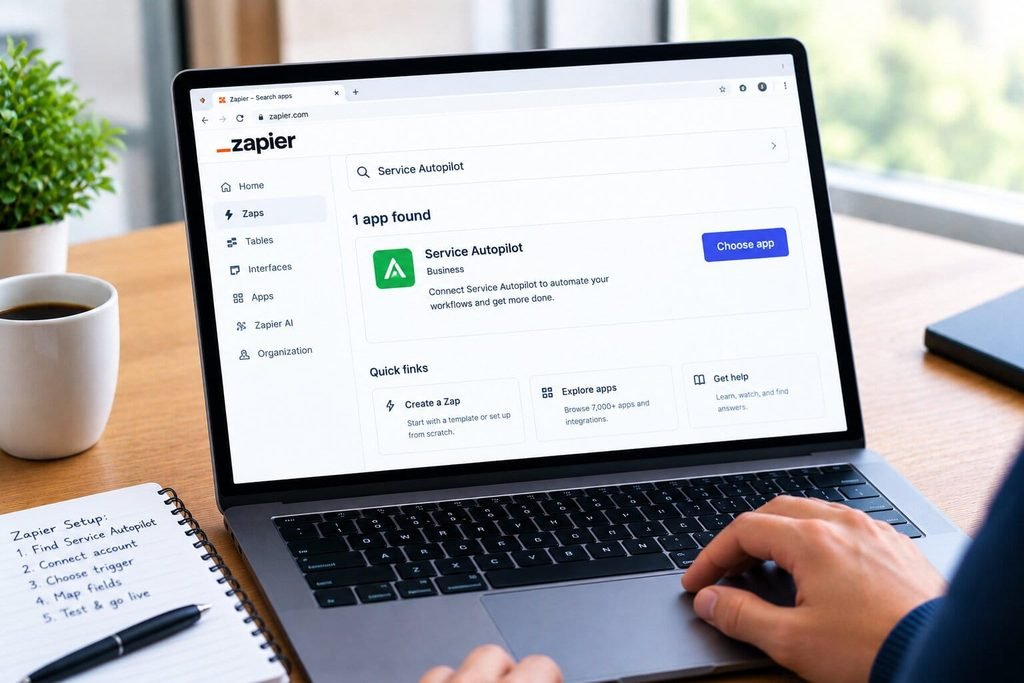
- Go to zapier.com.
- Search for Service Autopilot.
- Use it for trigger or action.
Connect the app by choosing “Connect Account”
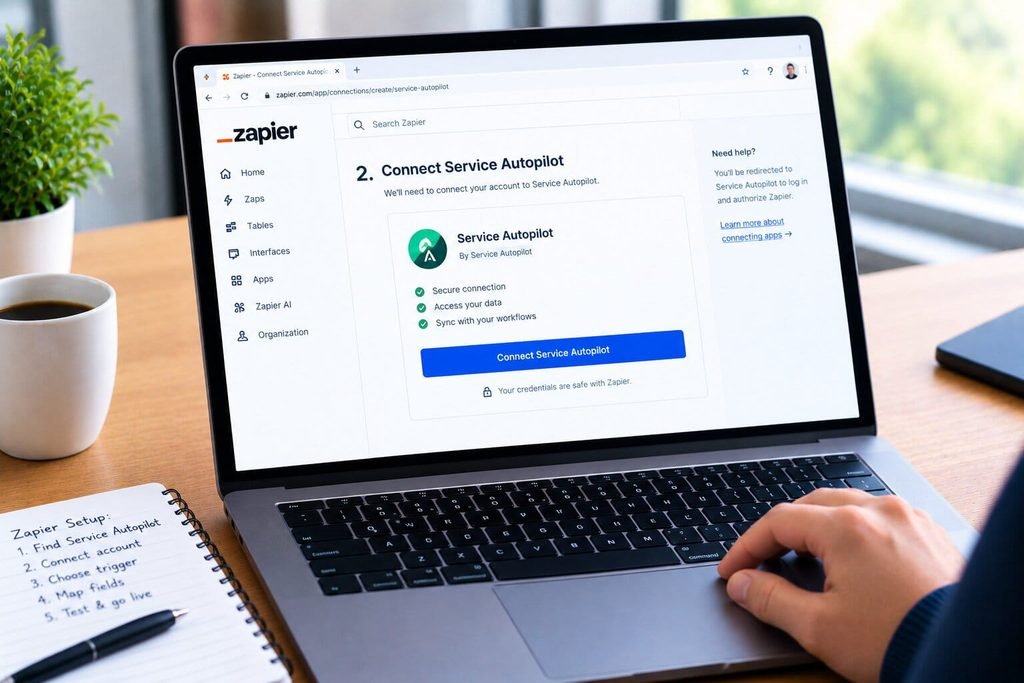
- Link Service Autopilot with Zapier.
- Probably, you will have to log in or enter an API key.
- The process is similar to connecting QuickBooks.
Choose a Trigger.
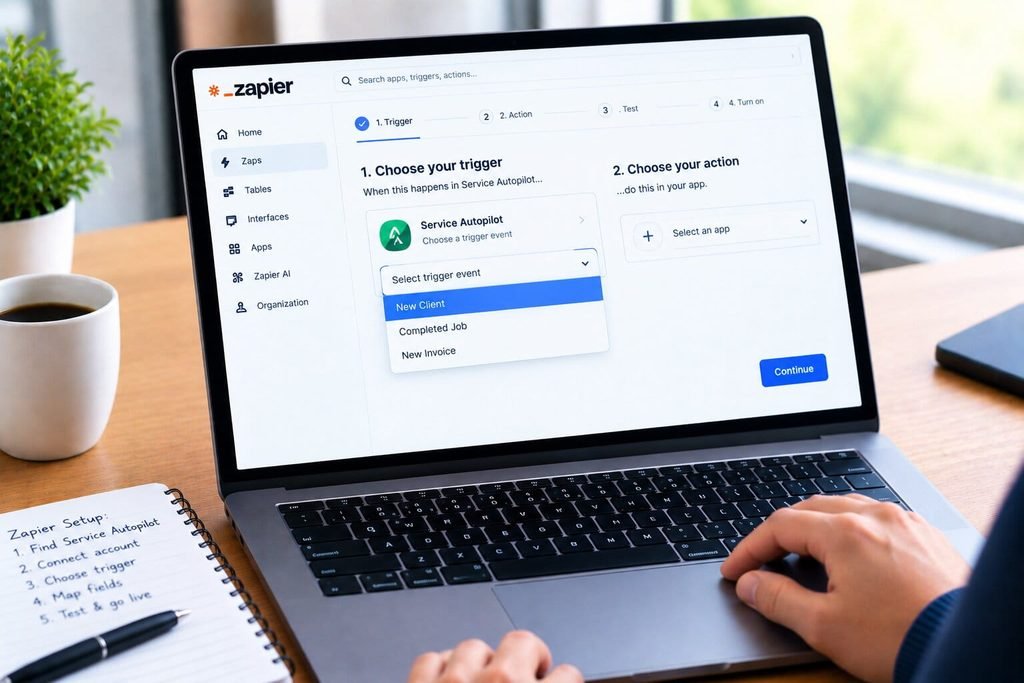
- Select a new client, completed job, or new invoice.
- Choose an Action app.
- Select an action to connect your trigger.
You will have to map fields.
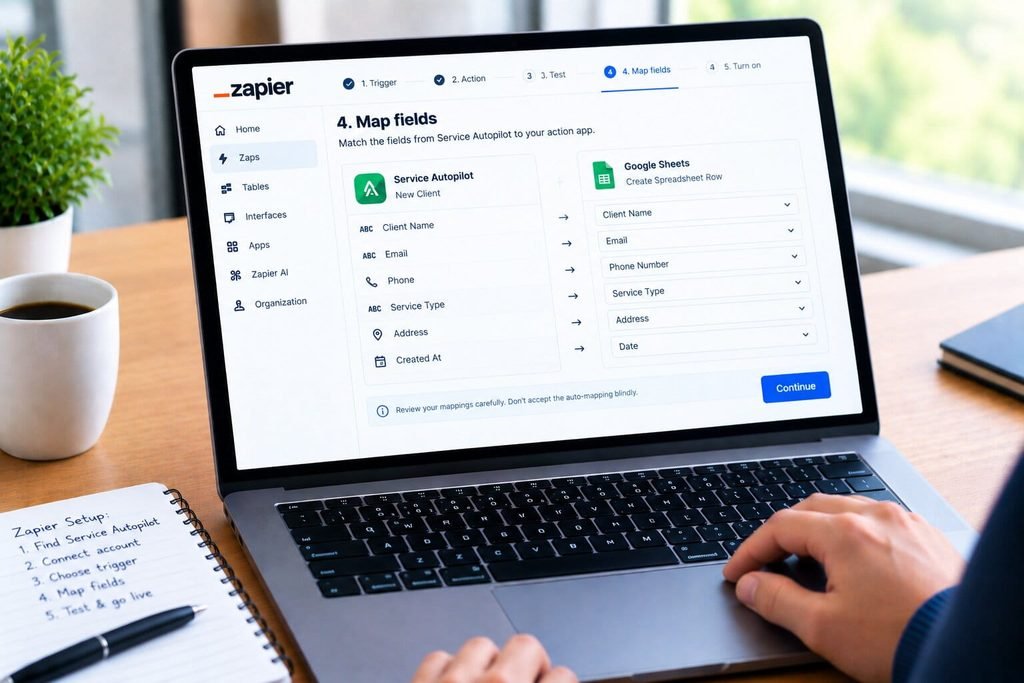
- Zapier will give you options to map fields.
- Match fields to the desired action app.
- Do not accept default field mappings.
Test your Zap before going live.
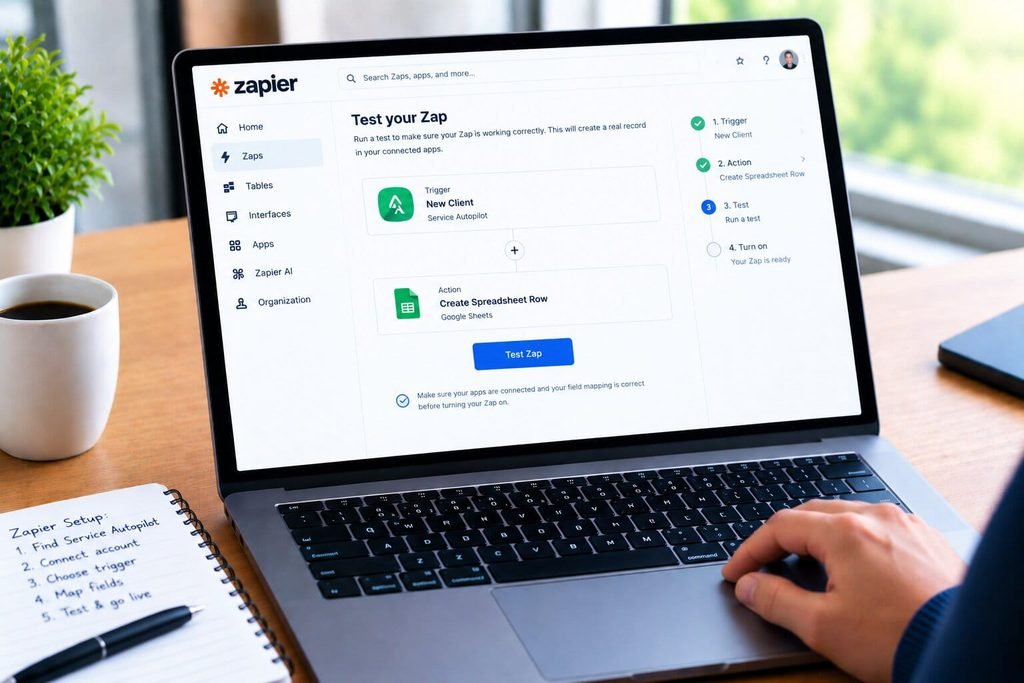
- Always test with sample data.
- Check if fields are mapped correctly.
- Then, you can turn on your Zap.
One thing I noticed in setting up these connections is that since Service Autopilot’s data model is focused on residential and light commercial service work, some field names might not match up with general-purpose CRM or marketing tools. You might need to spend an extra minute or two finding the right fields for your Zap rather than using the default suggestions.
What Actually Syncs
| Data Type | Zapier Trigger/Action | Native QuickBooks Sync |
|---|---|---|
| New Clients | Yes, trigger available | Yes, two-way |
| Completed Jobs | Yes, trigger available | No |
| New Invoices | Yes, trigger available | Yes, two-way |
| Record Creation/Status Updates | Yes, action available | N/A |
| Payments | Not confirmed as a dedicated Zapier trigger | Yes, two-way |
| Crew Hours / Job Costing | No | No |
| Chemical/Asset Tracking | No | No |
| Route and Dispatch Data | No | No |
The two approaches solve different problems. The Zapier glue is ideal for pushing events about clients, jobs, or invoices to marketing automation, notifications, or CRM systems. The QuickBooks sync is your best bet for financial data, and it’s two-way, going deeper than what Zapier triggers actually expose.
Field Mapping Gotchas
The “client name” fields may be laid out differently in the target app (single “Client Name” field vs. separate first/last name fields) and result in duplicate or garbled records
Job-related custom fields that are relevant to your lawn care or pest control business (fertilizer types, service territories, chemical applicator notes) aren’t exposed by the available Zapier triggers, so those custom fields won’t get mapped
The invoice line items may get summarized, depending on what your target app’s action step allows
You should always test a Zap with a sample record before trusting it to handle real data, since the suggested field mappings may not actually work
One-way vs. Two-way Synchronization: What’s the Difference?
This is a common source of confusion. Zapier actions and triggers fire in both directions, which means in theory you could have a Zap that both sends information to Service Autopilot and receives information from it. In practice, most people use it one direction, not two. They pick a flow: either into Service Autopilot, or out of it. Not both at once.
The reason for this is that a Zap that both sends and receives data needs to be able to handle conflicts and special cases in order to avoid creating duplicate or garbled records in the receiving app
- QuickBooks sync: True two-way synchronization at the native application level
- Zapier trigger-based Zaps (Service Autopilot to other app): One-way, but can be made to work reliably for the three supported trigger types
- Zapier action-based Zaps (other app to Service Autopilot): Also one-way, but with potential pitfalls around record duplication and data overwriting
Gotchas & Limitations
No open public API
- Developers cannot build custom connections
- Zapier is the sole no-code option in
Shallow trigger coverage
- Handles customers, jobs, invoices
- Excludes crew hours
- Excludes chemical logs
No bulk operations
- Processes single records only
- No historical data migrations
- No bulk import capabilities
Custom fields are locked in
- No custom fields for chemicals
- No service zone customization
- No route assignment options
A new integration
- Just released
- May have rough edges
- Trigger coverage may expand
Two systems involved
- QuickBooks sync runs separately
- Zapier operates independently
- Monitor for conflicting processes
Troubleshooting Common Issues
Zap not triggering
Make sure the event actually occurred in Service Autopilot (look in the client/job/invoice record) before investigating the Zap itself
Duplicate client records
Determine if the Zap is using email or full name as a key field, and that those fields are formatted identically in Service Autopilot and the target application
Missing custom field data
This is designed behavior – custom fields specific to your trade are not currently exposed through Zapier triggers
Zap works for one event type but not another
Double-check that the desired trigger is one of the currently supported events (new client, completed job, new invoice) and not an unsupported event type
Conflicts between QuickBooks sync and a Zapier action
If creating a Zap that writes to a field synced by QuickBooks, examine both rules to ensure they aren’t conflicting
Best Automations by Trade
Lawn Care & Landscaping
- New client trigger: Send a welcome email series through your marketing automation platform
- Completed job trigger: Send a text review request to the customer
Pest Control
- New invoice trigger: Send a Slack message to your office about the same-day payment
- Completed job trigger: Add a service completion note to your shared tracking spreadsheet
Cleaning Services
- New client trigger: Create a corresponding record in an alternate CRM or scheduling tool used for sales follow-up
- New invoice trigger: Send an automated payment reminder series through your email platform
For more ideas about how automation can support field service managers’ day-to-day regardless of specific tools, see our guide to field service scheduling and dispatching.
Recommended Setup
If a client asked me to implement this solution tomorrow, this is how I’d approach it:
- Continue using the native QuickBooks two-way sync for financial data – don’t attempt to replace it with a Zapier integration
- Create one Zap for new client notifications to your CRM or marketing automation tool
- Add a completed job Zap for review requests or customer follow-up series
- Add a new invoice Zap for internal payment tracking alerts (considering that QuickBooks will still sync financial data)
- Document all new Zaps with notes explaining what they do and what manual data entry is still required
When To Use This Integration, And When Not To
Use it when:
- You need to connect client/job/invoice events to marketing, notification, or CRM tools
- Your automation needs are simple and don’t require dozens of interconnected triggers/actions
- You want to avoid manual data entry but don’t have a developer to build custom solutions
Consider alternatives when:
- You need to send operational data (crew hours, chemical logs, route information, etc) to another system
- You need a completely custom integration and there’s no open API to build against
- You need to migrate bulk historical data rather than implement new automation
If depth of integration is important to your growth plans, consider this comparison of Service Autopilot against similar platforms in our Service Autopilot alternatives guide.
Ongoing Maintenance
- Check the Zapier for Service Autopilot page periodically for new triggers/actions as this integration evolves
- Review your QuickBooks sync rules and your Zapier tasks rules in conjunction with one another to prevent conflicts
- Test your Zaps after any major Service Autopilot software update, as field names and behavior can change
- Revisit your integration strategy every 6-12 months as both platforms add new features
Pros & Cons
Pros
- There is now a native Zapier integration, which didn’t exist as recently as late 2025
- Can be used in conjunction with the existing two-way QuickBooks sync rather than replacing it
- Includes the three most-requested types of triggers for clients, jobs, and invoices
- No developer expertise needed to implement basic Zaps
Cons
- No public API access beyond what’s exposed through the Zapier integration
- Limited ability to create custom fields or use specific data not exposed via the Zapier triggers
- No bulk operations or historical data synchronization capabilities
- The Zapier connection is a newer addition and may have rough edges
Final Verdict
In my experience, Service Autopilot’s Zapier integration fills a meaningful need for this field service software. It doesn’t go as deep as a custom integration would, and it certainly doesn’t replace the two-way QuickBooks sync for financial data, but it accomplishes the most common tasks that contractors want without requiring developer resources.
From a practical implementation perspective, I’d advise using the QuickBooks sync for financial data, adding the two most-used Zaps (new client and completed job) and not overcomplicating things. This integration will never expose the nuances of your particular trade that you’ve built workflows around, but for many businesses it will solve a frustrating automation need.
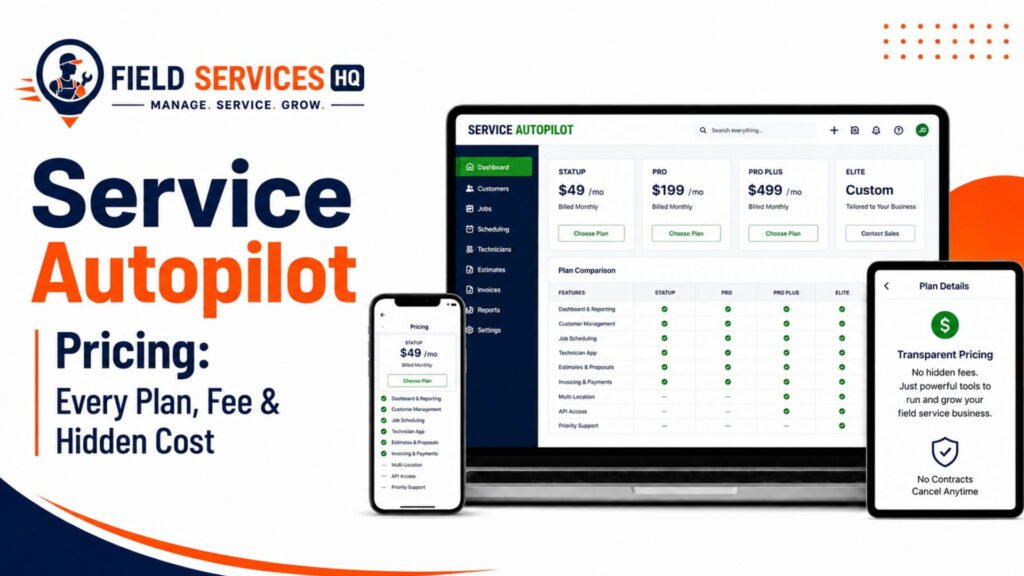
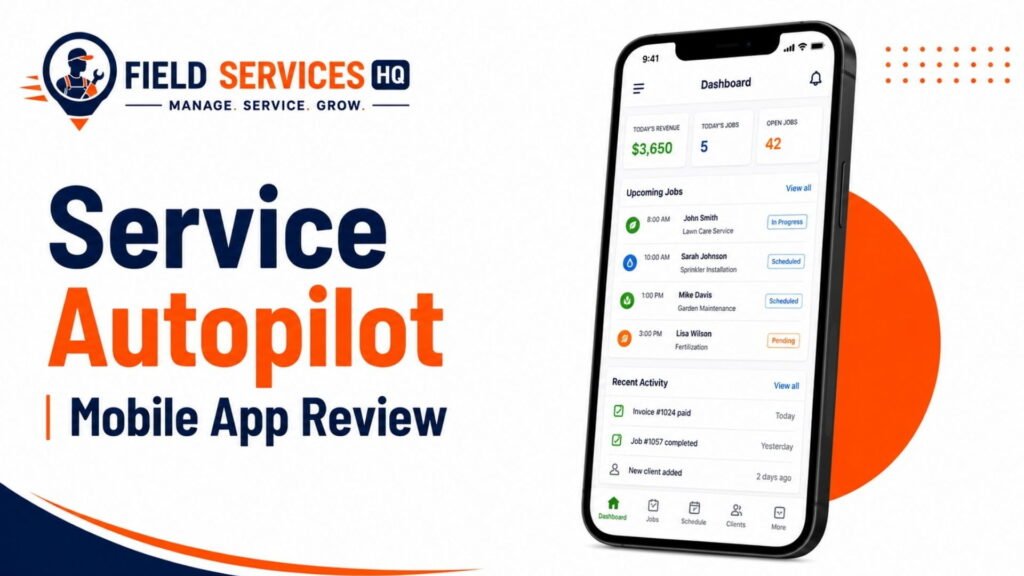
For more information about what this integration does and doesn’t include at your specific plan level, I’d recommend visiting the Service Autopilot Mobile App Review and pricing pages.
Confused About Service Autopilot ? Go Through Our Service Autopilot Hub.
Frequently Asked Questions
Does Service Autopilot integrate with Zapier?
Yes. Service Autopilot has a native Zapier integration listed in Zapier’s app directory. It was announced as in development in Service Autopilot’s September 2025 release notes and is confirmed live as of 2026, supporting triggers for new clients, completed jobs, and new invoices, plus actions for creating records and updating statuses.
How do I connect Service Autopilot to Zapier?
Start a new Zap in Zapier, search for Service Autopilot as your trigger or action app, and connect your account when prompted. Choose from the available triggers (new client, completed job, new invoice), map the fields to your target app, test the Zap, and turn it on. No developer or workaround is needed for these core events.
What data can I sync between Service Autopilot and other apps through Zapier?
Currently, the confirmed triggers cover new clients, completed jobs, and new invoices, with actions available for creating records and updating statuses. Deeper operational data, such as crew hours, chemical tracking, or route assignments, is not exposed through the current integration.
Is Service Autopilot’s QuickBooks sync different from its Zapier integration?
Yes, and they serve different purposes. The QuickBooks sync is a native, two-way connection for customers, invoices, payments, and accounting data. The Zapier integration is a separate, more general-purpose connection for triggering workflows in other apps based on Service Autopilot events, and vice versa. Most businesses will use both.
Does Service Autopilot have a public API for custom integrations?
No. According to a detailed 2026 integration audit of field service and landscape platforms, Service Autopilot does not offer an open, documented REST API for third-party developers to build against independently. Integrations run through Zapier, native connections like QuickBooks, or direct partnership arrangements with Service Autopilot.
Why did older articles say Service Autopilot doesn’t work with Zapier?
Because it didn’t, until relatively recently. Service Autopilot’s own release notes from September 2025 describe the Zapier integration as still in development at that time. Content published before the integration shipped, or software directories that haven’t updated their integration lists, may still show outdated information.
What are common problems when setting up Service Autopilot’s Zapier integration?
The most common issues involve field mapping mismatches (client name formatting differing between systems), missing custom field data that isn’t exposed through the current triggers, and confusion between what the Zapier integration handles versus what the native QuickBooks sync already covers. Testing each Zap with a real record before activating it catches most of these early.
Can Zapier push data into Service Autopilot, not just out of it?
Yes, in principle. The integration supports actions for creating records and updating statuses inside Service Autopilot, which means data can flow in from other apps. In practice, treat this as a one-way push rather than a continuous two-way sync, and monitor for duplicate records if you’re also running the native QuickBooks sync alongside it.
Should I still consider alternatives if I need deeper integrations?
If your business needs granular operational data flowing to payroll, reporting, or custom-built tools, the lack of an open public API will eventually become a limiting factor, regardless of how well the Zapier integration covers core objects. Comparing options in our Service Autopilot alternatives guide can help clarify whether that tradeoff matters for your growth plans.
How much does the Service Autopilot Zapier integration cost?
The integration itself doesn’t add a Service Autopilot licensing cost. You’ll need a Zapier plan that covers your task volume, since Zapier’s free tier has limited monthly task allowances. Check current Service Autopilot pricing to see what’s included at your plan tier, and budget separately for whichever Zapier plan matches your automation volume.