Service Autopilot + Stripe Integration: Setup, Sync & Gotchas (2026 Guide)
Service Autopilot does not have a native, built-in Stripe integration. Its payment processing runs through its own embedded processor, Xplor Pay (formerly Clearent), which is what actually charges cards and posts payments inside the software.
If you want Stripe data flowing into Service Autopilot, you connect the two through an automation platform like Zapier or Make. That gets you contact and invoice-record syncing, not native card processing inside SA.
- What it does: Passes Stripe payment and customer events into Service Autopilot as records, tasks, or automation triggers.
- Who it’s for: Contractors already collecting Stripe payments elsewhere (website, invoicing tool) who want that data reflected in SA.
- Who it’s not for: Anyone who wants Stripe to replace SA’s built-in card processing on invoices and work orders.
- Biggest gotcha: Payments made in Stripe do not automatically mark the matching Service Autopilot invoice as paid unless you build that logic yourself.
Bottom line: Most lawn care, HVAC, plumbing, and pest control businesses running Service Autopilot get more reliable results using SA’s built-in Xplor Pay processing for in-app invoicing, and reserving a Stripe/Zapier bridge for e-commerce, memberships, or website checkout flows that live outside SA.
If you searched for “service autopilot stripe integration” hoping to find a Connect-to-Stripe button in Settings, let me save you time: it does not exist as a native feature, at least not today. I have implemented and troubleshot payment integrations for a dozen field service platforms, and Service Autopilot (SA) is not designed to route card payments through Stripe’s API.

What you can do is connect the two pieces of software to synchronize data between them; this article explains how to do it, what to do if you’re already connected and it stopped working, what features are available, and what businesses tend to overlook when they assume that Stripe and SA behave like QuickBooks and SA.
Who Is the Service Autopilot + Stripe Integration For?
A Stripe to SA connection has limited application. Attempting to force it in an inappropriate context will lead to unnecessarily complicated data workflows.
Best fit:
- Contractors selling memberships, gift certificates, or single-use products via a Stripe-hosted checkout on their website
- Businesses with a separate front-end booking or e-commerce system (custom website, Shopify, or a booking platform) that accepts payments via Stripe before the work order is ever created in SA
- Franchising or multi-unit operators who want Stripe payment events to create leads or client records in SA for downstream follow-up
- Users of Zapier or Make for other SA automation already considering expansion who want to include Stripe event triggers
Common patterns:
- A homeowner buys a one-time “driveway sealing” package from a contractor’s landing page, paying with a Stripe Checkout session
- This triggers a Zap that creates a client/contact and opportunity record in Service Autopilot
- Back office staff completes the work order and invoice within SA using SA’s internal payment processing tools
- The Stripe payment is entirely independent of the actual work order or invoice in SA
- If you’re an HVAC, plumbing, electrician, or lawn care company that uses Service Autopilot for your entire workflow from estimate to invoice to payment, there is likely no reason to involve Stripe at all.
Who Is It NOT For?
Honesty is important here. This feature is a tremendous distraction if you’re not already using Zapier or Make to automate other Service Autopilot workflows.
Red flags:
- Want to let customers pay you directly on an SA invoice or work order with their credit card? SA’s checkout and card on file capabilities are not connected to Stripe’s API
- Want to automate matching a Stripe payment to an SA invoice? This capability does not exist natively
- Want to avoid SA’s payment processing fees by paying with Stripe? SA’s invoicing, recurring payments, and card on file features are all dependent on their internal payment processor – you would still need to implement a manual workflow to sync Stripe payments to SA invoices
- Do not have the technical capacity to implement a middleware solution? This falls outside the recommended use case for most independent contractors
When another option is a better fit:
If your only motivation for this integration is “I want to get paid faster inside Service Autopilot,” consider SA’s native credit card processing options. As stated in Service Autopilot’s public documentation, their payments partner Xplor Pay handles over 66,000 businesses and $31+ billion in payments annually and has native invoice payment status visibility.
For e-commerce or membership sales on your website, leave the payment processing to Stripe, but use Zapier or Make to sync that data back to SA for lead nurturing or opportunity tracking.
When Do You Actually Need to Connect Service Autopilot and Stripe?
There is probably no need for it. Use this guide to determine if your use case requires the integration and connection of Stripe and SA.
Signals that you may need the integration:
- You already process payments through Stripe in another place outside SA (website, application, booking widget)
- You want those Stripe customers or transactions to appear as a lead, client, or note in SA automatically
- You are building an ecosystem around SA and use it as an operations system, not a payments system
When you probably don’t need it:
- You handle most of your invoicing, estimates, and card on file within SA already
- You make most of your payments in the field or through SA’s client portal
- Your team wants one less system to log into and manage
The general rule of thumb is: If the payment originates outside of SA, connecting Stripe for synchronization purposes makes sense. If the payments originate within SA, use SA’s built-in payment processor.
What You Need to Prepare Before Connecting Stripe
There is one critical reason why these connections often fail – skipping the preparation. Make sure your ducks are in a row before you attempt to connect SA and Stripe.
Accounts:
- Stripe account with API access enabled (it comes by default on all Stripe accounts).
- SA account with a plan that has API or Zapier automation triggers available.
- Zapier, Make, or Integrately account, if you don’t have a custom connector.
Permissions:
- Admin-level permissions in both SA and Stripe to set up the connection.
- Designate someone who will be responsible for this automation and have permission to monitor or edit it.
Configuration:
- Decide which Stripe events to listen for (successful charge, failed charge, refund, subscription created, subscription cancelled).
- Decide what to do when events occur (create a new lead or client in SA, add a note to an existing client, or add a task for the office staff).
- Configure naming conventions for customers in both systems so that they match.
Testing:
- Have a test transaction in Stripe (in test mode) ready to simulate the event.
- Have a test client record in SA that you are willing to delete after testing.
- Have a contingency plan in case the automation creates duplicate client records or matches the wrong client.
How to Connect Service Autopilot and Stripe
Because there’s no native connector, this is a middleware workflow utilizing an automation platform. The industry standard is Zapier, so we’ll be basing this setup on that.
Step 1: Create your Zapier account, and add both applications.

As your Trigger application, search for “Stripe,” and as your Action application, search for “Service Autopilot” (or use SA’s webhook/API endpoint, if SA doesn’t show up in your Zapier plan).
Step 2: Select your Stripe trigger event.
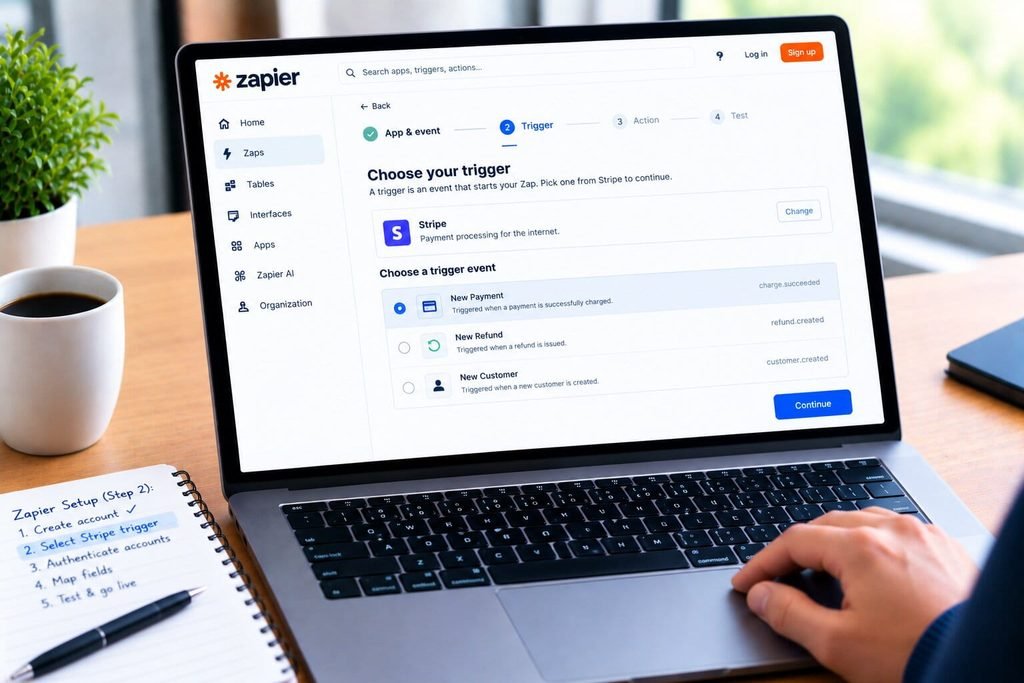
Your options will include “New Payment” (also known as “charge.succeeded”), “New Refund,” or “New Customer.” Choose only one for your initial Zap; you don’t want to get overwhelmed.
Step 3: Set up the authentication for both accounts.
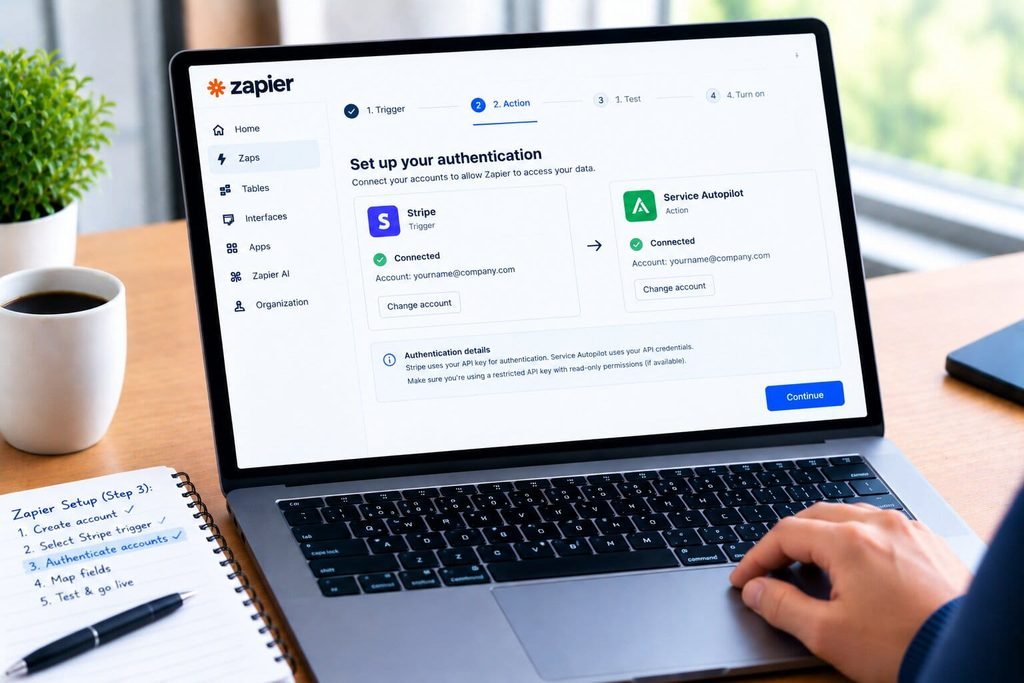
Stripe will likely ask for your API key authorization, and SA authentication typically takes place through your API credentials (make sure you’re utilizing a restricted API key with read-only permissions, if available).
Step 4: Connect the dots.

This means mapping the fields in Stripe’s “customer name/email/amount” to the desired fields in your SA Action, whether it’s a “Create Client” Zap or “Add Note” or “Create Opportunity” or some other SA-specific action. This is by far the biggest pain point for SA + Stripe Zap users.
Step 5: Set up your matching preferences.
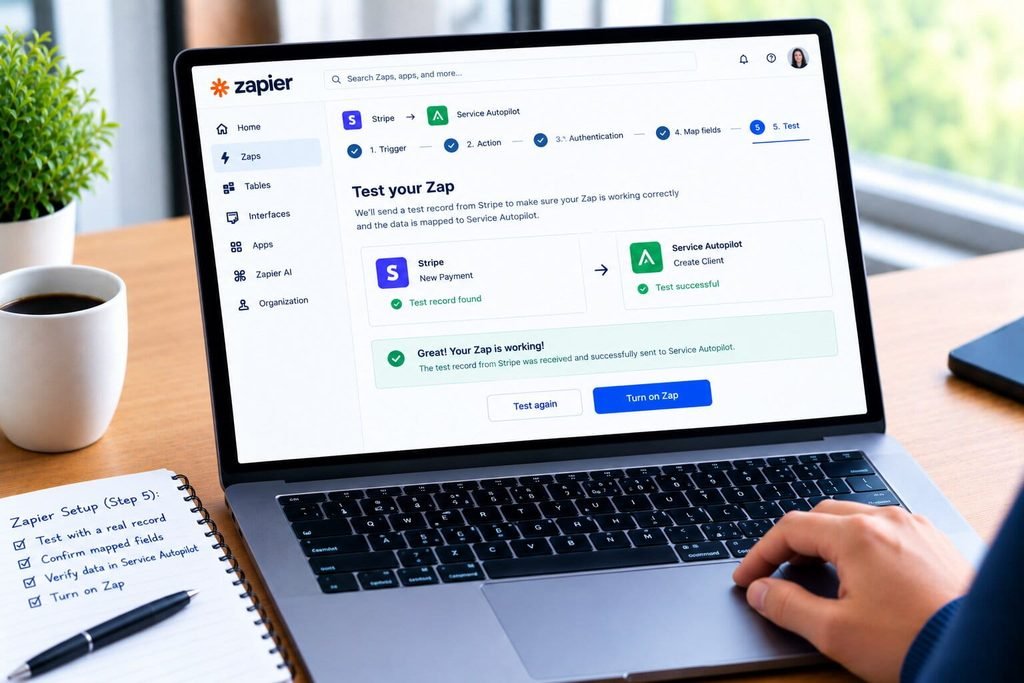
Would you like this Zap to create a new SA client every single time, or would you like it to search for an existing client (by email) first? Always select the latter.
Test connection: Before you turn on your Zap, run a $0.50 or test-mode Stripe transaction, and make sure the resulting entry shows up in SA after a few minutes. Double-check the characters in your mapped fields before going live.
How the Service Autopilot + Stripe Data Flow Works
The question of what data flows in which direction matters more than it seems, because it defines the boundaries of what your SA + Stripe Zap can do.
Successful payment: Stripe sends out a “charge.succeeded” signal, your Zap zeroes in on that signal, and SA gets whatever record you wanted it to get (new client, note, or task). SA does NOT confirm this charge with Stripe, it just takes your word for it.
Failed payment: A failed Stripe charge can be used to trigger a separate Zap, usually an internal task for your office managers to follow up. SA has no knowledge of whether the charge failed – or if it even went through – unless you specify that in your Zap’s field mapping.
Payment-method workflow: Stripe payment methods do NOT sync over to SA’s card-on-file system. What that means in practice is your SA invoices and recurring billing will never interact with the card on file for a SA client who pays you through Stripe.
Refund workflow: A Stripe refund can be used to trigger a note or task in SA, but it will NOT update an SA invoice – that still has to be done by hand, by someone on your team.
What Syncs Between Service Autopilot and Stripe?
This is the part most competitors neglect to include, but is the crucial lesson for any SA + Stripe integration.
| Data Point | Syncs Automatically? | Direction | Notes |
|---|---|---|---|
| Customer name/email | Yes, if mapped | Stripe → SA | Requires exact field mapping in Zapier/Make |
| Charge amount | Yes, if mapped | Stripe → SA | Appears as a note, task, or custom field, not a native payment record |
| Invoice payment status | No | N/A | SA invoices only update from SA’s own processor |
| Card-on-file details | No | N/A | Stripe and SA store payment methods in separate, non-connected vaults |
| Refunds | Partial | Stripe → SA (as notification only) | Invoice balance must be adjusted manually |
| Recurring subscription status | Partial | Stripe → SA (as notification only) | SA’s own recurring billing is a separate system |
| Work order/job data | No | N/A | Stripe has no concept of jobs, technicians, or schedules |
What does NOT sync
Anything involving SA’s scheduling/dispatch/routing/technician assignments/job costing. Stripe is a payments platform. It has no field service data model, so none of that operational information ever crosses the bridge in either direction.
Service Autopilot + Stripe Gotchas
These are gotchas I see most often after initial “it’s connected” euphoria wears off
Customer matching
A Stripe customer’s email address doesn’t match the email on file in SA. Your SA automation will create a duplicate client instead of updating their existing client record. Always build a search-first step.
Payment status confusion
Office staff may believe a job is paid because Stripe shows a charge, while the SA invoice shows a balance due. This is by far the most common billing dispute I see that ultimately traces back to this integration.
Cards/payment methods
A credit card saved in Stripe checkout is not available for use with SA’s auto-charge or card-on-file features. Customers may be asked to re-enter their card information at both systems.
Failed payments
Failed Stripe charges do not automatically flag the SA client account or prevent future scheduling the way a failed SA-native payment would (depending on your automation rules).
Refunds
As noted above, refunds require a manual invoice adjustment in SA. Failing to make this adjustment is how accounts receivable reports get messed up.
Recurring payments
If you run recurring services (lawn care route billing, pest control quarterly treatments) through SA’s own recurring invoicing, do NOT attempt to run recurring billing through Stripe for the same client. You’ll be creating double-billing opportunities.
Accounting
If you also sync SA and Stripe separately to QuickBooks, you can end up with the same transaction recorded twice – once through the Stripe-to-QuickBooks connection, and once through SA-to-QuickBooks. Make sure to reconcile this before month-end closes, not after.
Timing and duplicates
Zapier and Make process on delays that run from a few seconds to several minutes. A client that calls right after making a payment may not see updated status in SA yet, creating a customer service issue if your team assumes the integration is instant.
What to Expect After Connecting Stripe
Manage expectations with your office team before launch by setting clear boundaries about what this automation actually does and does not do.
Right after setup: Test transactions should appear in SA within minutes as whatever record type you’ve configured (client, note, task).
Ongoing normal payment workflow: Existing Stripe charges will continue flowing into SA the same way, but only for the event types you’ve built Zaps for. New Stripe features or event types will not automatically start syncing.
Failure scenarios: If Zapier reaches its monthly task limit on your plan, the automation will cease to function until the next billing cycle or until you upgrade your plan. No warning emails or notifications will be sent unless you configure that.
Ongoing manual work: Marking SA invoices paid when the payment came through Stripe, reconciling refunds, and occasionally cleaning up duplicate clients all remain manual processes.
What isn’t automated: Job scheduling, technician dispatch, work order completion, and route optimization remain entirely within SA and untouched by this connection.
Common Service Autopilot + Stripe Problems
| Problem | Symptom | Likely Cause |
|---|---|---|
| Duplicate clients created | Same customer appears twice in SA | No “search before create” step in the automation |
| Invoice shows unpaid despite Stripe charge | Client disputes a bill they already paid | No invoice-status link exists between systems |
| Zap stopped working | New Stripe payments no longer appear in SA | Zapier task limit reached or API key expired |
| Wrong client updated | Notes land on the wrong customer record | Email/name mismatch between Stripe and SA |
| Refund not reflected | AR report shows a balance that was actually refunded | Manual invoice adjustment step was skipped |
| Missing phone/address data | New SA client record is incomplete | Stripe checkout did not collect that field |
How to Fix Service Autopilot & Stripe Problems
Decision tree for troubleshooting:
- Are the Zap or automation turned off? Check the Zapier/Make dashboard
- Did the task or API reach the rate limit? Check the usage dashboard for your plan
- Have the field names changed in SA or Stripe? Field mapping may need to be adjusted after software updates
- Is the customer match failing? Try comparing the email format in the two systems character by character
Actionable instructions:
- If Zap is turned off or fails for an extended period: Turn on the Zap in Zapier, then use the “replay” feature for any failed tasks during the outage window
- In case of rate limits being reached: Upgrade your Zap plan or reconfigure it to have fewer triggers of higher value
- When field mapping stops working: Double-check that all fields are mapped manually rather than using auto-mapping functions after any software update
- For duplicate SA records created: Merge the duplicates using the SA client merge tool, then reconfigure the Zap to include a searching step
- To fix refunds not appearing in SA: Set up a weekly task for the office administrator to compare Stripe’s refund journal with SA’s accounts receivable
Examples of SA + Stripe Workflow in Action
Invoice payment: Landscaping company’s website has a Stripe-hosted landing page for a $150 one-time cleaning service. The Zap creates a SA client and a same-day task for the office assistant to book the service and send the SA invoice, which gets paid manually using the Stripe transaction ID as a reference
Failed payment: Pest control’s Stripe-hosted monthly subscription fails to renew. Zap creates a SA task for the account manager to call the client and update the payment method, as SA has no access to Stripe’s reason for decline
Payment method update: Website client updates their Stripe card info, which has no effect on their SA card on file, requiring the office to send a reminder for the client to update SA if they want invoices sent directly to them
Refund: HVAC company’s Zap for canceling maintenance plans sends a Stripe refund, with a note in SA for the bookkeeper to adjust the receivable
Cross-platform automation: Fencing contractor’s Zapier automation sends all Stripe leads to SA as Opportunities, which triggers SA’s marketing automation to send a text and assign a sales rep, using both platforms’ strengths without overloading either one
Native Integration vs. Zapier vs. Custom Automation
| Approach | Setup Effort | Reliability | Best For | Cost |
|---|---|---|---|---|
| SA native processing (Xplor Pay) | Low | High | In-app invoicing, card-on-file, recurring billing | Processing fees only, no middleware cost |
| Zapier/Make bridge to Stripe | Medium | Medium | Passing lead/customer data from an external Stripe checkout into SA | Monthly automation platform fee |
| Custom API integration | High | High if maintained | Businesses with a developer and high transaction volume needing tighter control | Development and ongoing maintenance cost |
When it makes sense
Opt for SA’s native processor
If every payment will occur within SA
Opt for a Zapier/Make bridge
If Stripe payments will originate outside of SA and you only need the resulting customer data (not payment reconciliation)
Opt for custom API development
If the transaction volume is high enough that manually reconciling payments from a Zapier bridge will create a meaningful labor burden and you have the developer resources to support it
View a detailed feature comparison of the various SA plans (including which automation and API tools are available at each level) in our Service Autopilot pricing guide. If SA’s payment and automation limitations are a hard constraint for your business model, view our Service Autopilot alternatives comparison to see options with different integration strategies.
Sources: Clockify/Atradius late invoice report, Service Autopilot credit card processing page, and U.S. Small Business Administration data via Businesswire/Melio survey.
According to an Atradius-based late invoice analysis, 55% of invoices issued in the U.S. are paid late and small to medium-sized businesses waste an average of 14 hours per week on chasing overdue payments. In effect, this means that the payment-status gotcha noted above could potentially re-create the same collections problems it was designed to solve.
Small businesses represent the majority of the field-service sector: According to a Businesswire report, which cites data from the U.S. Small Business Administration, small businesses constitute 99.9% of all U.S. businesses and account for approximately 44% of U.S. economic activity. In effect, the ability to prevent late payments is not an esoteric accounting concern. It is a vital cash-flow issue. Put another way: The collections process directly impacts a two-truck HVAC company’s ability to pay its bills.
Final Verdict
| Scenario | Recommended Approach |
|---|---|
| All payments happen inside SA (invoices, work orders, client portal) | Use SA’s native Xplor Pay processing. Skip Stripe entirely. |
| Website checkout, memberships, or e-commerce built on Stripe | Use a Zapier/Make bridge for customer data sync only |
| High transaction volume, developer resources available | Consider a custom API integration for tighter control |
| Low technical bandwidth, small team | Stick with SA’s native processor to avoid maintaining automation |
FAQ
Does Service Autopilot have a native Stripe integration?
No. Service Autopilot does not offer a native, built-in Stripe connector. Its own payment processing runs through Xplor Pay (formerly Clearent), which handles card capture, card-on-file, and recurring billing directly inside the software. Any Stripe connection has to run through a third-party automation platform like Zapier or Make.
Can I use Stripe instead of Service Autopilot’s built-in payment processor?
Not for transactions happening inside SA’s invoicing and work order system. SA’s card-on-file, auto-charge, and client portal payment tools are tied to its own processor. Stripe can only be used for payments that happen outside SA, such as a website checkout, with the resulting customer data synced into SA afterward.
How do I connect Service Autopilot to Stripe?
You connect them through an automation platform such as Zapier or Make. Set a Stripe event (like a successful charge) as the trigger, and configure Service Autopilot as the action to create or update a client, note, or task. This syncs data between the platforms but does not create native two-way payment processing.
Will a Stripe payment automatically mark my Service Autopilot invoice as paid?
No, not without custom-built logic, and even then it requires careful setup. Out of the box, a Stripe charge event does not update SA’s invoice payment status. Most businesses handle this with a manual step where office staff mark the invoice paid once they see the Stripe notification.
What data actually syncs between Service Autopilot and Stripe?
With a Zapier or Make bridge, you can typically sync customer name, email, phone, and charge amount into SA as a new record, note, or task. Card-on-file details, invoice payment status, and scheduling or dispatch data do not sync between the two platforms.
Is Zapier the only way to connect Service Autopilot and Stripe?
Zapier is the most accessible option for most contractors, but Make (formerly Integromat) and Integrately offer similar automation-based connections. Businesses with development resources and high transaction volume sometimes build a custom integration using both platforms’ APIs for tighter control and fewer per-task automation fees.
What happens if I issue a refund in Stripe?
The refund itself only happens in Stripe. If you have an automation set up, it can create a notification or task in SA, but someone still needs to manually adjust the corresponding SA invoice balance. There is no automatic two-way sync for refund amounts.
Does this integration work for recurring billing and service contracts?
Not cleanly. If you already run recurring billing through Service Autopilot’s own recurring invoice tools, avoid also running the same client’s recurring charges through Stripe. Doing both creates a real risk of double-billing the same customer for the same recurring service.
Are there transaction fees for using Zapier or Make with Service Autopilot and Stripe?
Zapier and Make charge based on your automation plan tier and monthly task volume, separate from any Stripe processing fees or Service Autopilot’s own payment processing rates. Higher transaction volume typically means you need a higher-tier automation plan to avoid hitting monthly task limits.
Should my lawn care or HVAC business bother connecting Stripe to Service Autopilot at all?
Only if you are already collecting payments through Stripe somewhere outside SA, such as a website store or membership signup page. If every payment in your business already happens inside Service Autopilot through invoices and work orders, using SA’s native Xplor Pay processing is simpler, more reliable, and avoids the reconciliation gotchas that come with a middleware bridge.