Service Autopilot Google Calendar Integration: Setup, Sync & Gotchas (2026)
60-Second Answer
Service Autopilot does not offer an official, native, two-way Google Calendar sync. There is no built-in toggle in Settings that pushes jobs directly into a technician’s Google Calendar.
Most businesses connect the two systems one of three ways: a Zapier-style automation bridge, a manual export or CSV/iCal workaround, or a read-only feed a technician subscribes to. Each option has real limitations you need to know before you build your workflow around it.
If your business runs everything inside Service Autopilot already, you likely do not need Google Calendar at all. If your team lives in Gmail and Google Workspace, this guide shows you the realistic path, not the marketing pitch.
If you searched “service autopilot google calendar integration” hoping to have a one-step setup, I’m going to save you both the time and the trouble. In my 11 years of working with field service software, this is a recurring and particularly persistent misunderstanding among lawn care, cleaning, and pest control companies that are looking to grow out of their spreadsheets or less sophisticated tools into something like Service Autopilot.

Service Autopilot is a closed-ecosystem product, meaning that the design philosophy calls for being the one-and-only source of truth about your operations, and the calendar sync is intended as a replacement for Google Calendar rather than a complement. This is a design choice, not a bug, but a choice nonetheless, and as such, should be made with open eyes.
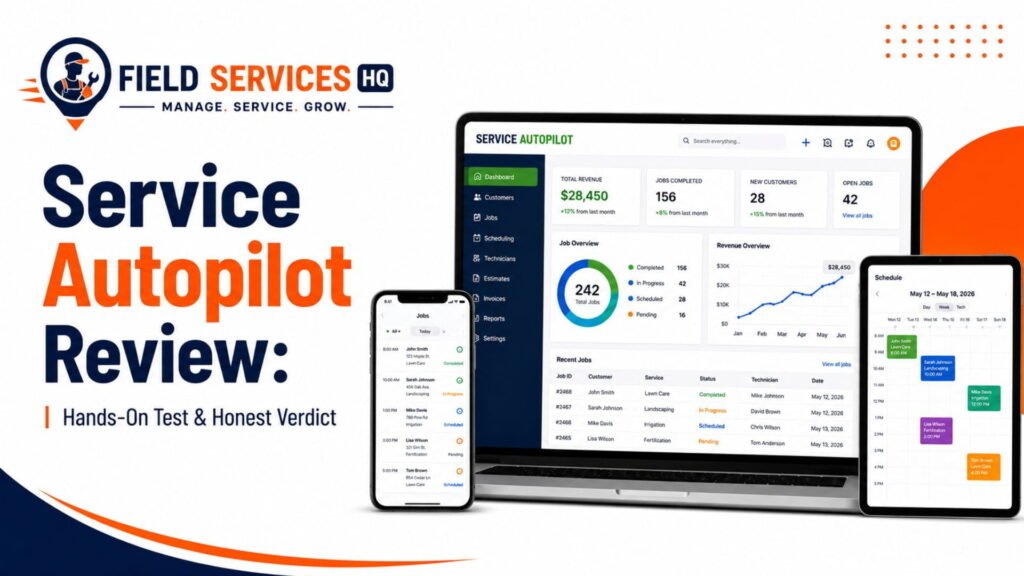
The post goes through what Service Autopilot is capable of syncing, walks you through the actual setup process, explains what goes wrong and why, and also outlines the conditions under which you might want to avoid the feature altogether.
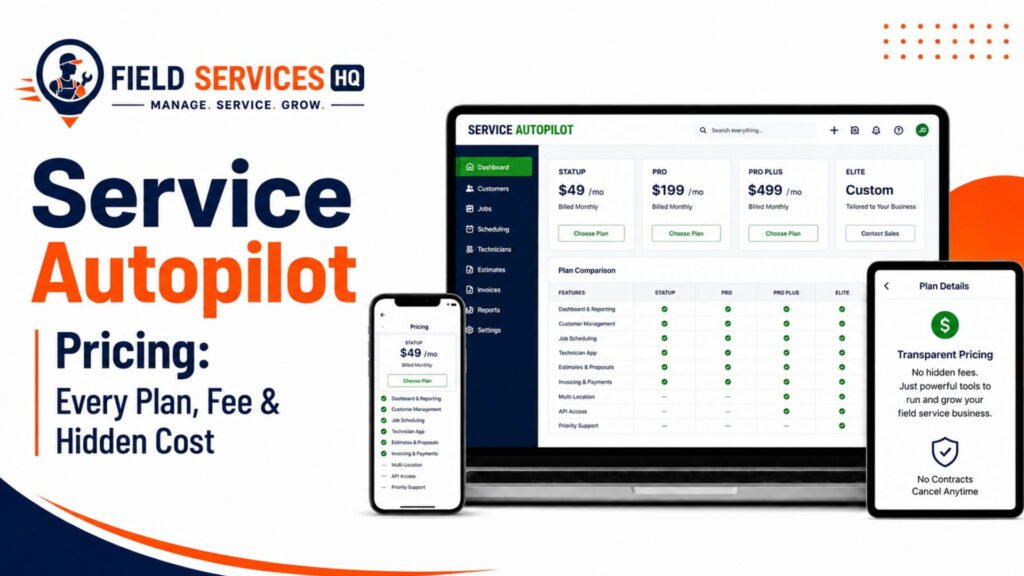
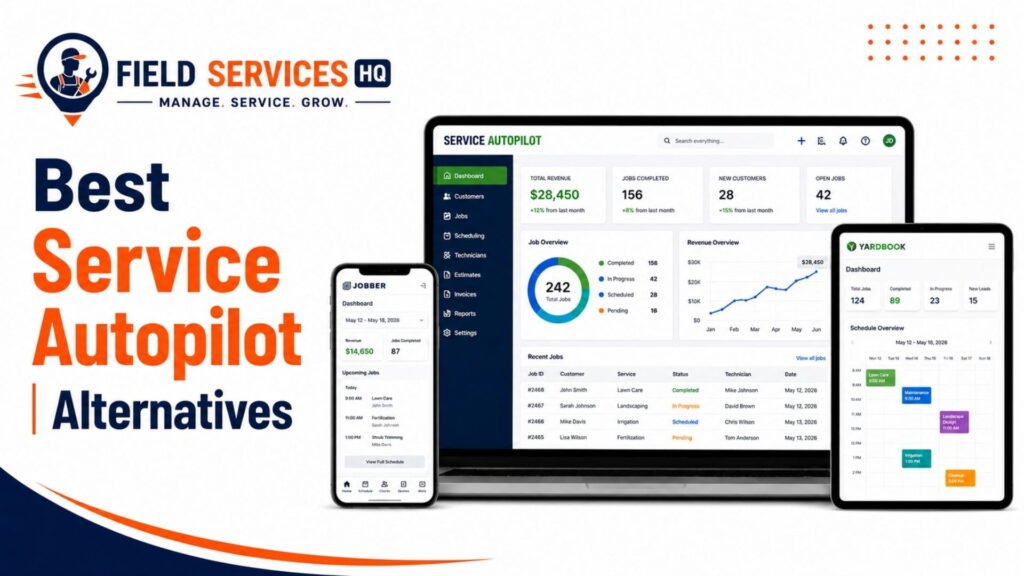
Related articles: our comprehensive Service Autopilot review, Service Autopilot pricing breakdown, and Service Autopilot alternatives.
Who This Google Calendar Sync Is For
- Owner-operators with only one crew.
- Businesses that are currently quoting jobs out of a personal Gmail calendar.
- Teams that are booking sales calls or estimates out of Google Calendar.
- Companies syncing office staff calendars but not full crews.
If any of the above sounds familiar, odds are we’re speaking to the right person.
- The ideal operator wants to see field jobs appear inside their existing Google Workspace calendar, but without actually signing into Service Autopilot.
- The business already uses Google Workspace for email, and has Google Calendar as the shared calendar for the office, but they want a lighter touch than a full Service Autopilot dispatch system swap-in.
- An owner operator or very small shop that wants job availability times to still appear on their phone’s default calendar app, but don’t have the resources to invest in a full field service management software plan at this time.
According to Fortune Business Insights, the field service management market is estimated to hit $5.37 billion in 2025 and is projected to reach $13.79 billion USD by 2034, meaning more and more smaller service shops are looking to digitize their operations over paper logs and shared Excel sheets, and often a calendar sync integration is the second step after implementing a field service management software dispatch module, or a third-party tool like Teamwork Field Service.
Who This Integration Is Not Intended For
- Multi-technician dispatch teams.
- Businesses that make extensive use of the GPS/routing functions.
- Companies that want two-way edit capabilities.
- Businesses that are already using Service Autopilot for dispatch.
Here is who I recommend not signing up for this particular process.
Multi-technician dispatch scenarios. If you are regularly swapping jobs between three, five, or even fifteen technicians throughout the day, you are going to find that a calendar synchronization is not sufficient to handle the complexity of the dispatching process.
Businesses that make regular use of the integrated GPS functions, such as Smart Maps. Once a job is synced out of Service Autopilot into Google Workspace, that job is no longer a connected job with all the metadata flowing between modules. It becomes a simple calendar entry with just a title.
Teams that need to make edits in both directions. The Service Autopilot to Google Workspace flow can be made two-way with some additional configuration or middleware, but it will either stop working entirely or require significantly more resources than a native Service Autopilot dispatch would consume.
Anyone expecting anything other than what is described. Service Autopilot’s FAQ on the review history page speaks of them having a closed API policy. A quick trip to Software Advice’s user-submitted reviews of the product will show why that is the case insofar as calendar synchronization integrations go.
Do I Actually Need This Integration?
Ask yourself four questions first.
- Who really needs to see the schedule, office staff or technicians in the field?
- Do you need to edit jobs from Google Calendar, or simply view?
- Is your team trained in the Service Autopilot calendar already?
- Would the Service Autopilot mobile app already solve this?
In my experience, a big chunk of the requests I hear for “Google Calendar sync” are actually solved by something far simpler.
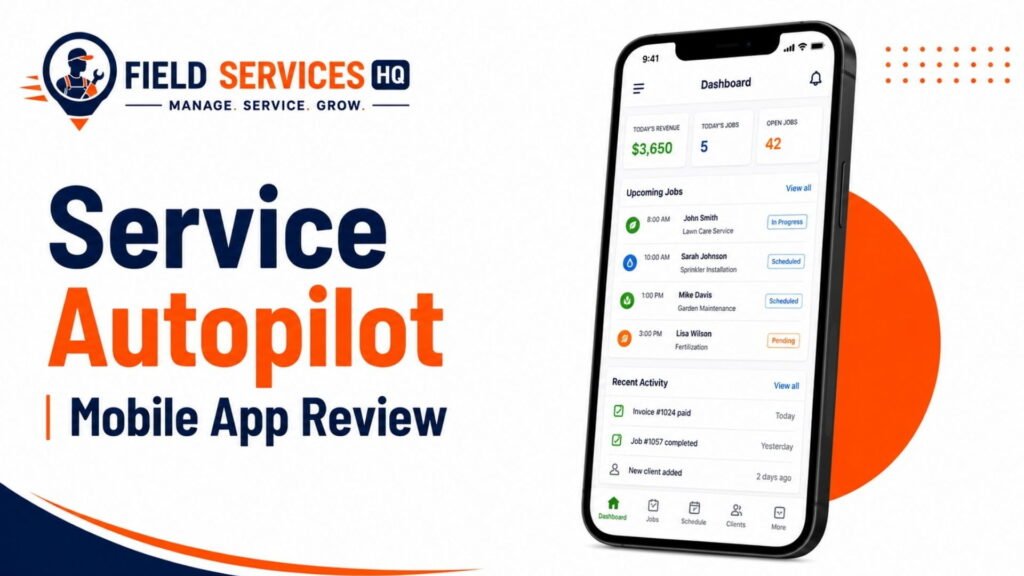
- Technicians in the field nearly always find that the native Service Autopilot mobile app gives them far more value than a Google Calendar feed because it includes job notes, client history, attachments, and GPS check-in that don’t survive a calendar export.
- Office staff and owners looking to simply review the day’s bookings make a much better fit for a Google Calendar feed than technicians who tend to need to edit jobs.
- And sales teams booking estimates might find they want the reverse stream of data – pushing a Google Calendar appointment INTO Service Autopilot as a lead/estimate instead of the other way around.
If your honest answers lean toward “I want everyone to just see everything in Google Calendar,” consider reading the gotchas section below before designing that workflow.
What You Need Before Connecting
- A Service Autopilot admin login with export permissions.
- A dedicated Google account or shared calendar for field jobs.
- Clarity on Import (SA to Google) vs Export (Google to SA).
- A Zapier/Make automation account if going two-way.
Do not skip this checklist. Most of the “it stopped syncing” support tickets I have seen stem from one of these missing items.
Admin-level access in Service Autopilot. Exports, reports, and any API/webhook configuration typically require admin or office-manager permissions, not a technician’s login.
A dedicated Google Calendar, not someone’s personal Google account. Introducing business job data into a personal Google account creates data ownership and offboarding issues the moment that employee leaves.
A decision on sync direction. Are you pushing out Service Autopilot job data to Google Calendar (most common), or attempting to pull Google Calendar events into Service Autopilot as leads/appointments (less common, more fragile)?
A middleware account if you want automation. Since Service Autopilot doesn’t provide a native connector, a bridge tool like Zapier is the realistic path for anything beyond a one-time manual export. Confirm your Service Autopilot plan and API access level with your account rep before purchasing a Zapier plan, since automation only works with accessible data.
Realistic expectations on costs. Zapier’s paid tiers scale with the number of “tasks” (automated actions) you execute per month, so a business scheduling hundreds of jobs weekly should budget for a mid-tier plan, not the free one.
How Do I Connect Service Autopilot to Google Calendar?
There is no single official button. Here are the three paths that actually work in practice, in order of reliability.
Option 1: Manual Export (Most Reliable, Least Automated)
- Run a Service Autopilot schedule or job report for the date range you need.
- Export it as a CSV or PDF from the Reports module.
- Import the CSV into Google Calendar via Google’s bulk import tool, or manually enter key jobs.
- Repeat on a set schedule, such as every Monday morning.
This feels old-fashioned, but for a solo operator or two-person crew this five-minute weekly task can be more reliable than a misbehaving automation.
Option 2: Zapier or Make Automation Bridge
- Confirm Service Autopilot exposes the trigger you need (new job, updated appointment) via your plan’s API or webhook access.
- Build a “Zap” or scenario with Service Autopilot as the trigger app.
- Configure Google Calendar as the action app, specifying job title, time, and location fields.
- Test with a single dummy job before going live with real data.
- Watch the first week closely for duplicated or missed events.
Because Service Autopilot implements a more closed integration model than competitors like Jobber, do not assume every trigger you want (job rescheduled, job canceled, technician reassigned) will be available. Ask Service Autopilot support or your account manager to confirm what webhooks or API endpoints your specific plan exposes before building the automation.
Option 3: Read-Only Feed for Visibility Only
- Ask your Service Autopilot rep if a shareable calendar feed URL is available on your plan.
- If available, subscribe to that feed URL from Google Calendar’s “Add by URL” option.
- Consider this calendar view-only – do not allow staff to attempt editing these events.
- Manage expectations that most feed-based calendars update on a delay, often 15-60 minutes, not instantly.
I list this option last because availability varies by Service Autopilot plan and has changed in past product updates. Always confirm current availability with support before promising your team a live feed.
How Does the Data Actually Flow?
Knowing the direction of the data flow is going to help you avoid most of the confusion I’m seeing.
Service Autopilot to Google Calendar
This direction is what most people actually want and what’s worth pursuing. It will let job titles, dates, times, and potentially addresses flow out.
Google Calendar to Service Autopilot
This direction is much less supported and dependable. You should treat any Google Calendar to Service Autopilot operation as an experiment.
Two-way “true sync”
As mentioned, field service software often talks about being able to sync in both directions, but this usually doesn’t mean that it truly syncs. An edit on one side should immediately appear on the other with some sort of conflict resolution mechanism in place. Service Autopilot’s integration list makes it very clear that they have a two-way QuickBooks Online sync, because that’s a major selling point. The fact that they don’t mention something similar for Google Calendar is the exact answer to your question.
What Actually Syncs (and What Doesn’t)
| Data Point | Typically Syncs | Notes |
|---|---|---|
| Job date and time | Yes, via export/automation | Core field in almost every method |
| Job title / service type | Yes | Usually mapped to event title |
| Client address | Sometimes | Depends on automation field mapping |
| Client phone/email | Rarely | Often excluded for privacy/simplicity |
| Job notes | Rarely | Lost in most export formats |
| Technician assignment | Sometimes | Only if mapped explicitly in Zapier |
| Route/GPS data | No | Tied to Service Autopilot’s own mapping engine |
| Invoice/payment status | No | Financial data stays inside Service Autopilot |
| Recurring job series | Partially | Each occurrence may need individual mapping |
| Real-time edits (either direction) | No | This is not a live two-way sync |
By The Numbers
29%
FSM software adoption among businesses under 100 employees, the fastest-growing adoption segment (fieldservicesoftware.io)
50.34%
Share of the office productivity software market held by Google Workspace, ahead of Microsoft 365 (aboutchromebooks.com)
$13.79B
Projected global FSM market size by 2034, up from $5.37B in 2025 (Fortune Business Insights)
What Can Go Wrong (The Real Gotchas)
This is the part competing articles tend to leave out. From an implementation perspective, here’s what I would warn any operator about before building the workflow.
Duplicate events: Automation tools that fire on “job updated” can lead to second entry on the calendar, not updating the first
Timezone drift: Having Service Autopilot and Google Calendar accounts on different timezones or one on a floating timezone can drift the jobs by an hour
Recurring jobs: A weekly lawn maintenance contract that recurs fifty-two times a year will show up as fifty-two entries in your Google Calendar
Automation failures: Zapier and similar tools can silently disable the sync after a certain number of consecutive errors if nobody looks at the dashboard
Stale data on a feed calendar: A read-only feed on a delay will have a same-day reschedule not show up in time
Field data loss: Notes, gate codes, pet warnings, and equipment history don’t travel with most calendar syncs. The technician only sees the Google Calendar entry without the notes.
Permission and ownership confusion: Having a job feed tied to an individual’s personal Google account can silently break the feed when that person leaves
Closed API limitations: As mentioned in third-party review platforms like Software Advice, Service Autopilot’s more closed integration approach compared to open-API competitors limit how deeply a custom Google Calendar connection can go without direct vendor cooperation.
What Should I Expect Afterward?
- A working calendar bridge is view-focused, not edit-focused
- Expect a slight delay between calendar updates
- Plan for occasional manual cleanup of duplicate entries
- Revisit the setup after any Service Autopilot platform update
Set these expectations with your team on day one. I’ve seen more issues come up from expectation mismatches (“I thought editing in Google Calendar would update the job”) than the technical setup itself. A simple solution for this is labeling the connected Google Calendar something like “Field Jobs (View Only)” so it’s clear to everybody it shouldn’t be edited.
How Do I Fix Sync Problems?
- First, check the automation dashboard (Zapier/Make) for paused or errored tasks
- Make sure both systems show the same timezone
- Rebuild the field mapping if the job titles or times look wrong
- Re-authenticate the Google Calendar connection if it stopped working
- Contact Service Autopilot support to confirm your plan’s current API access
Most “the sync just stopped” tickets resolve in one of these five steps. Automation platforms tend to revoke access tokens every so often for security, and that’s the single biggest reason a working sync can stop updating with no error message visible to the user.
How Should My Business Actually Use This?
Based on what I’ve seen work across HVAC, lawn care, cleaning, and pest control operators, here’s a breakdown.
- Your office and sales team: A view-only synced calendar to answer client questions.
- Field technicians: The Service Autopilot mobile app, not Google Calendar, so they retain job notes, client history, and GPS features
- Owners looking to keep tabs on everything: Service Autopilot’s reports and daily view as the source of truth, with any Google Calendar view as a convenience
- As you scale and add more technicians: Revisit this every time you add technicians. What works for two crews rarely works for five.
It’s part of a larger pattern. According to Grand View Research, small and medium-sized enterprises are seeing the fastest adoption of field service management software, in part because multi-tenant SaaS solutions provide the same real-time visibility as enterprise-class systems without the upfront investment in infrastructure. The tradeoff is that SMEs tend to have lower IT budgets to invest in the “glue” between systems, where this kind of calendar sync falls.
Best Practices and Alternatives Worth Considering
- Name the synced calendar clearly as view-only
- Test recurring jobs before rolling out company-wide
- Set a monthly reminder to audit the automation for silent failures
- Keep technician dispatch within Service Autopilot’s native calendar
- Revisit whether your CRM or scheduling stack still fits as you scale
If Google Calendar connectivity is a dealbreaker for your business, not just a “nice to have,” it’s worth considering platforms that make open integrations a priority. I’d rather see an operator pick a platform that works with their existing tech stack out-of-the-box than struggle with a workaround for years. Our Service Autopilot alternatives guide breaks down which platforms have better out-of-the-box calendar and API access, and our Service Autopilot pricing guide can help you decide if the platform’s other strengths (QuickBooks two-way sync, route optimization, etc.) are worth considering.
For the most up-to-date documentation on how Google Calendar handles imported feeds, subscriptions, and permissions, Google’s own Calendar support documentation is the best place to start, as third-party resources tend to lag behind changes.
Final Decision
Service Autopilot lacks natively supported Google Calendar synchronization, a feature that would require direct investment in an open API from the vendor. The best course of action for most is likely a simple, one-way, view-only feed for office staff, while technicians remain within the Service Autopilot mobile application, where relevant job data is housed.
If open calendar integration is of greater importance to you than the other strengths of the platform, consider this carefully in the context of the overall value and pricing against its alternatives. If you’re still trying to decide whether this fits your needs, our Service Autopilot review provides more information on the tool’s strengths and weaknesses.
Frequently Asked Questions
Does Service Autopilot have a native Google Calendar integration?
No. Service Autopilot does not offer an official, built-in, two-way Google Calendar sync inside its Settings menu. Businesses connect the two systems through manual exports, a Zapier-style automation bridge, or a read-only calendar feed, each with different reliability and data limitations.
Can I sync Service Autopilot with Google Calendar for free?
Yes, if you use the manual export method. Running a schedule report and importing it into Google Calendar costs nothing beyond your time. Automated, real-time syncing through Zapier or Make typically requires a paid plan once you exceed a small number of monthly tasks.
Will editing a job in Google Calendar update it in Service Autopilot?
Generally, no. Most working connections push data one direction, from Service Autopilot out to Google Calendar. Treat any Google Calendar feed tied to Service Autopilot as view-only unless your automation was specifically built and tested for two-way edits, which is significantly harder to maintain.
Why do I see duplicate events after connecting Service Autopilot to Google Calendar?
Duplicate events usually happen when an automation tool re-triggers on every job edit instead of recognizing it as an update to an existing event. Rebuild the automation to match on a unique job ID rather than job title and date, which prevents the tool from treating an edited job as a brand-new one.
Does the Service Autopilot mobile app replace the need for Google Calendar?
For field technicians, yes, in most cases. The Service Autopilot mobile app carries job notes, client history, attachments, and GPS tools that a plain Google Calendar entry cannot hold. Google Calendar sync is generally more useful for office staff who need a quick visual overview, not for technicians executing the work.
Is Service Autopilot’s API open enough for a custom Google Calendar integration?
Service Autopilot runs a more closed integration model compared to platforms with fully open APIs, according to user-submitted reviews on independent software comparison sites. Confirm your specific plan’s current API and webhook access directly with a Service Autopilot representative before committing to a custom-built integration.
What happens to recurring jobs when syncing to Google Calendar?
Recurring jobs, like a weekly lawn care contract, can create dozens of separate entries in Google Calendar if the automation is not configured to recognize them as a series. Test your sync with a recurring job before rolling it out company-wide to avoid flooding a shared calendar.
How long does it take to set up a Service Autopilot to Google Calendar sync?
A manual export takes a few minutes each time you run it. A Zapier-based automation typically takes thirty minutes to a few hours to configure and test properly, depending on how many fields you need mapped and how many job types your business runs.
Does Google Calendar sync affect Service Autopilot’s route optimization or Smart Maps features?
No. Route optimization, Smart Maps, and GPS routing data stay inside Service Autopilot and do not transfer through a Google Calendar sync. A job that appears on Google Calendar will show as a plain time-and-title entry, without any of the routing intelligence tied to it inside Service Autopilot.
Should a growing field service business rely on Google Calendar for dispatching technicians?
No. Google Calendar sync works best as a supplementary visibility layer for office staff, not as a primary dispatch tool for technicians in the field. As crews grow past two or three technicians, dispatching should stay inside Service Autopilot’s native calendar to avoid the lag, duplicate entries, and lost job details common with calendar bridges.