Service Autopilot Invoicing & Payments: Full Breakdown
60-Second Answer
Does Service Autopilot handle invoicing and payments?
Yes. Service Autopilot generates invoices automatically from completed jobs, supports recurring and bulk billing, and processes online payments (credit card and ACH) through its in-house SA Payments platform, powered by Xplor Pay. It also syncs two-way with QuickBooks and sends overdue-invoice reminders through its Automations engine.
Best For
Lawn care, landscaping, snow removal, and pest control businesses with recurring billing
Biggest Strength
Bulk, automated recurring invoicing tied directly to completed jobs
Biggest Limitation
Card and ACH processing is contractually locked to Xplor Pay, with no published rates
Our Verdict
Strong for high-volume recurring billing, weaker for businesses that want processor flexibility
If you own a lawn care, landscaping, or snow removal business, invoicing is undoubtedly one of the processes that you dread the most. Perhaps it is the constant hassle of chasing those who owe you money. I have worked with over a dozen field service businesses over the course of more than 11 years, and I know what it is like when it comes to invoicing and collections. Invoicing issues are one of the primary reasons contractors switch software, ranking in the top three alongside estimating and scheduling.

This article is a comprehensive review and analysis of how invoicing and payments work in Service Autopilot. The information is based on the software’s publicly available documentation, product research, and customer reviews. I have created this guide to help you decide whether the invoicing and payment tools offered by Service Autopilot are right for your business.
Does Service Autopilot Support Invoicing?
As mentioned above, Service Autopilot allows invoices to be created both manually and automatically upon the completion of a job in the schedule. Invoices can be created individually or in bulk for all clients at once, and they can include your branding. Invoices created in Service Autopilot can be sent directly to clients via email.
Now that we have briefly reviewed the invoicing features let’s move on to the frequently asked questions about Service Autopilot’s billing and invoicing features.
- Does it support invoicing? Yes, Service Autopilot does support invoicing and bulk invoicing.
- Does it support online payments? Yes, SA Payments (Clearent) offers credit card and ACH (e-check) payment options.
- Does it support recurring billing? Yes, recurring service can be invoiced on a schedule without having to input job details for every invoice
- Does it support payment reminders? Yes, late fee reminders can be set up as an automation within the application.
- Does it support accounting software integration? Yes, it supports two-way synchronization with QuickBooks Online and Desktop
The billing overview table below provides a general overview of how invoicing and payments work in Service Autopilot. I have created the table using the information directly from the documentation provided by the company.
Invoicing & Payments at a Glance
Before jumping into specifics, let’s have a more general discussion and go over the billing and invoicing features offered by Service Autopilot. I have compiled a list of essential billing and invoicing features and compared them to the tools offered by Service Autopilot.
| Capability | Availability | Notes |
|---|---|---|
| Manual invoice creation | Yes | Built into every plan tier |
| Bulk invoicing | Yes | Invoice an entire client list in one action |
| Automatic invoice generation | Yes | Triggered by job completion or Automations |
| Recurring billing | Yes | Tied to recurring service schedules |
| Online payments (card) | Yes | Through SA Payments (Xplor Pay) |
| ACH / e-check payments | Yes | Requires Xplor Pay underwriting |
| Payment reminders | Yes | Automated through Automations |
| Mobile invoicing and payments | Yes | Available in the mobile app, with mixed reliability |
| Payment tracking / receivables view | Yes | Reporting center and client account view |
| QuickBooks sync | Plan-dependent | Reported as excluded from the entry-level Startup tier |
| Estimates converting to invoices | Yes | Approved estimates flow into scheduled jobs and invoices |
| Client self-service payment portal | Yes | Client Portal supports payments and autopay enrollment |
How Service Autopilot Invoicing Works
Before digging into features, it’s important to understand the billing workflow itself and how it applies to your business, which is where most confusion tends to arise with new users.
The billing workflow in Service Autopilot takes the form of:
Customer record → Service scheduled → Job assigned/completed → Invoice generated → Payment collected → Accounting synced
That is, a client’s account contains information about their history with the business and the services they’ve been billed for, a service is scheduled and dispatched to a crew, and if the work is completed properly in the field or back in the office, Service Autopilot can generate an invoice automatically based on the job’s line items.
The invoice is then sent to the client, either by email or collected directly if a card is on file, and in turn appears in the accounting software. This general invoicing workflow is common to most field service management software but Service Autopilot is more heavily focused on bulk and recurring invoicing than some of its competitors that focus more on one-off service calls.
Creating & Sending Invoices
Invoices in Service Autopilot are populated with customer and property information along with the services or line items associated with the job from the scheduled record. In other words, an office worker doesn’t have to re-enter the same address or description for a service that’s been included on a previous invoice, assuming the job was initially set up correctly.
Invoice templates can be customized with logos, terms, and other notes, and are delivered to the customer either by electronic mail (with SMS options in certain plans) or directly collected if a card is on file. Subsequently, an invoice’s status will update as it progresses from unpaid to paid, which can be seen in reporting.
What requires manual input vs what is generated:
- Manual: Approval of an invoice prior to sending, particularly when jobs aren’t standardized
- Manual: Line items for non-recurring or change order work
- Generated: Customer, property, and job information populated from the job record
- Generated: Invoice emailing functionality, if turned on via Automations
One common pain point I’ve seen across multiple FSM platforms, including Service Autopilot, is that businesses will stop reviewing invoices entirely once an Automations rule has been set up for them, which is largely dependent on the nature of the work performed.
This can be acceptable for standardized recurring invoices like mowing but can lead to issues on invoices that include variable line items like a landscaping installation or cleanup job, where an unreviewed line item can mistakenly appear on a customer’s email.
Recurring & Automatic Invoicing
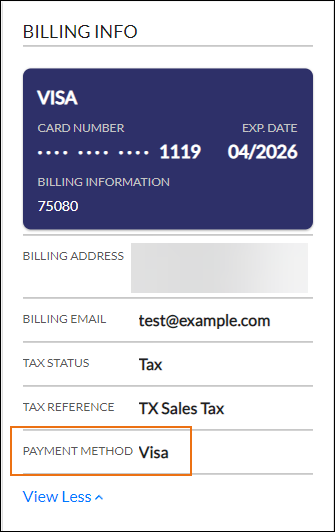
This is where Service Autopilot differentiates itself at a fundamental level, particularly for lawn care and landscape maintenance businesses. Recurring services like mowing, fertilization, and seasonal service plans can be set up within the software to generate invoices on a recurring schedule tied to the service.
For businesses that invoice hundreds or even thousands of clients on a recurring basis, the bulk invoicing functionality is arguably the most valuable component of the software. Rather than invoicing clients individually, an entire route or class of services can be invoiced at once, and reviewers on Capterra specifically single out bulk invoicing and one-click billing as major strengths of the platform.
What requires manual input:
- Rescheduled or weather-canceled jobs need to be reviewed before running a billing report or they will appear on an invoice
- Updating seasonal services (adding or removing a line item) generally has to be done manually on a recurring invoice
- Pricing changes for a class of customers still have to be manually inputted prior to the next billing cycle
The single most valuable implementation tip I can offer for Service Autopilot’s recurring billing invoicing is to establish standardization across your services, if possible. If every technician is billing for the same mowing service at slightly different prices or with slightly different notes, the value of automating that invoice is significantly reduced.
Online Payment Collection
Service Autopilot processes online payments through its own branded payment platform, SA Payments, built on Xplor Pay’s payment infrastructure. In line with Xplor’s own corporate disclosure, the payments company Clearent (rebranded Xplor Pay) bought controlling interest in Service Autopilot in 2021, not the other way around. Service Autopilot continued to operate as a separate business entity under this ownership structure, which is why I believe payment processing is built in so tightly rather than offered as a bring-your-own-processor integration.
Customers can pay through:
- A card on file that is automatically charged upon completing a job
- The Client Portal, where clients can see what invoices are owing money and pay online
- A manually entered card or ACH transaction over the phone or in person
- Autopay enrollment so recurring invoices automatically charge without a client logging in every month
Payment confirmation and failure management: Once a payment has gone through successfully, the invoice status will update and the ability to send a receipt to the client will become available.
Declined or failed payments are logged within the system but how actively your office is alerted to this depends on whether you’ve set up an Automations workflow to do so. Refunds are issued via the payment processor’s dashboard rather than a button on the invoice screen, making it worth testing during onboarding if your business handles this frequently (this is common in businesses that do prepaid seasonal contracts, for example).
ACH payments are an available method but only through Xplor Pay and only once your business has gone through Xplor Pay’s underwriting process to accept e-checks. This is a significant detail: Service Autopilot’s own support documentation states that ACH payments cannot be processed through any payment processor other than Xplor Pay within the platform.
Payment Processing & Fees
This is where I recommend being especially cautious, as this is also a pain point for some reviewers.
What is known:
- Service Autopilot’s contract language for payment processing specifically states that Xplor Pay must be engaged for payment processing and that a merchant agreement must be signed with them
- ACH and card processing is billed separately from the software subscription
What is unclear and requires further clarification:
- Service Autopilot does not list standard interchange fees or per-transaction costs on its website; these will need to be negotiated directly with Xplor Pay
- Whether the business or the customer is responsible for fees depends on your particular merchant agreement and applicable state surcharge laws, which should be clarified with your processor and legal counsel
- Recurring/autopay transactions may have different interchange costs than one-time card transactions, depending on your agreement
Several independent third-party reviews, including those from CardFellow and Capterra users, have cited the lack of published interchange costs and the perception that you’re locked in with Xplor Pay as a concern, and if you already have a merchant account with a competitive price, this is one of the first factors you should review carefully. Switching payment processors is generally not a quick or simple process, and if you do end up deciding against Service Autopilot, it’s good to know what you can expect.
Bottom line: Obtain Xplor Pay’s interchange costs and per-transaction costs in writing and compare them to what you’re currently paying, based on your projected card mix, before finalizing any agreement.
Overdue Invoices & Payment Reminders
Past-due invoices can be noted as such in reporting and on a client’s account page within Service Autopilot, and payment reminders can be sent out via email through the Automations engine, the same tool used for job reminders and marketing emails.
Automated vs manual collection efforts:
- Automated: Sending a reminder email or text when an invoice becomes overdue
- Automated: Updating an invoice’s status from due to overdue in reporting
- Manual: Calling a delinquent account, or escalating collections on a long-past due invoice
- Manual: Deciding to suspend a service for non-payment, which is a business decision and not one the software can make
One best practice I recommend to service business owners using Service Autopilot is to set your Automations reminders (say, 3 days before an invoice is due, on the due date, and 7 days after) and have your office team review the past-due invoices report on a weekly basis rather than relying solely on these Automated reminders to collect.
Estimates → Jobs → Invoices → Payments
Service Autopilot is structured around a single pipeline for revenue, rather than separate tools for estimating and billing.
The revenue pipeline in Service Autopilot looks like this:
Lead captured → Estimate generated and sent → Estimate approved → Job scheduled from estimate → Job completed → Invoice generated from job → Payment collected → Accounting synced
The benefit of this approach is that pricing information is carried from the estimate to the job to the invoice, reducing the possibility of a customer seeing one price and being billed for another. This is especially important for services like landscaping, installation, or one-time projects where the estimate directly impacts the job’s profitability.
Payment Tracking & Accounts Receivable
The reporting center in Service Autopilot allows filtering and searching of paid and unpaid invoices, as well as viewing a client’s accounts receivable, i.e., what they owe the business, on a per-client basis.
For day-to-day collections, this is sufficient for most small businesses, but larger operations with multiple bank accounts or needing to reconcile revenue with an accountant typically utilize QuickBooks or another accountant for this task, rather than the FSM platform.
QuickBooks & Accounting Integration
Service Autopilot’s two-way integration with QuickBooks (both Online and Desktop, depending on your plan) is one of its more mature tools, but there are some nuances to be aware of.
Generally speaking, the following information will sync between the two platforms:
- Invoices generated in Service Autopilot
- Payments collected on those invoices
- Customer and account information
The following usually requires some form of manual reconciliation:
- Chart of accounts mapping needs to be set up correctly initially, and errors here are one of the most common causes of sync problems
- Adjustments, credits, or refunds may occasionally need to be reviewed in QuickBooks to ensure they post correctly
- If an invoice is edited after the initial sync, verify that the change propagates rather than creating a new invoice
QuickBooks Online integration has been reviewed by third-party analysts, including on the Software Advice website, but one report noted that the entry-level plan doesn’t support this integration, which may be a concern depending on your needs. If accounting integration is a priority, be sure to clarify which plan tier includes it.
Mobile Invoicing & Payments
Using the Service Autopilot mobile application, field crews can mark a job as completed, generate an invoice, and accept a card payment at the property to collect payment the same day.
What field crews can do:
- Mark a job as complete and generate an invoice
- Accept a card payment on file or take a new card payment
- Add notes, photos, or a signature to a job
What requires office support:
- Sending bulk recurring invoices, usually an office responsibility
- Processing refunds or disputes
- Correcting any pricing errors on incorrectly invoiced jobs
One nuance I think is worth calling out explicitly relates to the mobile application, as it has a mixed reputation with some users. While the desktop application has a strong reputation – Service Autopilot’s Capterra score is around 4.1 out of 5, on the higher end of the spectrum – the mobile application has received more negative feedback, with users complaining about bugs, poor performance, and an outdated interface.
If your field crews use the application frequently, it’s worth testing more thoroughly during a free trial before committing to a paid plan. See our Service Autopilot mobile application review for more information on performance and usability.
Customer Billing & Payment Experience
As far as customers are concerned, invoices are generally emailed with a link to view and pay through the Client Portal, where they can pay an individual invoice, pay multiple invoices at once, add a card on file, set up autopay, and view their payment and credit history.
Where customers tend to run into issues:
- New customers occasionally need assistance figuring out how the portal works the first time they pay an invoice
- Prepaid payments made through the portal don’t apply to specific scheduled services or invoices; these generally require someone from the business to manually allocate funds
- If a client’s card declines without a reminder Automation, the business may not be aware of it until a receivables review
Communication, particularly a short explanation of how the portal works in the first invoice, goes a long way towards reducing confusion and support requests, particularly in the first 60-90 days of using the software.
What We Tested
To evaluate the invoicing and payment collection workflow, I reviewed the entire process using Service Autopilot’s documentation, support resources, and external user reviews, going through every step from creating a client to integrating with accounting software.
Labels used throughout this article:
- Verified from documentation: Information confirmed in Service Autopilot’s documentation or help center
- User-reported: Information from third-party reviews, generally on sites like Capterra or GetApp
- Not independently verified: Information we couldn’t confirm, generally flagged as such
- I have not performed a live test of the invoicing process within a Service Autopilot account for this particular article, as described above.
Ease of Use
Overall, the invoicing process is generally regarded as simple to implement, assuming your services and recurring pricing are set up correctly, and finding unpaid invoices and tracking their status is a common task that most reviewers found intuitive. The complexity tends to come with initial setup, mapping out services and recurring pricing correctly, and understanding how this interacts with other tools like QuickBooks.
The learning curve for this aspect of Service Autopilot is moderate to steep for office workers handling complex recurring invoicing workflows, and considerably steeper on the mobile application than the desktop version.
What Is Automated vs Manual?
| Function | Automated | Manual |
|---|---|---|
| Invoice generation | Yes, from completed jobs | Available for one-off jobs |
| Invoice delivery | Yes, via email | Available for print or manual send |
| Recurring billing | Yes, on defined schedule | Requires setup and periodic review |
| Payment collection | Yes, with card on file / autopay | Available at time of service or by phone |
| Payment reminders | Yes, via Automations | Requires configuration first |
| Payment tracking | Yes, in reporting center | Manual review recommended weekly |
| Accounting sync | Yes, two-way with QuickBooks | Chart-of-account mapping is manual |
| Reconciliation | Partial | Final review typically manual |
Service Autopilot Invoicing for Lawn Care
Lawn care is arguably the trade Service Autopilot was built around first, and the billing tools reflect that. Recurring mowing routes will cleanly invoice in bulk, fertilization programs can be scheduled as their own recurring service line, seasonal pauses (winter dormancy, for example) are supported through service scheduling adjustments. These are all features that would matter greatly to businesses that bill hundreds of recurring lawn care accounts, where the platform’s automated invoicing really shines. Overall fit: strong.
Service Autopilot Invoicing for Landscaping
Landscaping companies will often have a mix of recurring maintenance contracts and larger install/renovation projects that vary in price, and Service Autopilot supports both, but with different strengths. Recurring maintenance billing handles identically to how we’ve seen for lawn care. Larger one-time projects lean more into the estimate-to-job-to-invoice pipeline, where getting the job priced correctly to begin with is more important than automation at every stage.
Variable job pricing across multiple properties is supported but involves more manual touches than standardized recurring billing. Overall fit: good, with more manual review needed on project work.
Service Autopilot Invoicing for Snow Removal
Snow removal is an event-driven rather than calendar-driven trade, and that’s a harder fit for any billing automation built around recurring calendar dates. The software does support per-visit and per-event billing, but it requires office staff (or crews in the field) to diligently log each event as it happens, as snow events are unpredictable in timing and frequency unlike a Tuesday mowing route.
Seasonal contract billing (flat seasonal rate regardless of events) is easier to automate than true per-push billing. Quick payment collection is more important for snow businesses than other trades due to the compressed nature of the season, and Service Autopilot’s invoicing tools lean into that. Overall fit: workable, but requires more active management during active weather events.
Small vs Growing vs Multi-Crew Businesses
| Business Size | Billing Complexity | Recurring Volume | Office Workload | Overall Fit |
|---|---|---|---|---|
| Small (1 to 2 crews) | Low to moderate | Low to moderate | Manageable manually if needed | Good, though software cost may feel high relative to invoice volume |
| Growing (3 to 8 crews) | Moderate | Moderate to high | Automation becomes necessary | Strong fit, this is Service Autopilot’s core use case |
| Multi-crew / enterprise (8+ crews) | High | High | Requires dedicated office billing staff | Strong fit, assuming QuickBooks sync and reporting are configured well |
Strengths of Service Autopilot Invoicing & Payments
Bulk, automated recurring invoicing: For businesses billing significant quantities of recurring residential or commercial accounts, this feature alone can save hundreds of hours per billing cycle of manual invoice entry, and allow office staff to focus on collections and customer service rather than data entry.
Job-to-invoice data continuity: By accessing completed job records directly for invoicing, the likelihood of billing errors due to data re-keying errors is substantially reduced, decreasing both administrative effort and customer disputes.
Built-in payment collection (autopay): Businesses enrolling customers in autopay via the Client Portal typically see faster collections and fewer delinquencies, since no further customer action is needed to authorize payment.
Two-way QuickBooks sync capability: For businesses using QuickBooks for tax and financial reporting, the ability to import/export invoices/payments (once configured) represents significant time savings on month-end reconciliation and report preparation.
Limitations, friction points
Payment processing lock-in: Some contractors will have established card processing relationships that offer better rates, or have sufficiently high card volumes that being “locked in” to Xplor Pay’s processors represents a significant increase in their processing costs.
Non-disclosure of processing rates: Because Service Autopilot does not publicly disclose rates, it creates uncertainty for businesses comparing options, and prevents them from truly comparing total costs at the point of sale.
Mobile app limitations: Field crews attempting to invoice and collect the same day may find the mobile app to be significantly less capable than the desktop version, representing a drag on same-day collections for mobile-first businesses.
QB sync as plan-exclusive capability: If QuickBooks importing/exporting is only available on higher-tier plans, it may cause sticker shock when explaining to a prospect that they must upgrade their plan to use an essential feature – reducing the amount of budget they’re willing to allocate overall.
Common invoicing & payment problems
- Unpaid invoices, or invoices sent to customers who cancelled or rescheduled the service
Root causes
No automated reminders configured, or reminders set at too low a frequency
Mass billing run executed before confirming completed jobs (especially after weather cancellations or staff callouts)
Solutions
Configure a Reminder Automation with at least two reminders (one before, one after the due date)
Schedule a recurring manual review of the Aging Receivables report
2. Invoices created for cancelled/rescheduled jobs or with incorrect prices
Root causes
Mass billing run executed before confirming completed jobs (especially after weather cancellations or staff callouts)
Service price changed in one location but not another
Solutions
Confirm completed jobs prior to executing a mass billing run, especially if the run occurs after severe weather or staff callouts
Use a standardized service catalog to update prices, rather than updating individual customer records
3. QuickBooks balances do not match Service Autopilot’s totals
Root causes
Incorrect chart-of-accounts mapping during initial configuration
Editing of invoices which have already been synced to QuickBooks
Solutions
Verify correct mapping with a bookkeeper/accountant during initial configuration
Have accountant double-check any invoice edits after the initial sync has occurred
4. Recurring invoices contain incorrect prices or descriptions
Root causes
Price book or service catalog incorrectly updated
Solutions
Standardize services and prices using the catalog/configuration screen before enabling recurring or mass invoicing
5. Card payments failing or denied, with no method for the office to know about it
Root causes
Failure to configure and automation alerting the office when a payment fails
Solutions
Configure an Automation which alerts the office when a payment attempt fails
Best Practices
- Standardize services and prices using the catalog/configuration screen before enabling recurring or mass invoicing
- Carefully configure and test any recurring billing plan, on a small scale before implementing it company-wide
- Always review invoices before sending for non-recurring, variable-amount jobs
- Configure and enforce consistent payment terms (Net 15, due on receipt, etc.) which apply to all clients
- Perform a recurring review of past-due invoices, not just relying on automated reminders
- Monitor failed payments with an active Automation, rather than waiting to receive reports at month-end
- Perform a monthly reconciliation with your bookkeeper, even if using the QuickBooks sync
- Ensure staff receives proper training on both the invoicing feature and the mobile application
Service Autopilot Invoicing & Payments vs Alternatives
| Capability | Service Autopilot | Typical Competitor Range |
|---|---|---|
| Invoice creation | Yes | Standard across most FSM platforms |
| Recurring billing | Strong, bulk-focused | Varies; some competitors offer more flexible scheduling |
| Online payments | Yes, Xplor Pay-exclusive | Many competitors allow multiple processor options |
| Payment reminders | Yes, via Automations | Common feature across FSM platforms |
| Mobile payments | Yes, mixed reliability | Varies significantly by platform |
| Payment tracking | Yes, reporting center | Standard across most FSM platforms |
| Accounting integration | QuickBooks two-way sync | Common, though plan restrictions vary by vendor |
Processor flexibility is one of the most meaningful differentiators between billing tools within the field service software space. If open payment processor selection is an important consideration for your business, we’d recommend reviewing our full exploration of Service Autopilot alternatives to identify competing solutions’ approaches to payment processing and recurring billing.
What Does Invoicing & Payments Cost?
Invoicing is a built-in feature included in all Service Autopilot plan tiers since it comprises their field service management solution, rather than being a separate upsold module. The inclusion of the QuickBooks sync, however, is conditional and depends on the purchased plan: When asked, third-party trade publications have conflicting reports on whether QuickBooks sync is included in the entry-level plan or not, so it’s recommended to clarify this with a Sales representative prior to making a purchase decision.
Payment processing is a separate subscription hosted by Xplor Pay, with costs for online payment processors not disclosed by the company. Extra user seats and mobile invoicing permissions are plan-dependent and scale with plan tiers. See our Service Autopilot pricing guide to get a full breakdown of the tool’s subscription costs by plan.
Who Is Service Autopilot Invoicing Best For?
- Lawn care businesses with a significant base of recurring residential clientele
- Landscaping companies with a mix of recurring maintenance and one-time project billing needs
- Snow plowing operations with the resources to actively invoice on a per-event basis during active season
- Growing operations (3-8 crews size range) outgrowing spreadsheets and one-person billing departments
- Multi-crew operations with an in-house billing team able to take ownership of a streamlined invoicing process
- High-velocity recurring-service billers for whom bulk invoicing options translate to significant time saved
Who Should Consider an Alternative?
- Companies that have already negotiated a favorable merchant processing arrangement and do not want to invoice through Xplor Pay
- High-card-processing-volume companies for whom even minor increases in processing fees would be highly detrimental
- Companies that want to invoice only a few one-time jobs and want minimal complexity in their billing setup
- Companies that need an alternative to QuickBooks Desktop integration at the accounting layer
- Companies that make intensive use of mobile invoicing and require a dramatically more feature-complete and refined mobile experience than Service Autopilot offers
Is Service Autopilot Good Enough for Your Billing Workflow?
Billing Fit Scorecard
Good fit if: You bill a high volume of recurring accounts, your service catalog is standardized, and you’re comfortable using Clearent for payment processing.
Possible fit if: You mix recurring and project billing, need QuickBooks sync, and are willing to negotiate processing rates directly with Clearent before signing.
Poor fit if: You need to keep an existing merchant processor, invoice mostly one-off or event-based work, or depend heavily on a polished mobile invoicing experience.
Our Recommendation
We recommend Service Autopilot for recurring-service businesses, especially those in the lawn care/landscape maintenance industry, where bulk automated invoicing would significantly reduce administrative hours spent on billing.
We advise against it if processor flexibility and transparent, published interchange rates are important to your business planning and budgeting.
We recommend exploring alternatives if your invoicing needs are more ad-hoc, tied to specific events, or project-based, where the value proposition of a recurring billing-focused solution would be less compelling. Our Service Autopilot alternatives guide covers multiple platforms that support different billing models.
Before buying, we recommend due diligence on the following:
- Whether the mid-tier plan includes QuickBooks sync capabilities
- Xplor Pay’s actual processing rate and per-transaction fee for your expected card mix (this should be in writing)
- If ACH underwriting timelines would be compatible with your expected launch/start date
- The product’s mobile app functionality for on-the-go invoicing and if it would be a good fit based on a trial/demo with your crews
Final Verdict
Service Autopilot offers a compelling all-in-one platform for automating invoicing and recurring payments, with the strongest value for high-volume landscape maintenance businesses. Its main advantages are the end-to-end automation of the billing cycle from job completion to customer invoicing and payment collection.
The primary drawbacks are the lack of budget-friendly interchange plus per-transaction fee pricing option and the exclusive partnership with Xplor Pay, which eliminates the ability to shop around for better rates. If you need an all-in-one platform to automate most of your invoicing and payment collection workflows, Service autopilot is a strong option to consider. However, if processor interchange rates are a priority, you may want to compare it against other options.
Confused About Service Autopilot ? Go Through Our Service Autopilot Hub.
Frequently Asked Questions
Does Service Autopilot have invoicing?
Yes, Service Autopilot includes built-in invoicing as a core feature across all plan tiers. It supports manual invoice creation, bulk invoicing across your entire client base, and automatic invoice generation tied to completed jobs, with customizable templates and electronic delivery by email.
Can Service Autopilot automatically generate invoices?
Yes. Service Autopilot can automatically generate invoices when a scheduled job is marked complete, pulling customer, property, and service line-item data directly from the job record. Recurring services can also be configured to generate invoices on a repeating schedule without manual re-entry.
Can Service Autopilot send invoices electronically?
Yes, invoices are delivered electronically, typically by email, with the option for customers to view and pay them online through the Client Portal. Some configurations also support SMS notifications alerting customers that a new invoice is ready.
Does Service Autopilot support recurring billing?
Yes, recurring billing is one of Service Autopilot’s core strengths, particularly for lawn care and landscape maintenance businesses. Recurring services can be tied to a repeating schedule, and invoices generate automatically as those services are completed, though price changes and service pauses still require manual updates.
Can customers pay Service Autopilot invoices online?
Yes, customers can pay invoices online through the Client Portal using a saved card, a new card, or ACH (where enabled), and can pay multiple outstanding invoices in a single transaction. Autopay enrollment is also available so recurring invoices are charged automatically each cycle.
What payment methods does Service Autopilot support?
Service Autopilot supports credit and debit card payments and ACH (e-check) transactions, processed through its in-house SA Payments platform, which runs on Xplor Pay’s payment infrastructure. ACH specifically requires completing Clearent’s underwriting process before it can be used.
Does Service Autopilot charge payment processing fees?
Yes, payment processing is billed separately from your software subscription and is processed exclusively through Xplor Pay. Service Autopilot does not publish standard processing rates, so businesses should request a written rate quote based on their specific card volume and transaction mix before signing a contract.
Can Service Autopilot track unpaid invoices?
Yes, the platform’s reporting center provides visibility into paid, unpaid, and overdue invoices, along with accounts receivable aging at both the client and company level. This makes it possible to monitor collections performance without manually reviewing individual client accounts one by one.
Does Service Autopilot integrate with QuickBooks?
Yes, Service Autopilot offers a two-way sync with QuickBooks that transfers invoices, payments, and customer records between the two systems. Availability of this integration may depend on your plan tier, so it’s worth confirming directly with Service Autopilot before purchasing if accounting sync is a requirement.
Does Service Autopilot send payment reminders?
Yes, payment reminders for overdue invoices can be automated using Service Autopilot’s Automations feature, the same workflow engine used for job and marketing reminders. Reminder timing and messaging are configurable, but the Automation has to be set up first; it isn’t active by default.