Switch to Service Autopilot: The Complete Migration Guide for Field Service Businesses
Migration Decision Snapshot
| Migration difficulty | Moderate |
| Typical prep time | 15-40+ hours |
| Highest-risk data | Recurring jobs & pricing |
| Recommended cutover window | Shoulder season |
60-Second Migration Answer
Can you switch to Service Autopilot? Yes, there is an option to import data like clients, properties, services, and job history using their import tool or the Imports Team who can help with more involved migrations via a ticket
What would you need to migrate? The most essential data to bring over initially would be customer and property records, active recurring services and pricing, employee/crew records, and open balances. Historical invoicing, notes, and closed job history tend to get archived rather than migrated.
How challenging would this be? Moderately difficult if you have multiple crews but more involved if you have custom pricing, specialized routing, or third-party tools.
What is the biggest risk during migration? Losing recurring jobs or importing duplicate/corrupt pricing that shows up as mysterious billing errors months later.
How much time/preparation would be needed? Probably 15-40+ hours of concerted effort depending on how much data needs massaging before it can be loaded into the new database.
When is the best time to make the switch? During a slower period rather than right before or during the busy season for whatever industry you’re in (landscaping, lawn care, snow removal, etc.).
Final recommendation: Don’t cancel your existing FSM software plan before you’ve run at least one full customer-to-payment cycle within Service Autopilot and reconciled your books.

If you’ve decided to switch to Service Autopilot, most people already know the software decision is the easy part. The real work – and what defines whether the transition is smooth or a nightmare of late summer – is migrating your customers, jobs pricing, schedules, and financial history from your old system to Service Autopilot correctly.
I’ve guided field service companies through dozens of software transitions in my 11 years in the industry. From 3 truck lawn care companies to landscaping and snow removal businesses running 20+ routes with dozens of crews, the successful transitions I’ve seen always have one thing in common – they’re treated as a project with a clear process, project manager, and testing phase before going live. This guide outlines that process.
Should You Switch to Service Autopilot?
Before spending time planning a migration, it’s worth confirming that switching is actually the right move right now. In my experience, businesses that switch FSM platforms mid-crisis (a vendor outage, a sudden price increase, a major bug) often skip the preparation steps that make migration safe, and that’s when data gets lost.
| Switch if… | Wait / Don’t Switch Yet if… |
|---|---|
| Your current FSM no longer fits your operation as you’ve grown | Your data isn’t clean or organized yet |
| Scheduling, dispatching, or routing is becoming genuinely difficult to manage | You haven’t tested critical workflows in Service Autopilot yet |
| Your current vendor’s support or reliability has declined | You’re entering your peak season in the next 4 to 6 weeks |
| Pricing from your current provider has become unacceptable | Your office and field team aren’t prepared for a transition |
If you’re comparing other platforms against but not yet committed to Service Autopilot we recommend reading our Service Autopilot review and Service Autopilot alternative analysis first. As an involved process, field service migration requires a serious time investment and it’s important to be decisive in your final choice.
What Does Switching to Service Autopilot Involve?
At a fundamental level, all field service platform migrations follow the same general process flow – with variations depending on your particular use case and needs:
Audit > Export > Clean > Map > Configure > Import > Test > Train > Cutover > Monitor
The single most common mistake I see across all migrations has to do with skipping or combining certain steps. When companies jump from Export to Import without taking the time to clean and map their data they often end up with messy duplicates, inconsistent pricing, or technician confusion within the first month. The remainder of this article will cover all these steps in greater detail.
Can I Migrate Any Field Service Data to Service Autopilot?
Service Autopilot’s import utility (found in your profile menu under Import/Export) can accept most structured data formats such as client records, with more specialized migrations available through the Imports Team. To begin the process, reach out via your account’s support ticket system for an initial review of your particular case. Below is a general overview of what types of data generally fall under what category:
| Data Type | Migratable? | Notes |
|---|---|---|
| Customers/Clients | Yes | Core contact and billing information imports cleanly with proper field mapping |
| Properties/Service locations | Yes | Especially important for lawn care, landscaping, and pest control with multiple properties per customer |
| Services & pricing | Partial | Standard services can be imported; complex custom pricing tiers often need manual rebuilding |
| Recurring jobs | Partial | Recurring schedules frequently require reconstruction rather than a direct 1:1 import |
| Employees/Users | Yes | User accounts, roles, and permissions are typically set up during configuration, not imported |
| Crews/Teams | Manual setup | Crew structures are usually rebuilt inside Service Autopilot’s team settings |
| Routes | Manual rebuild | Route sequencing rarely transfers directly and should be re-optimized in the new system |
| Invoices (historical) | Limited | Old closed invoices are often archived in the legacy system rather than imported in full |
| Payments/Balances | Critical, manual verification | Outstanding balances must be reconciled manually to avoid billing errors |
| Notes | Partial | Historical notes may import as flat text but lose original formatting or linkage |
| Photos | Limited | Job photos often need to be exported and stored separately or re-attached |
| Job history | Limited | Consider archiving detailed job history in your old system rather than force-fitting it |
| Custom fields | Manual mapping | Custom fields rarely have a direct match and typically require new field creation |
| Integrations | Manual reconnection | Payment processors, QuickBooks, and marketing tools must be reconnected and tested individually |
Quick answer: Generally speaking, you should migrate current and future facing data (active customers, recurring jobs, current pricing, open balances), and archive historical, closed out data (old completed job records, dated notes, expired contracts).
What should you migrate VS leave behind?
This is often one of the most overlooked aspects of the FSM migration process, because “migrate everything” sounds like a safe plan but leaves the new system with all the bad habits of the old one. You’ll want to adopt a simple 3 bucket approach to data migration.
Keep (Migrate fully):
- Active customers with a service relationship in the last 12-24 months
- Current accurate service and price catalogs
- Active recurring jobs
- Outstanding invoice balances, payment methods on file
- Active employee/crew lists
Clean (fix before migrating):
- Customer records with missing/out-of-date contact information
- Duplicate customer/property entries
- Services with inconsistent or outdated pricing
- Notes spread out across different fields of record that should be consolidated
Archive (better in the old system or a read-only file):
- Customers with no activity in 2+ years
- Job history beyond what you need for warranty or tax purposes
- Old, superseded pricing structures
- Invoices already reconciled to your accounting software
An approach I recommend to clients is to keep the old FSM around (or export the data to a static file) for at least 12 months after the cutover, rather attempting to push every historical record into Service Autopilot. At the very least, make sure your internal finance team has the ability to find old invoices for tax purposes, warranty, and dispute resolution.
Before You Begin: Pre-Migration Checklist
Before getting started with any data export, make sure the following items are complete:
- Full data backup/export of your current FSM completed and stored securely
- Export files pulled for every data category (customers, services, jobs, invoices, employees)
- All data cleanup completed (duplicates merged, outdated records flagged)
- Full inventory of current work flows (how a job moves from lead to invoice)
- Inventory of every integration currently in use (payments, accounting, marketing, forms)
- Financial reconciliation of open balances completed and documented
- Designate an owner to manage the migration internally
- Pick a cutover date (ideally not in the middle of a busy season)
- Office staff and field technicians informed about the timeline and what will change for them
Step 1: Audit Your Current FSM
Take stock of what data actually exists in your current FSM, and how your team uses the software on a daily basis (in practice, not theoretical). In my experience, this step is frequently skipped entirely, and causes the greatest delays when it’s finally revisited. Consider:
- How many active customers/properties do you have? How many recurring services?
- What reports does the office team use regularly? What are their reporting needs?
- What are your office or field “work flows” for a given task? Which of these exist only as spreadsheets or sticky notes on a wall?
Step 2: Export Your Existing Data
If you’re using a full FSM (or an ERP with FSM modules), there should be an option to export CSV or Excel files of your data. Export each major category (customers, properties, services, invoices, employees) separately, rather than using a consolidated export tool if possible – it will make the next few steps considerably easier.
Step 3: Clean & Organize Your Data
This step will almost certainly involve the most tedious work, and yields the most mixed results – but a solid foundation is critical to a smooth FSM migration. Prior to importing any data, make sure:
- Duplicate customer records have been merged
- Address formats standardized (this will matter for routing)
- Customers with no activity in the last 24 months have been identified
- Services have been consolidated into standardized nomenclature and pricing
- Phone numbers and email addresses have been verified as current (these often trigger automated customer communications)
Step 4: Map Your Data to Service Autopilot
Field mapping is likely the point of highest confusion in the migration process, as the nomenclature and structure of your existing FSM will rarely map directly to Service Autopilot conventions. Here’s a representative sampling of unmapped fields and their Service Autopilot equivalents:
| Existing System Field | Service Autopilot Field | Migration Action |
|---|---|---|
| Customer | Client | Map directly, verify contact fields |
| Property/Job site | Property | Map, verify address formatting |
| Service | Service | Map or recreate in service catalog |
| Crew | Team | Recreate manually in team settings |
| Recurring service | Recurring job | Map where possible, rebuild schedule logic manually |
| Custom pricing tier | Custom pricing | Manual rebuild recommended |
| Job notes | Notes/Custom fields | Map or consolidate |
Document this mapping in a simple spreadsheet before you import a single record. It becomes your reference point if something looks wrong after import, and it’s invaluable if you bring in help later.
Step 5: Configure Service Autopilot Before Importing
Probably the most common error I see in sequencing errors involve importing into a Service Autopilot account that hasn’t been configured correctly for the particular business’s needs. Configure the following items first:
- Business settings (company info, service areas, tax settings)
- Service catalog and standardized pricing
- Employee accounts and role-based permissions
- Team/crew structures
- Scheduling and dispatch preferences
- Recurring job templates
- Billing and invoicing settings
- Mobile app settings for field technicians
- Integrations (payment processing, QuickBooks, marketing tools)
This sets up the system to receive the data rather than fighting to make the data fit into a generic configuration. For more information about the configuration decisions to make before importing, refer back to the companion article about getting a Service Autopilot account configured correctly.
Step 6: Import/Migrate Your Data
Assuming you’ve done the above preparation steps, you’re now ready to import. The Service Autopilot import tool can be found under your profile icon, Import/Export, then Import Data.
For anything more complicated than a simple customer list import, Service Autopilot’s Imports Team can work with you on complex data migrations, so consider submitting a support ticket if you have a large data set or one that requires significant cleansing rather than taking a chance at a failed import.
When importing, consider importing smaller batches of data (starting with a test batch of 10 or 20 records) rather than your entire customer list. That way, any mapping errors get caught before they turn into thousands of mapping errors.
Step 7: Rebuild Your Core Operational Workflows
The next step after importing data is to rebuild and verify the operational workflows that your business uses regularly:
- Customer → service
- Estimate → job
- Job → schedule
- Schedule → route
- Crew → mobile app
- Completion → invoice
- Invoice → payment
In other words, make sure that data imported correctly and that the linkages between different data sets work correctly. One of the most common issues I see involve invoices not being created for completed jobs because the invoicing setup in Step 5 was done incorrectly, even though the data imported correctly.
Step 8: Run an End-to-End Test Job
Finally, before going live, run through at least one complete test job using a test (or real) customer:
Customer → Property → Service → Schedule → Crew → Mobile → Completion → Invoice → Payment
If you can create the customer record and successfully process a test payment, you know that everything is working correctly and that the system is ready for production use. Alternatively, if any part of the process fails for a test job, you’ll want to troubleshoot and identify the issue before doing production jobs where a customer might have a bad experience.
Migration Risks to Watch
| Risk | Impact | Prevention |
|---|---|---|
| Duplicate customers | High | Clean and de-duplicate data before import |
| Lost recurring jobs | High | Manually reconcile every active recurring schedule post-import |
| Incorrect pricing | High | Compare the imported service catalog line-by-line against your current price list |
| Missing balances | Critical | Run a full financial reconciliation before and after import |
| Broken integrations | High | Test each integration individually after reconnecting it |
| Staff confusion | Medium | Role-based training before go-live, not after |
What Data May Not Transfer Cleanly?
It’s easy to assume that if it can be exported from your old system, it can be effortlessly imported into Service Autopilot. This is often not the case. Certain categories of data typically require manual verification or reconstruction:
- Custom pricing structures (especially tiered pricing and contract-specific discounts) will almost certainly need to be manually re-entered
- Routing and optimization data rarely translates meaningfully and should be re-built using Service Autopilot’s routing tools
- Nested job history (particularly multi-visit jobs with complex line items) will often appear in a simplified, flattened format
- Automation rules and triggers will generally need to be rebuilt from your old system’s logic
- Third-party integration data (marketing tags, review request history, etc.) will almost never carry over and need to be re-established
- Attachments and photos may require special handling based on file types and sizes
Be sure to identify these categories for your team ahead of time.
Migration Timeline: How Long Does It Take?
There is no single answer, as the process duration will vary dramatically based on your particular situation. As a general guide based on industry averages:
| Business Profile | Estimated Migration Timeline |
|---|---|
| Small operation (1-3 crews, under 500 customers) | 1 to 2 weeks |
| Established operation (4-10 crews, 500-2,000 customers) | 3 to 5 weeks |
| Large/multi-crew operation (10+ crews, 2,000+ customers) | 6 to 10 weeks |
| Complex migration (custom pricing, multiple integrations, franchise structure) | 10+ weeks, often phased |
These ranges assume dedicated attention from a migration owner. Migrations that get treated as a “side project” squeezed between daily operations routinely take two to three times longer.
Migration Cost / Total Cost of Switching
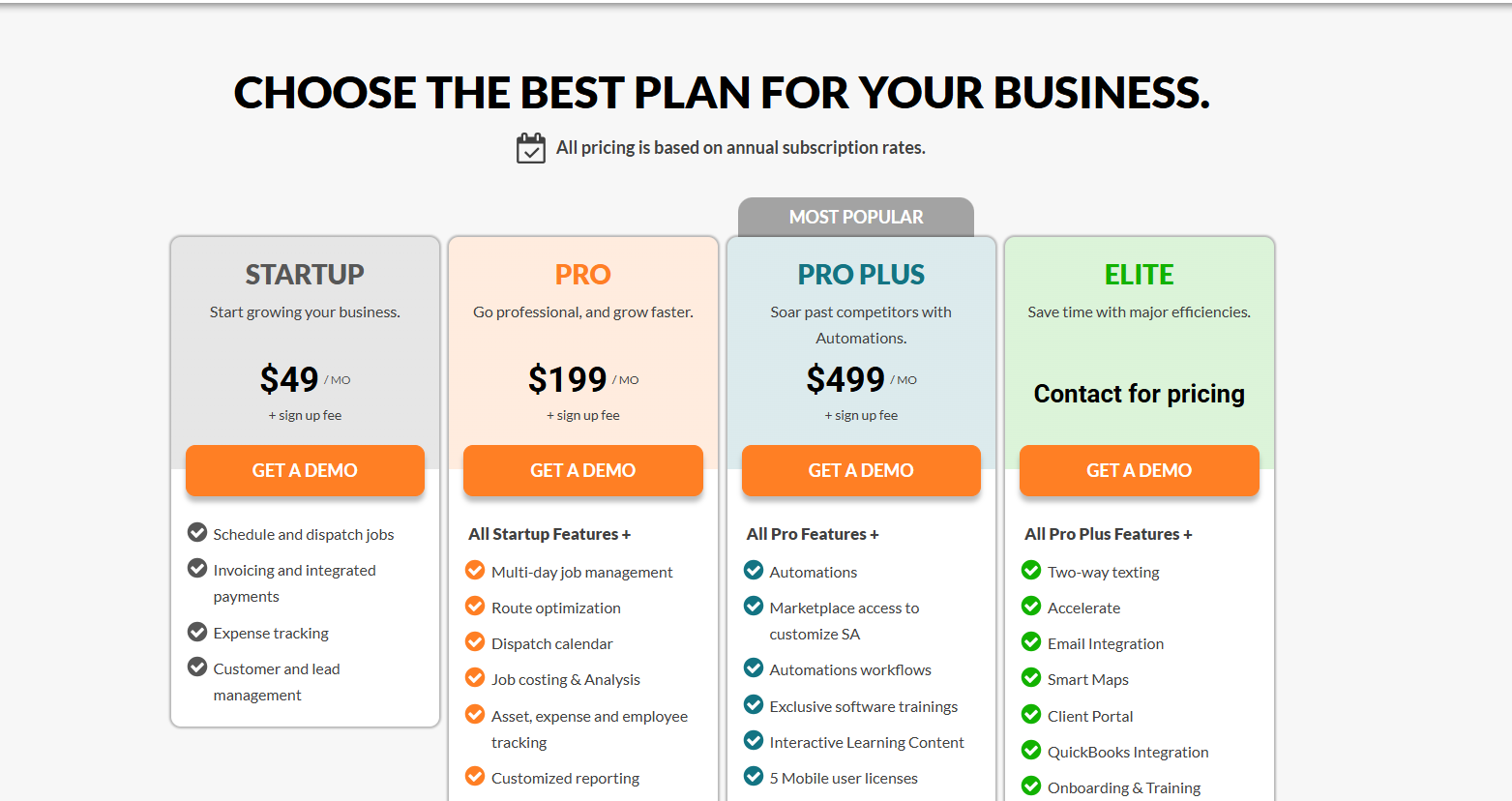
Migration cost goes well beyond your Service Autopilot subscription. When considering your switch to an FSM, allocate funds for the following categories:
- Software cost: Your ongoing Service Autopilot subscription. (Our Service Autopilot pricing breakdown outlines current plan structures.)
- Setup/onboarding: Any paid onboarding/help with implementation you decide to purchase
- Data cleanup: Internal hours/costs spent cleaning and organizing existing records
- Internal labor: Time spent by your office staff performing exports, mappings, configurations, and testing
- Training: Time spent training your office staff and field technicians on the new software
- Integration work: Reconnecting and retesting payment processors, accounting software, marketing tools, etc.
- Temporary dual-system costs: Money spent running both your old and new FSMs at the same time, at least temporarily (a real cost I strongly advise budgeting for)
Your bottom line is that trustworthy financial planning must recognize that while Service Autopilot itself may be inexpensive, the migration process carries a meaningful internal labor cost.
The U.S. Small Business Administration notes that technology transitions are one of the areas where cash-strapped service organizations tend to low-ball the time involved, and as a result it’s wise to plan both time and money for the migration.
Best Time to Switch to Service Autopilot
The timing of your switch is often more important in the field service industry than most other sectors, due to the strong connection between field service work and weather patterns.
| Business Type | Best Switch Window | Avoid Switching During |
|---|---|---|
| Lawn care | Late fall / winter off-season | Spring ramp-up and peak growing season |
| Landscaping | Winter | Spring and summer project season |
| Snow removal | Late summer / early fall, before contracts activate | Active snow season |
| Multi-crew businesses (any trade) | Slowest month of your operational calendar | Any period with above-average call volume |
For seasonal businesses especially, cutting over mid-season is one of the riskiest decisions you can make. If your current software contract allows it, plan your switch for the shoulder season before your busy period ramps up, giving your team time to fully test workflows before they matter most.
Migration by Business Type
Lawn Care
Pay special attention to:
- Recurring program schedules and mowing frequency
- Property records with multiple properties or shared billing
- Route structures by recurring visit day
- Service pricing nuances (seasonal or per-visit variations)
Landscaping
Landscaping companies usually have both recurring maintenance and one-time projects, so focus should be placed on:
- Estimates/proposals in progress at time of cutover
- One-time jobs vs. recurring maintenance contracts
- Crew assignments for specific types of project work
- Customer-specific pricing agreements (landscape contracts are often custom)
Snow Removal
There’s often a time sensitivity for snow removal migrations since contracts and trigger rules need to be in place before the first snowfall:
- Contractual terms for seasonal service (per-push or seasonal rate pricing)
- Routes structured for rapid sequential dispatch
- Trigger rules for automated work creation (weather events)
- Rapid dispatch and crew notification system (tested in advance of seasonal opening)
Switching From Another FSM
Instead of simply comparing features, the more valuable exercise is to identify how you actually perform tasks in your current system and determine how those same tasks could be accomplished in Service Autopilot
| Workflow Area | What Changes When You Switch |
|---|---|
| Scheduling | Recurring job logic and calendar views may work differently; verify recurrence rules match your business |
| Routing | Route optimization tools differ between platforms; expect to rebuild and re-sequence routes |
| CRM | Customer record structure and custom fields typically require remapping |
| Mobile | Technician-facing mobile workflows should be tested directly by field staff, not just office staff |
| Billing | Invoice templates, payment terms, and automated billing rules need to be reconfigured |
| Reporting | Historical reports won’t automatically carry over; rebuild key reports in the new platform |
| Automations | Trigger-based automations (review requests, reminders) need to be recreated from scratch |
| Integrations | Every connected tool needs to be reconnected and independently tested |
If you’re still evaluating whether Service Autopilot is the right destination versus another platform, our Service Autopilot alternatives comparison covers how it stacks up on these exact workflow areas.
Phased Cutover Plan
A controlled cutover (as opposed to immediate) significantly reduces risk:
Configure → Test → Train → Final Reconciliation → Cutover → Monitor
The key principle here is that your old system should not be decommissioned or cancelled until critical data and workflows are verified as working properly in Service Autopilot. Having your old and new systems run concurrently for a defined period (usually one billing cycle) provides a safety net in the event that data needs to be re-examined against the original source of truth.
Team Training Prior to Go-Live
Training should be performed by role rather than a generic all-access training. A dispatcher and technician have vastly different needs and expectations from day one.
| Role | Priority Training |
|---|---|
| Owner/Manager | Reporting, billing oversight, account settings |
| Office/Admin | Customer records, scheduling, dispatching |
| Field Crew | Job details, navigation, marking jobs complete |
| Accounting | Invoicing, payment processing, financial reconciliation |
From an implementation perspective, I’ve found that field crews adapt new mobile workflows fastest when they receive hands-on training on their own devices with real (or realistic) jobs, rather than a generic screen-share walk-thru.
Go-Live Checklist
Before switching your production data over to Service Autopilot, make sure to:
- Double-check that all active customers/properties have been imported correctly
- Cross-reference all recurring jobs with your old system’s schedule
- Verify that your service catalog/pricing exactly matches what you’re using now
- Reconcile any outstanding balances and confirm they’re accurate
- Run at least one full test job from start to finish
- Reconnect and test all your integrations
- Train your office team on scheduling, dispatch, and billing
- Train your field crews on the mobile app and ensure they’re comfortable
- Document a rollback plan in case showstopping issues are discovered
- Keep old system access available (in read-only or parallel) for a transition period
What to Keep From Your Old System
Even if you’re planning to move away from it, I don’t recommend emptying your old FSM system right away. Keep access to or copies of:
- Invoices from before your cutover date that you’ll need for tax/audit purposes
- Financial paperwork needed to reconcile with your bookkeeper/accountant
- Job records from your old system that might be needed for warranty claims
- Contracts and agreements with customers, suppliers, and partners
- Customer-related documents and photos not migrated to Service Autopilot
- Tax documents, which the IRS recommends you keep for 3-7 years depending on the type
DIY vs Assisted Migration
| Factor | DIY Migration | Assisted Migration |
|---|---|---|
| External cost | Lower | Higher |
| Internal labor required | More | Less |
| Control over process | More | Somewhat less |
| Responsibility for errors | Fully on your team | Shared with support/Imports Team |
| Best fit | Smaller datasets, tech-comfortable office staff | Larger datasets, complex pricing, limited internal bandwidth |
If your data set is large, your pricing structures are complex, or your team does not have the resources to spare, you should consider submitting a ticket to the Service Autopilot Imports Team for assisted transition, despite the extra cost.
When NOT to Switch
For most companies, the timing or opportunity to switch FSM platforms is never a priority. Delay the switch if:
- You’re within four to six weeks of your peak season
- Your data set is in poor order and has yet to be organized
- Your team has not yet tested the Service Autopilot mobile app with your field staff
- Your staff is otherwise occupied and doesn’t have the bandwidth to support an FSM transition
You have yet to review the Service Autopilot Mobile App Review and assess how its’ field-centric design compares to your technicians’ field operations
Our Recommendation
Use Service Autopilot if you need stronger recurring service management, route-based scheduling, and mobile field access than your current FSM provides, and have the internal resources to commit to a deliberate, methodical transition rather than accept a rushed import.
Organize your data and thoroughly review the Service Autopilot Mobile App Review before transitioning if your data is in poor order, your staff is otherwise occupied, or if are near your peak season.
Use an alternative FSM if your operational requirements differ substantially from the service management use cases for which Service Autopilot is designed. See our Service Autopilot alternatives guide for companies in this situation.
Avoid canceling your existing FSM software before converting your data, synchronizing your financial records, and fully testing the platform to produce stable recurring invoices.
Final Verdict
Switching FSM platforms can transform operations for the better, but the tool itself is only part of the solution. Companies that successfully transition to Service Autopilot typically approach the switch like any major project: auditing, organizing, mapping, configuring, importing, testing, training, and finally cutover.
With sufficient internal commitment, realistic timelines, and a safe rollback plan, the risks of transitioning to Service Autopilot can be minimized to improve scheduling, routing, and mobile field operations without operational disruption.
Frequently Asked Questions
Can I migrate to Service Autopilot from another FSM?
Yes. Service Autopilot supports importing core data such as customers, properties, and services through its built-in Import Data tool, and its Imports Team can assist with more complex migrations submitted through a support ticket for review.
What data can I migrate?
You can typically migrate customer and property records, service catalogs, and basic job data. Recurring job schedules, custom pricing, routes, and historical job history often require partial rebuilding rather than a direct one-to-one import, so plan for manual verification of these categories.
Can I migrate customers and properties?
Yes, customer and property records are among the most reliably importable data types in Service Autopilot. Even so, clean and de-duplicate this data before import to avoid creating duplicate client records that cause billing and communication errors.
Can I migrate recurring jobs?
Partially. Recurring job schedules can sometimes be mapped from an export, but in most migrations they need to be manually reconstructed and verified against your current schedule to ensure frequency, pricing, and crew assignments are correct.
Can I migrate historical invoices?
Historical invoices have limited migration support and are often better kept in your old system (or exported as a static archive) for accounting and tax purposes rather than fully imported into Service Autopilot as active records.
How long does migration take?
Timelines vary by business size and data complexity. Small operations often complete migration in 1 to 2 weeks, established multi-crew businesses typically need 3 to 5 weeks, and large or highly complex operations may need 6 to 10+ weeks, especially when phased.
Does Service Autopilot help with migration?
Yes. Beyond the self-serve Import Data tool available under your profile menu, Service Autopilot’s Imports Team can review and assist with data migrations submitted through a support ticket, which is useful for larger or more complex datasets.
Should I keep my old software during migration?
Yes. Running your old FSM and Service Autopilot in parallel for a defined transition window, commonly through one full billing cycle, gives you a safety net to verify data accuracy before fully committing to the new system.
When should I cancel my old FSM?
Only after you’ve completed a full end-to-end test job, reconciled all financial balances, verified your recurring schedules match, and confirmed your team is comfortable using Service Autopilot for real work, typically after at least one successful billing cycle.
How do I avoid losing customer data?
Export your full customer dataset before starting, clean and de-duplicate it, map each field carefully to Service Autopilot’s structure, and spot-check imported records against your original export before deleting or archiving your old system’s access.
What should I test before switching?
Run a complete end-to-end test job covering customer creation, property assignment, scheduling, crew dispatch, mobile app job completion, invoicing, and payment collection. If every step in that chain works correctly, you have real confidence to proceed with a full cutover.