Jobber and QuickBooks: Do Service Businesses Need Both?
Jobber runs the work: requests, quotes, scheduling, routing, job invoices and payments. QuickBooks Online is accounting: ledger, bills, payroll, bank reconciliation and tax reports. Most service businesses use both, with Jobber’s one-way sync sending clients, invoices, payments and more into QuickBooks. Jobber’s own help page says Jobber is the source of truth and that paid status no longer syncs back, so edit in Jobber, reconcile in QuickBooks and watch deposits, refunds and sales tax.
The question comes up for every small service business. You already pay for QuickBooks, and QuickBooks can send an invoice. Jobber looks like it also sends invoices and takes payments. Do you need to pay for both, and what happens to your books if you use both?
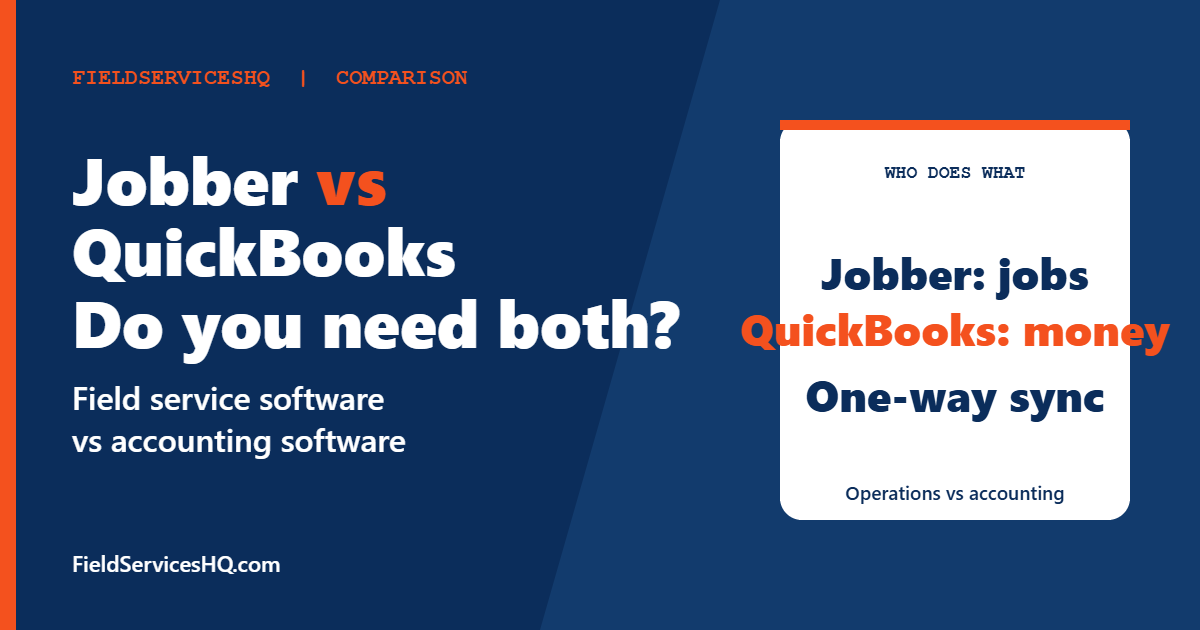
The short version is that the two products overlap on invoices and differ on everything around them. Jobber starts from the job: a request comes in, a quote goes out, a visit lands on a calendar, a technician finishes, an invoice follows. QuickBooks starts from the money: what came in, what went out and what you owe.
Our Jobber vs Housecall Pro comparison covers the field service side in detail, and Jobber vs Service Fusion explains how per-user and unlimited-user plans differ. This guide covers the Jobber and QuickBooks question: what each does, how the sync works, where it breaks, and when you can run with less.
On evidence: Jobber’s own help center describes the sync in detail, QuickBooks publishes its plans and prices, and public forums show what users run into. Jobber’s comparison page is written by Jobber, so we label its claims as vendor claims. Where third-party blogs disagree with Jobber’s help page, we go with the help page.
Jobber vs QuickBooks at a glance
| Question | Jobber | QuickBooks Online |
|---|---|---|
| What it is | Field service management software | Accounting software |
| Built around | Jobs, visits, clients, properties | Transactions, accounts, bills, payroll |
| Scheduling and dispatch | Core feature | Not a field service tool |
| Quotes and invoices | Quotes, job-linked invoices, payments | Estimates, invoices, payments |
| Technician mobile app | Core feature | Limited to invoicing, billing and receipt capture, per one review site |
| General ledger and bank reconciliation | Not its job | Core feature |
| Payroll and tax reports | Not its job | Core feature, higher tiers or add-ons |
| Free trial | 14 days, no credit card (Jobber) | 30 days (QuickBooks) |
| Entry price | $29 per month, annual billing, one user | $38 per month, regular price, one user |
Prices come from the vendors’ pages and may change. QuickBooks lists promotional pricing for the first three months on paid plans, so check the terms.
What Jobber does that QuickBooks does not
Jobber handles the day-to-day: requests, quoting, scheduling, routing and GPS tracking, job details, communications, invoicing and payments, according to its own comparison page. Its sweet spot is small to mid-size crews. The pieces that matter most compared with accounting software are:
- A calendar and route. Recurring visits, drag-and-drop scheduling, crew assignment and route tools.
- A field app. Technicians see job details, add notes and photos, and collect payment on site.
- Client communication. Booking requests, reminders, on-my-way messages and a client portal.
- Quote to invoice flow. An approved quote becomes a job, and the job becomes an invoice with line items.
Prices on annual billing per month are Core $29 for one user, Connect $99, $149, $229 or $299 for 1, 5, 10 or 15 users, Grow $149, $229, $299 or $399, and Plus from $399 to $529, with extra users at $29. Check the live page for the plan that includes the QuickBooks sync, because Jobber’s help article says only select plans offer it and does not list them.
What QuickBooks does that Jobber does not
QuickBooks Online is the system of record for money. Its pricing page lists a Free tier with a small invoice allowance, Simple Start at $38 per month with invoicing and payments, Essentials at $85 with three users and employee time on invoices, Plus at $140 with five users, project profitability and inventory management, and Advanced at $340 with 25 users, workflow automation and advanced project financials. Promotional pricing of 50 percent off for three months is noted, and a 30-day free trial is offered.
What that buys you is the ledger: accounts payable and receivable, bank feeds and reconciliation, financial statements, sales tax reports and a place for your accountant to work. Payroll and inventory tracking arrive on higher tiers or as add-ons, according to Jobber’s description of QuickBooks.
Jobber’s own page is candid about the limit: it says its sync can leave accounts payable and supplier payments, inventory tracking and high-volume 1099 filings to be handled manually in QuickBooks. Those are accounting tasks, and Jobber does not try to do them.
How the Jobber to QuickBooks sync works
Jobber’s help center describes the sync in specific terms.
It is one-way. The article says the sync is one way, from Jobber to QuickBooks Online. It is ongoing and automatic, so the old Sync now button is gone.
What moves. Clients sync after they appear on an invoice, payment or timesheet, or right away when created. Services become Services and products become Non-inventory Products, and costs sync too. Custom one-off line items sync as Custom Service, with the Jobber line name placed in the description. Invoices sync after they are sent or marked as sent, and edits after the first sync flow through. Payments, refunds, tips and payout reconciliation sync if you choose, and timesheets sync on approval if you choose, though timesheet syncing requires QuickBooks Payroll.
What does not come back. The paid status on invoices no longer syncs from QuickBooks to Jobber. Clients and products and services are edited in Jobber only, because Jobber is the source of truth.
Past data. Older invoices, payments, payouts and timesheets can be brought across with a Sync older items option, using a created-on-or-after date.
Duplicates. On the first import, if duplicates are detected you choose which Jobber client a QuickBooks customer maps to. Company customers match on company name, and individuals match on first and last name, then email. A different email creates a new client, and extra duplicates may need to be deleted or archived by hand.
Limitations. Jobber cannot delete records in QuickBooks, so removed products or invoices must be deleted in both systems. Custom line items are not supported as their own items. Timesheets need exact employee name matches, and overnight or multi-day entries must be split. Jobber Payments fees and payouts require a bank-type checking account in your chart of accounts. Sales tax suggestions are based on the Ship From address and show as warnings.
Where users run into trouble
Public forums and help articles point to a handful of recurring snags.
Duplicate clients. If you already have customers in both systems, a first sync can create duplicates. Jobber’s help article warns about this, and a community answer says a duplicate client with no sync icon in Jobber has to be removed.
Totals that differ. Jobber’s help center notes that an invoice with both taxable and non-taxable items and a discount can be calculated differently in QuickBooks, so the sync flags a mismatch and you update the QuickBooks invoice to match Jobber.
Deposits. A thread on Jobber’s community asks how to make QuickBooks work with customer deposits. Replies there describe sync issues around deposits that do not match invoices, with no definitive fix in the thread.
Name rules. QuickBooks requires unique product and service names, so a duplicate name triggers a sync error.
One-way expectations. Third-party posts say payments made in the accounting system do not return to the job system, and some users on other integrations ask for two-way sync. Jobber’s design is deliberate: edit in Jobber.
Some bookkeeper blogs claim error rates, such as a small percentage of invoices arriving with missing lines. We could not verify those figures in Jobber’s documentation, so treat them as anecdotal. The practical lesson stands: reconcile monthly.
Can Jobber replace QuickBooks?
For most businesses, no. Independent explainers and Jobber’s own help pages treat Jobber as the operational layer and QuickBooks as the accounting layer. Jobber’s job-level reporting covers revenue and expense by job, not the general ledger.
There is a wrinkle. Jobber’s comparison page now says it handles bookkeeping, through a paid add-on called Jobber Bookkeeping. According to that page, it is available for existing customers on any Jobber plan in the US, starts at $149 per month and scales with annual revenue, and uses a dedicated bookkeeper who sets up the books, closes the month within five days and delivers monthly reports. Jobber says QuickBooks records can migrate with history. This is a vendor claim, and it is a service staffed by humans, not a replacement for the ledger. Ask where the books live, who can access them, what your accountant sees at tax time and how you would leave.
Can QuickBooks replace Jobber?
For a solo operator with a handful of jobs, QuickBooks can send estimates and invoices, take payments and track what you are owed. You can keep a calendar elsewhere. As soon as you add technicians, recurring visits or customer self-service, the gaps show: no dispatch, no route, no technician app in the sense a field team needs. Independent comparisons say QuickBooks’ mobile app is limited to invoicing, billing and receipt capture, though it has strong ratings on app stores.
Who needs what
| Your business | Likely setup |
|---|---|
| Solo operator, a few jobs a week | QuickBooks alone, or Jobber alone with a bookkeeper or accountant |
| 2 to 10 people, recurring and one-off jobs | Jobber plus QuickBooks, synced |
| Mostly recurring routes, simple finances | Jobber plus a simple accounting plan |
| Many entities or complex job costing | FSM with stronger job costing plus an ERP or construction accounting |
| Already paying a bookkeeper in QuickBooks | Keep QuickBooks, sync from Jobber |
Setting up the sync well
- Clean both lists first. Merge duplicates in both systems before connecting.
- Decide who owns what. Clients and products live in Jobber. Accounting categories live in QuickBooks.
- Map your chart of accounts. Make sure a bank-type checking account exists for Jobber Payments fees and payouts.
- Pick sync options deliberately. Choose whether payments, refunds and timesheets sync, and when.
- Backfill with care. Use the Sync older items option with a clear start date.
- Reconcile monthly. Compare Jobber’s invoice and payment reports with QuickBooks totals, and review any flagged mismatches.
- Document the process. If the original user who set up the sync leaves or is deactivated, the connection may need to be set up again, per Jobber’s help page.
Sync details come from Jobber’s help center articles read in November 2026. QuickBooks plan prices come from Intuit’s pricing page. Jobber Bookkeeping details come from Jobber’s own comparison page and are labeled vendor claims. User snags come from public forum threads, and error-rate claims from third-party blogs are treated as anecdotal.
What running both costs, using published prices
Here is simple arithmetic from the list prices above, before any promotional discount and before payment processing fees. These are illustrations, not quotes, and the right plan depends on your headcount and whether your Jobber plan includes the QuickBooks sync.
| Setup | Monthly list price |
|---|---|
| Jobber Core ($29, annual billing) plus QuickBooks Simple Start ($38) | $67 |
| Jobber Core ($29) plus QuickBooks Essentials ($85) | $114 |
| Jobber Core ($29) plus QuickBooks Plus ($140) | $169 |
| QuickBooks Simple Start only ($38) | $38 |
Two things change the picture. First, QuickBooks charges per plan with user caps (one, three, five and 25 users on the paid tiers listed above), so a growing office can outgrow a tier before the field crew does. Second, Jobber’s per-user pricing means extra technicians cost $29 each per its pricing, while QuickBooks seats are mostly office staff. The cheapest setup on paper is not always the cheapest once you count the hours someone spends re-keying invoices.
If you are weighing the bookkeeping add-on, compare the list price of the add-on ($149 per month and up, per Jobber, scaling with revenue) with what you pay a bookkeeper today. That is a service decision, not a software one, so judge it on who does the work and how fast.
What to ask your accountant before you connect
- Which QuickBooks plan do you want me on, and who will do the month-end close?
- How should Jobber Payments fees and payouts post in the chart of accounts?
- Should timesheets sync, or do you run payroll somewhere else?
- How do you want sales tax handled when an invoice mixes taxable and non-taxable items with a discount?
- If a client is deleted in Jobber, who cleans up the QuickBooks record, since Jobber cannot delete there?
A fifteen-minute call on these five questions usually prevents the duplicate-client and tax-mismatch problems described above.
Mistakes to avoid
- Editing clients or items in QuickBooks and expecting Jobber to update.
- Connecting before cleaning duplicate customers.
- Syncing every option without deciding who needs the data.
- Treating the sync as automatic proof that your books are right.
- Ignoring sales tax setup, which can cause totals to differ.
Jobber vs QuickBooks FAQ
Do I need both Jobber and QuickBooks?
Most service businesses do. Jobber runs scheduling, quotes and job invoices. QuickBooks keeps the ledger, bank reconciliation, payroll and tax reports.
Does Jobber sync with QuickBooks Online?
Yes. Jobber’s help center describes an ongoing, automatic, one-way sync from Jobber to QuickBooks Online. Availability depends on your Jobber plan.
What syncs between them?
Clients, products and services, invoices, and, if you choose, payments, refunds, tips, payout reconciliation and timesheets.
Does paid status sync back to Jobber?
No. Jobber’s help article says paid status no longer syncs from QuickBooks to Jobber, and that Jobber is the source of truth for clients and items.
Can Jobber replace QuickBooks?
Not as a ledger. Jobber offers a bookkeeping add-on, from $149 per month in the US per its own page, but that is a bookkeeping service, not a replacement for accounting software.
Can QuickBooks replace Jobber?
For solo operators with simple needs, partly. It lacks dispatch, route tools and a field app built for crews.
How much does QuickBooks Online cost?
Its pricing page lists Simple Start at $38, Essentials at $85, Plus at $140 and Advanced at $340 per month, with promotional discounts for three months.
Does the sync work with Xero?
Jobber also lists Xero, though community posts report that Xero users want a two-way sync. Check current documentation.
Sources
- Jobber help center: QuickBooks Online sync
- Jobber help center: common QuickBooks sync errors
- Jobber: Jobber vs QuickBooks (vendor page)
- QuickBooks Online pricing
- Jobber community: QuickBooks deposits not matching invoices